Using Ollama Part 1 (Gemma2, Node-RED)
 管理人
管理人Introduction
This time, I tried using Ollama, a tool that lets you run LLMs locally. You can install various language models and generate text with them.
Until now, I’ve been using Whisper for speech-to-text and VOICEVOX for text-to-speech. If I could also generate responses with an LLM, I figured I’d be able to interact with an AI entirely locally.
▼ My previous related articles:
Using OpensAI's Whisper (Speech Recognition, Python)
Introduction In this article, I used OpenAI's Whisper. I thought that OpenAI's service was a paid service with an API key, but the source code is available…
 趣味的ロボット研究所
Using VOICEVOX CORE with Python (Text to Speech)
Info This article is translated from Japanese to English. Introduction In a previous article, I tried speech synthesis and speech recognition using Google Clou…

Related Information
▼ Ollama official page
https://ollama.com
▼ List of available models
https://ollama.com/library
During the Osaka 24-hour AI Hackathon, someone told me that the Gemma2 2B model performs quite well, so that’s the one I tried this time. Newer and better models will probably appear continually.
▼ Gemma2 is apparently a model developed by Google
https://huggingface.co/google/gemma-2-2b
▼ Article about the Osaka 24-hour AI Hackathon
https://404background.com/private/2024-2/
▼ Ollama GitHub repository
https://github.com/ollama/ollama
▼ “ollama-js” library for JavaScript (installable via npm)
https://github.com/ollama/ollama-js
Downloading Ollama
I’m running this on Windows 10.
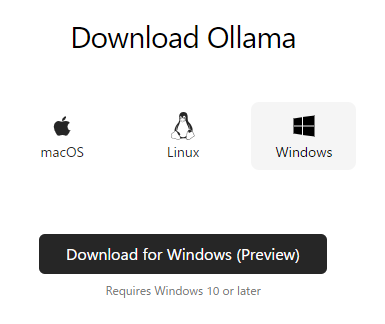
▼ Download Ollama for your OS here
https://ollama.com/download
▼ Windows builds are still in Preview
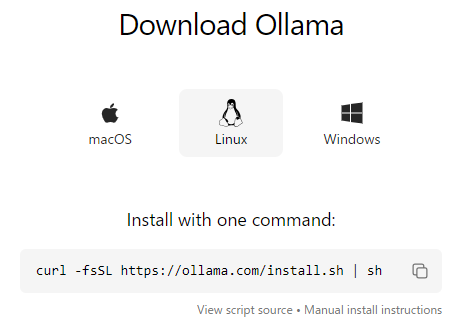
▼ Linux can be installed via command-line
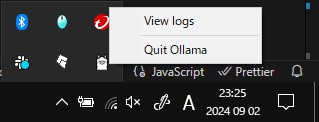
▼After installation, Ollama was already running in the background.
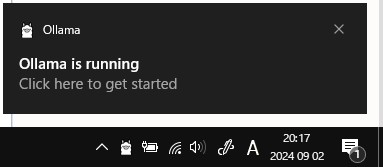
▼ If you don’t exit Ollama from the taskbar, it remains running.
Trying Gemma2
Downloading the Model
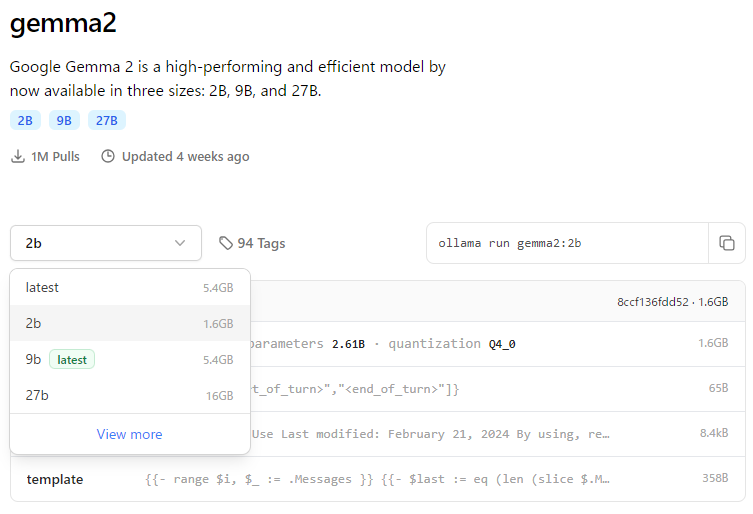
This time, I’m using the Gemma2 2B model.
▼ Gemma2 model page
https://ollama.com/library/gemma2:2b
▼ Other variants like “instruct” and “text” appear under View more
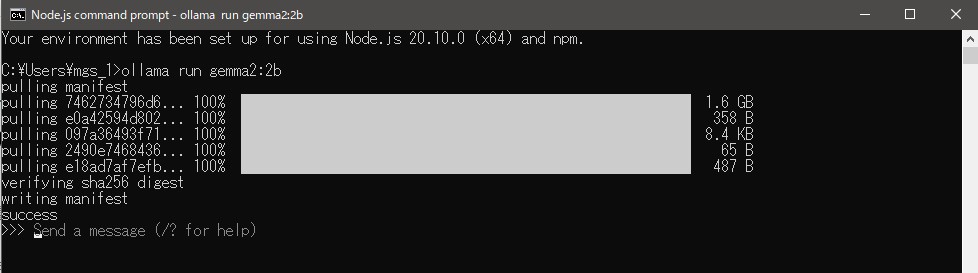
▼Install via command prompt:
ollama run gemma2:2b▼Once installed, you can start sending messages to the model.
In another command prompt:
ollama list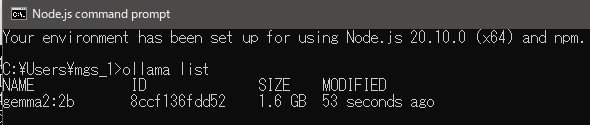
This shows installed models.
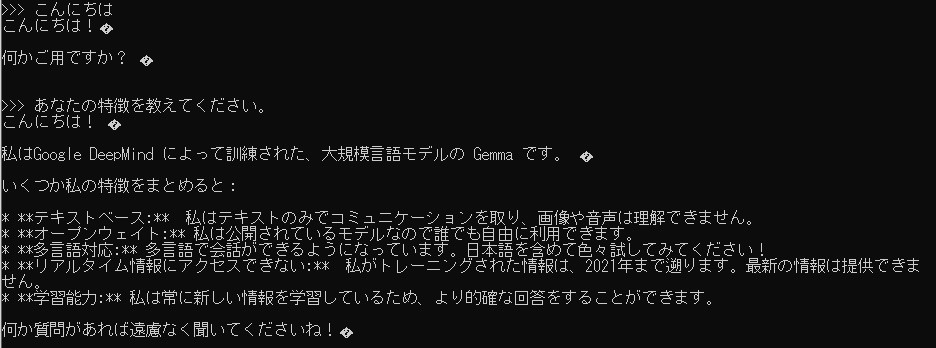
I tried chatting with the model in the command prompt.
▼I greeted the model and asked about its features. It seems to be trained on data up to 2021.
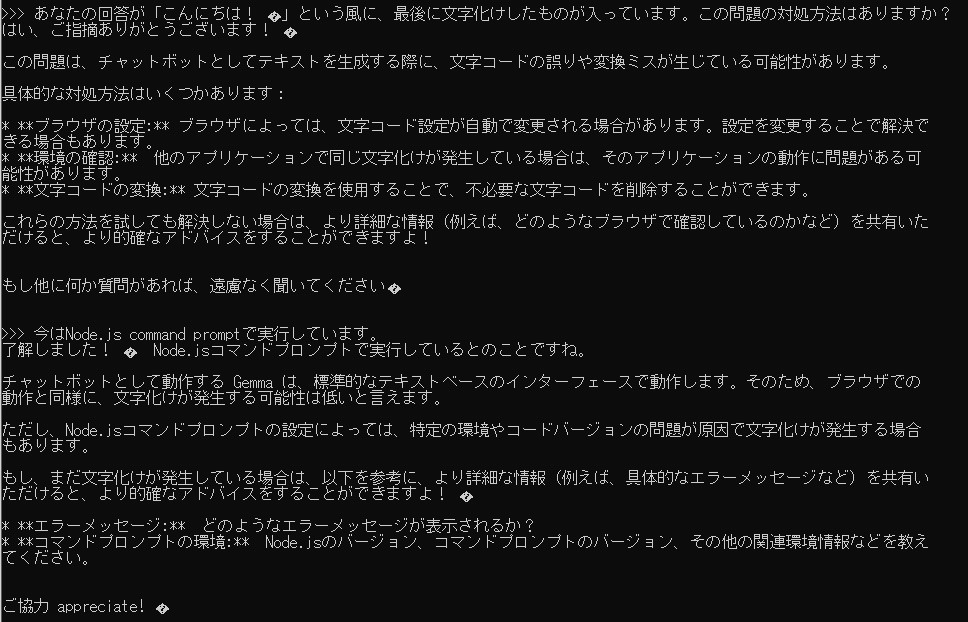
▼Some text came out garbled—maybe using a browser-based interface would fix this.
Asking About Differences Between Gemma2 Model Variants
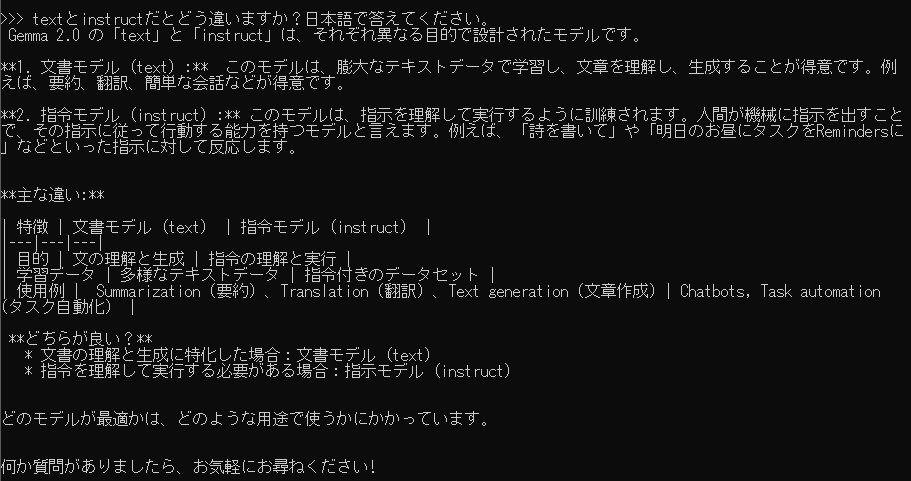
Gemma2 has several variants: text, instruct, etc. I wasn’t sure what the differences were, so I asked the model.
It seems:
- text → better for general text understanding
- instruct → better for following human instructions
▼Since I want to use this with robots, the instruct model seems more appropriate.
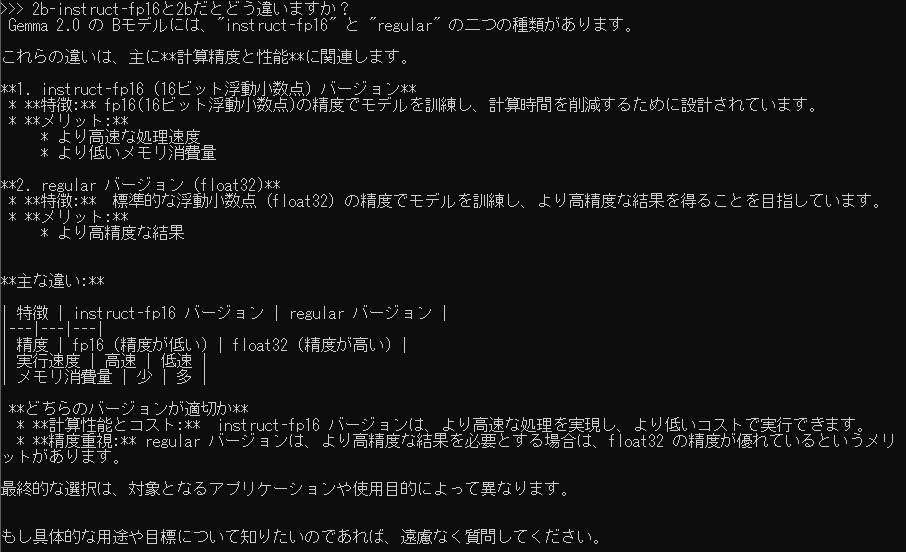
As for fp16 vs the regular 2B model:
- regular 2B uses 32-bit floats
- fp16 uses 16-bit floats
▼memory usage and inference speed differ.
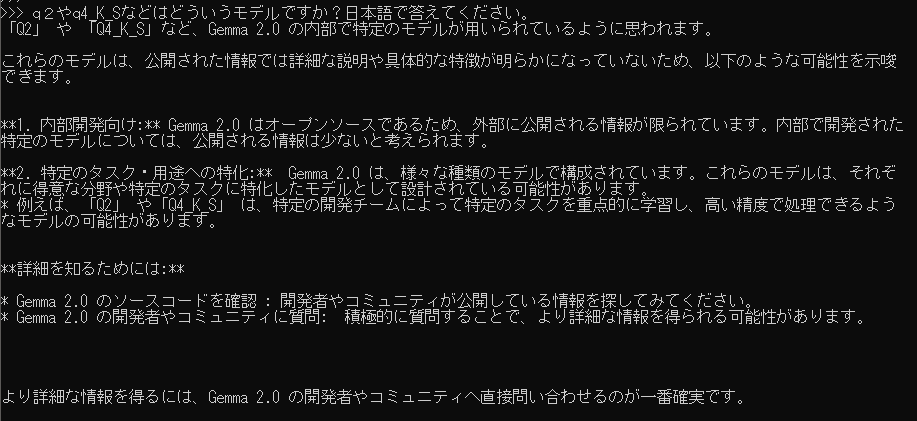
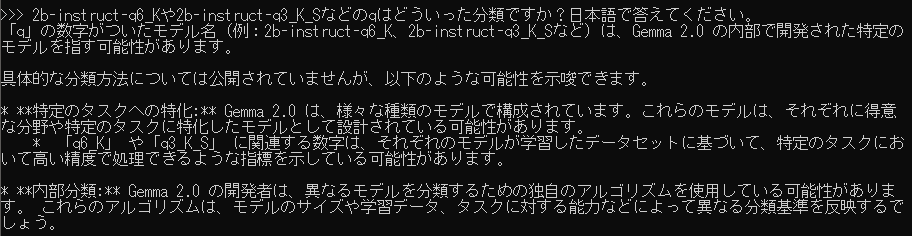
There were also models like 2b-instruct-q6_K, but I couldn’t find information about the “q” suffix.
▼It seems even Gemma2 itself doesn’t know about these newer quantization variants.
Testing Code Generation
While developing a Node-RED node, I wanted to open a URL in the default browser (to show a License Agreement page, etc.). So I tried asking both Gemma2 and ChatGPT about it.
Gemma2 generated code, but it produced errors. Even after I pasted the error back for correction, the generated code still didn’t work.
▼The responses looked plausible, though.
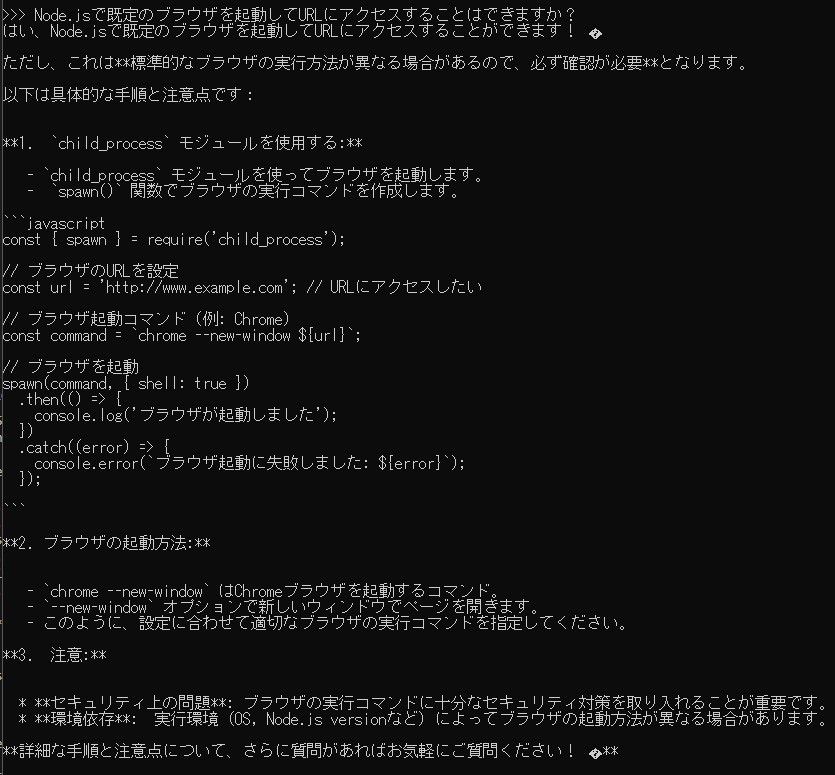
From the error messages, it seemed Gemma2 misunderstood how spawn should be used.
▼ChatGPT also pointed out that the usage of spawn was incorrect.
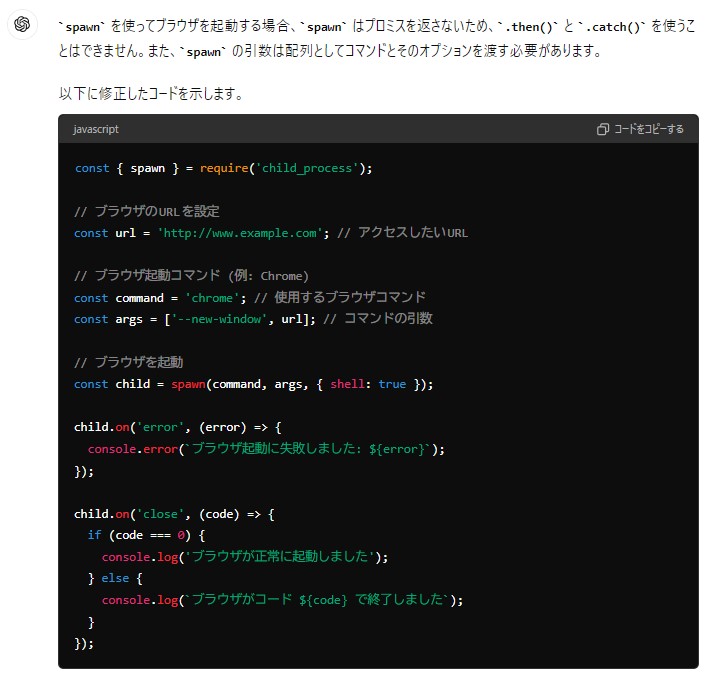
I then asked ChatGPT to write a working script.
▼ChatGPT suggested code using the open module.
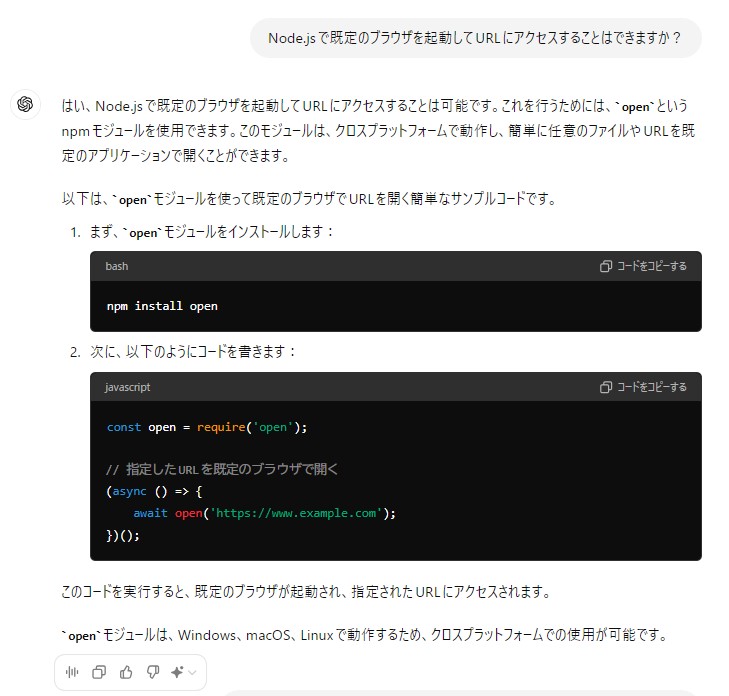
However, when I saved the suggested code as a .js file and executed it, an error occurred. According to the README for the open module, CommonJS is not supported, so the import method was wrong.
▼open module page
https://www.npmjs.com/package/open
▼When I pasted the error message to ChatGPT, it suggested saving the file as .mjs, after which it worked correctly.
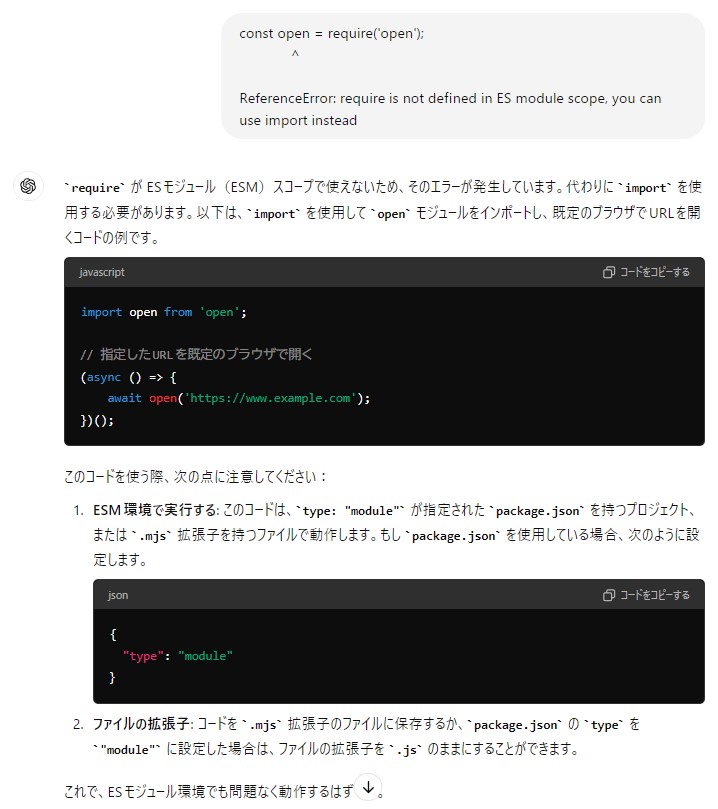
For high-accuracy code generation, ChatGPT is still better. I’ll probably use Gemma2 for small, quick local queries.
Trying It in Node-RED
There is a Node-RED node specifically for Ollama.
▼It uses ollama-js internally
https://flows.nodered.org/node/node-red-contrib-ollama
I imported the sample flow and tested only the Chat node.
▼Sample flow shown here

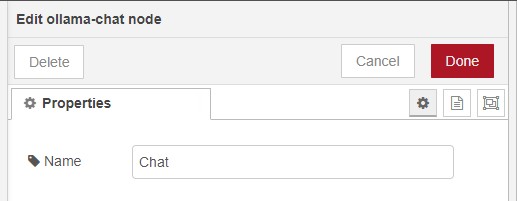
▼Inside the node, only the display name can be configured.
▼Running it as-is produced an error: model name unknown.
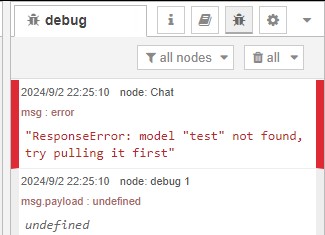
The inject node had the model and message settings.
▼The model field was “test”, so I changed it to gemma2:2B.
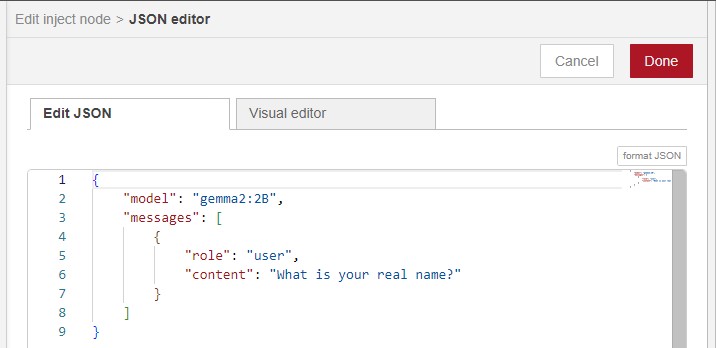
▼It worked. After triggering the inject node, a response came back within a few seconds.
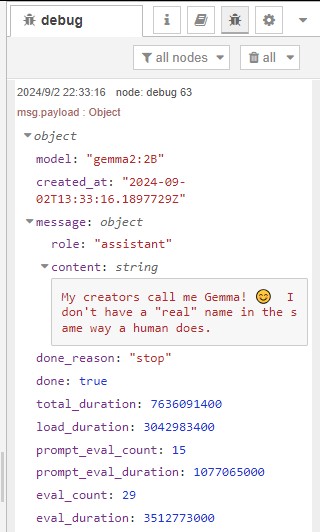
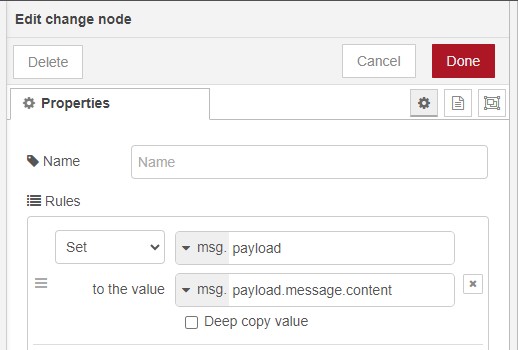
Next, I extracted only the response text from msg.payload.
▼Updated flow: I added a change node.

▼I mapped msg.payload.message.content into msg.payload.
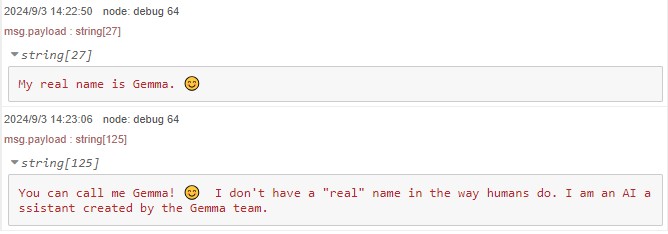
▼Responses differed each time I executed it.
Conclusion
I was honestly surprised at how fast Gemma2 runs on my laptop. When I previously tried running local AI models years ago, they were extremely slow.
Sometimes the model responded in English unless I explicitly instructed it to answer in Japanese, so giving a clear instruction is useful.
I also wish the Node-RED Ollama node supported selecting the model directly inside the node itself. Ideally, I’d like to send only the question text as msg.payload.
Since Node-RED integration works well, I plan to experiment with combining Ollama with other nodes.