Trying Out Unreal Engine 5 Part 2 (Git/GitHub)
 管理人
管理人Introduction
In this post, I tried managing the history of Unreal Engine 5 (UE5) using Git/GitHub. I usually save not only programs but also CAD data in repositories.
It was easy to use, requiring just a few extra steps during the saving process.
For this setup, I used two Windows PCs.
▼Previous articles are here:
Trying Out Unreal Engine 5 Part 1 (Datasmith, DUALSHOCK 4)
Introduction I have decided to use Unreal Engine 5 to simulate robots. I have been creating robots in both hardware and software, and I intend to use my expe…
 趣味的ロボット研究所
Installing Necessary Software
When you hear "version control with Git," you might imagine executing commands. I recommend GitHub Desktop, which can be used with a GUI. I believe it is easy to use even for those not accustomed to command-line operations and is visually intuitive.
▼Download Git here:
▼Download GitHub Desktop here:
▼I have summarized information for team development, so please take a look if you are interested:

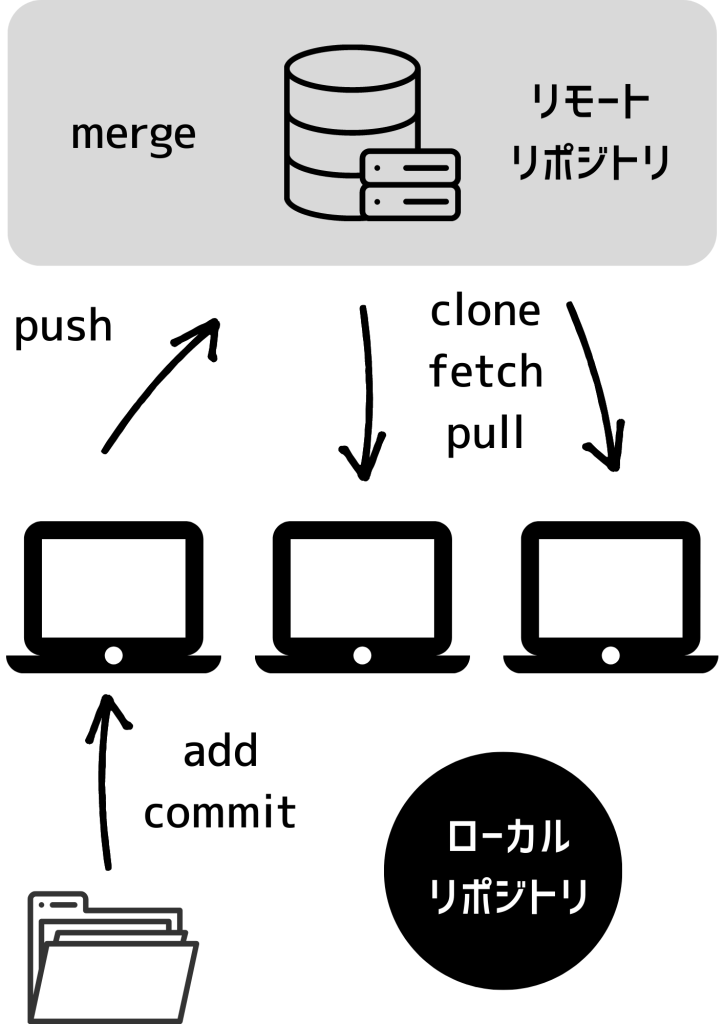
▼Simply put, it’s like saving computer data stored locally into a remote repository. It keeps a history of who modified what and when.
Preparing GitHub
Please create a GitHub account beforehand.
▼The GitHub page is here:
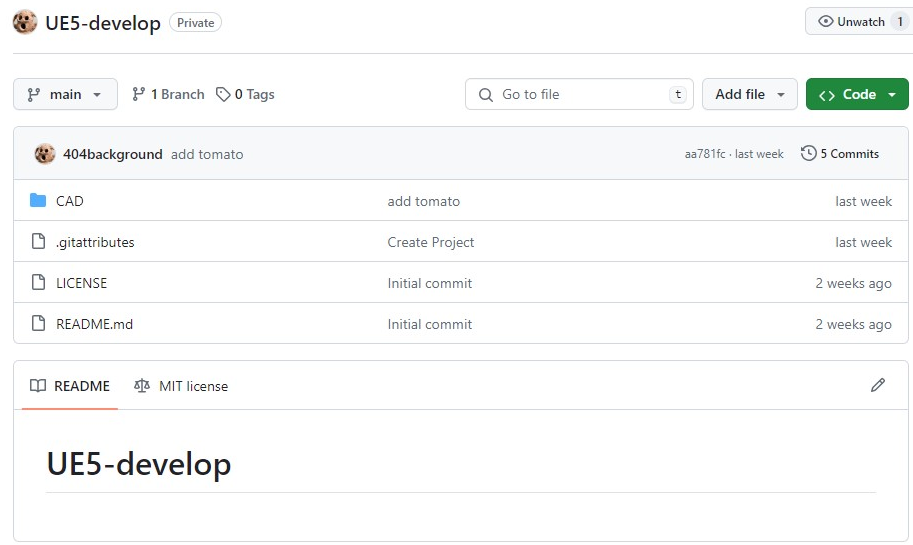
I will also create a repository, which is the storage destination.
▼You can create a repository from here:
▼I created mine as a Private repository.
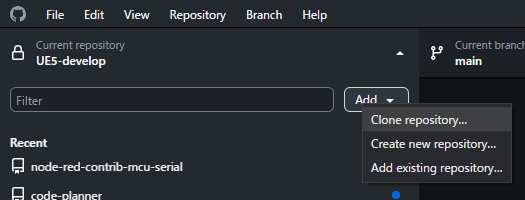
▼Clone the repository using GitHub Desktop.
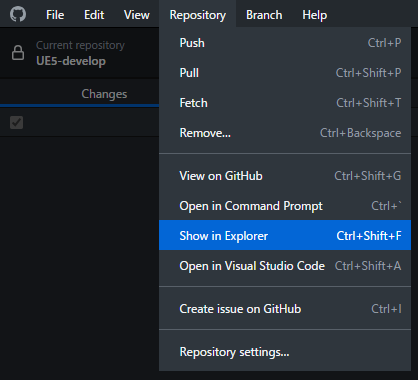
▼You can open the destination folder by selecting "Show in Explorer" from the Repository menu.
Creating a Project in UE5
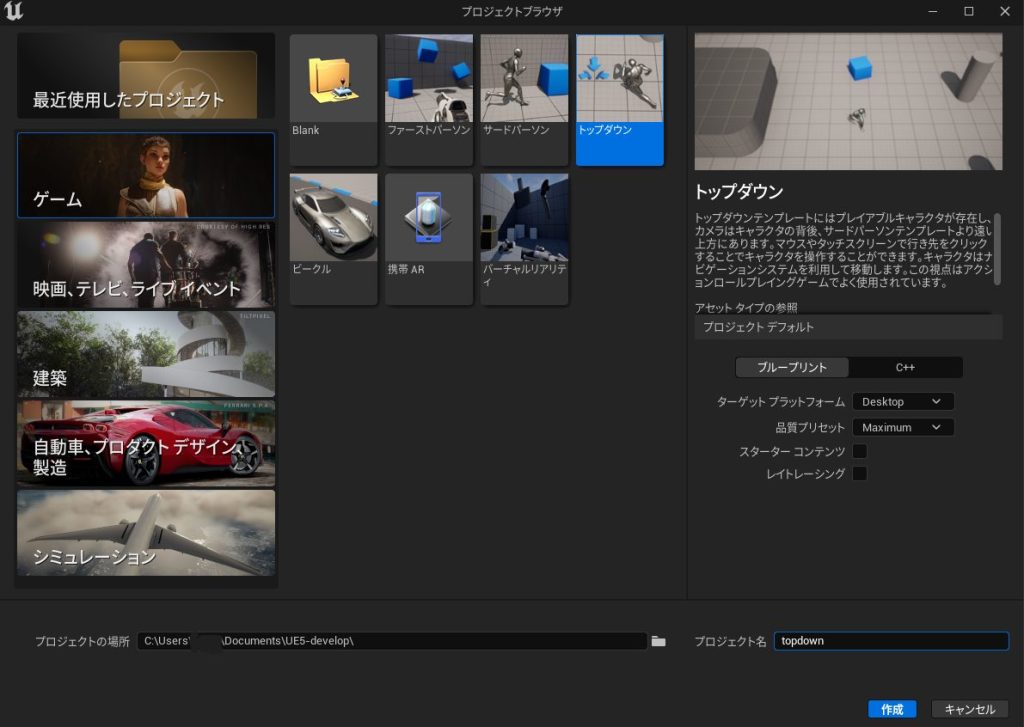
This time, I created a Top Down project. When doing this, set the project's save location to the repository folder cloned from GitHub.
▼Please check the project folder before creating it.
▼It looks like this when you open the project.


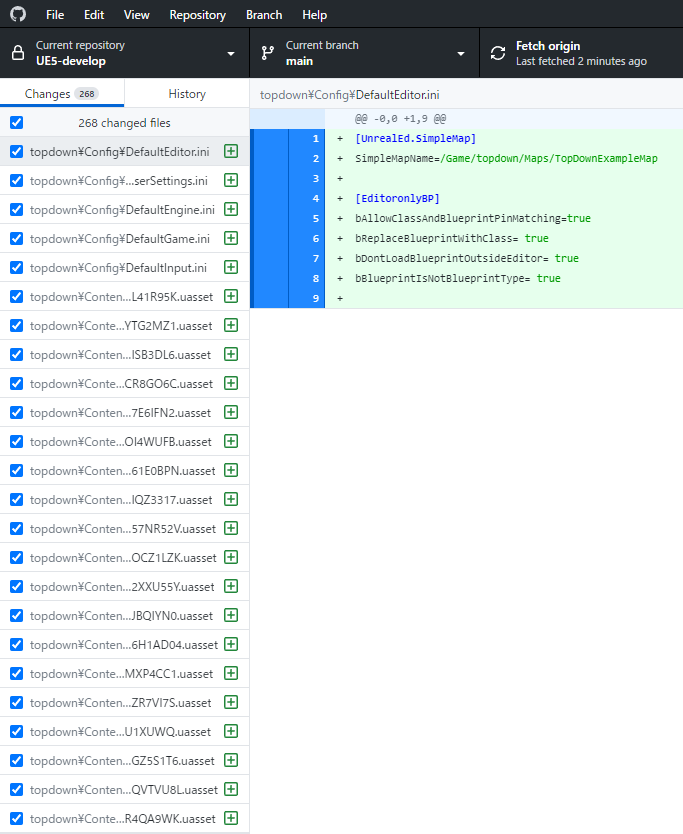
At this point, if you open GitHub Desktop, you should see the items added to the folder.
▼A large number of files have been added.
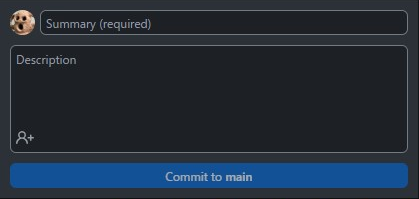
By writing a summary in the "Summary" field and committing, you will be able to push the changes.
▼It is located in the bottom left of GitHub Desktop.
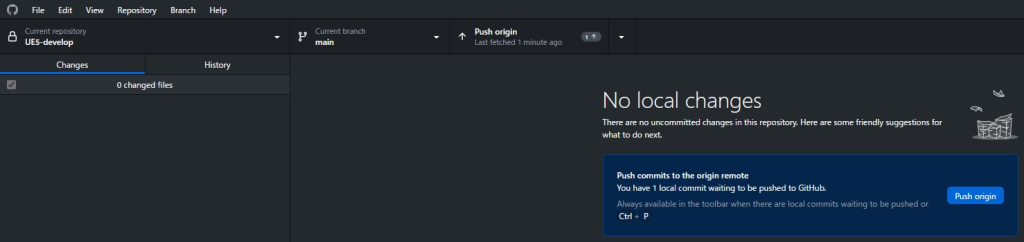
When you push, the changes are reflected in the remote repository.
▼Select "Push origin."
If the File Size is Large
If the file size is too large, an error might occur during committing. In that case, use Git LFS (Large File Storage).
▼Download Git LFS here:
It could also be used with GitHub Desktop.
▼By following the settings in this article, I was able to commit without any issues:
https://qiita.com/pvicugna11/items/f84cb2527989a3a4c63a
Please note that there are capacity limits.
▼Here is some information regarding capacity:
GitHub DesktopでLFSを使う(利用制限について追記11/23) - tanaka's Programming Memo
LFSとは、Large File Storage(大きいファイルの保存領域)のことです。 Gitはソースコードのバージョン管理を目的としていたシステムです。画像や音声データなどのバイナリ…
 tanaka's Programming Memo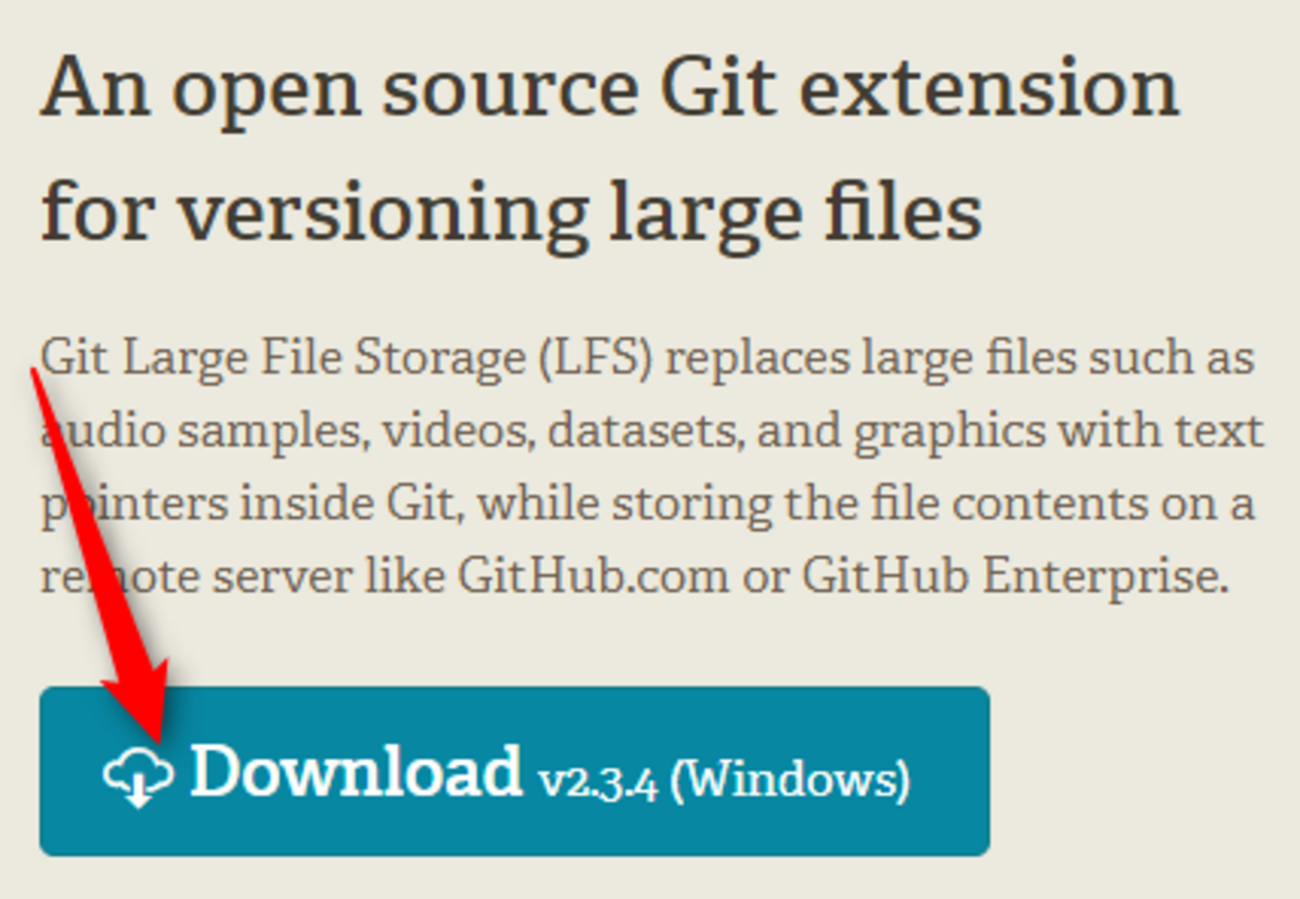
https://mseeeen.msen.jp/how-to-increase-git-lfs-data-capacity
▼You can check your usage here:
https://github.com/settings/billing/summary
In my case, I am currently using 0.15GB out of 1GB.
Trying to Share with Another PC
I tried sharing data with another PC through the repository on GitHub. GitHub Desktop and other necessary software are already installed.
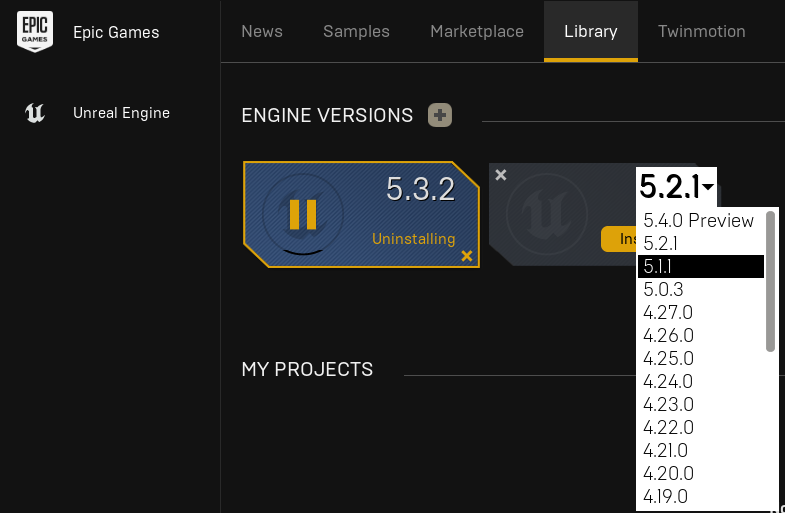
Please be careful, as you may not be able to open projects if the Unreal Engine versions differ.
▼You can install different versions of Unreal Engine via the Epic Games Launcher. I made sure to match them at 5.1.1.
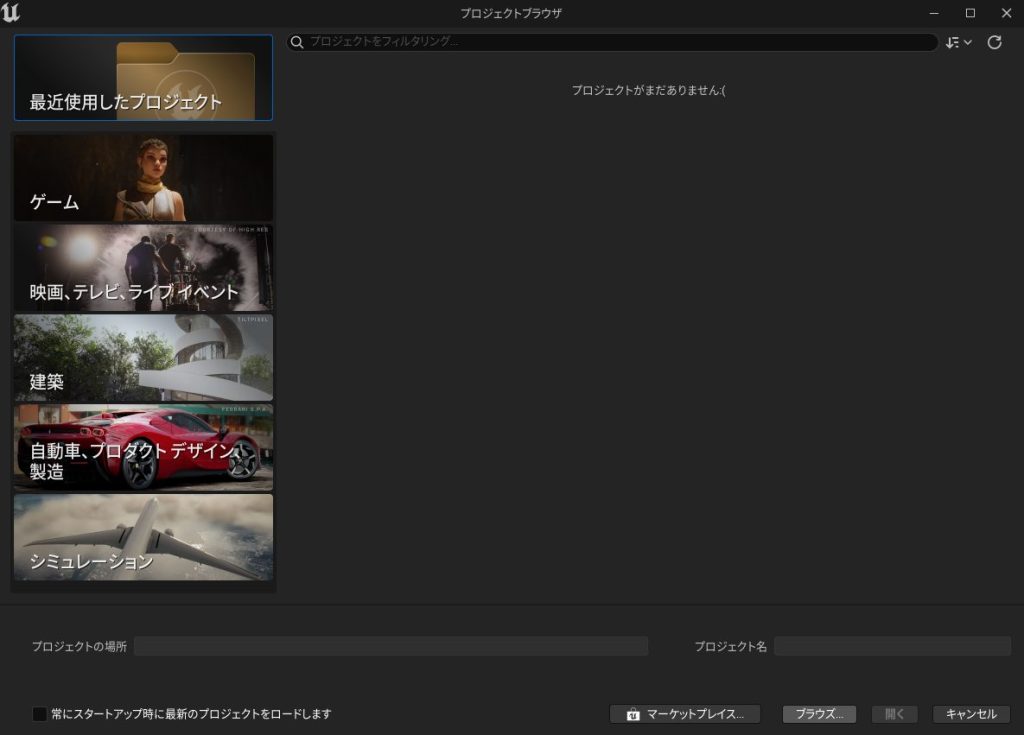
Select the .uproject file located inside the folder cloned from GitHub.
▼When opening a project, select "Browse" at the bottom and search for the file.
▼It opened correctly! I tried adding an object.
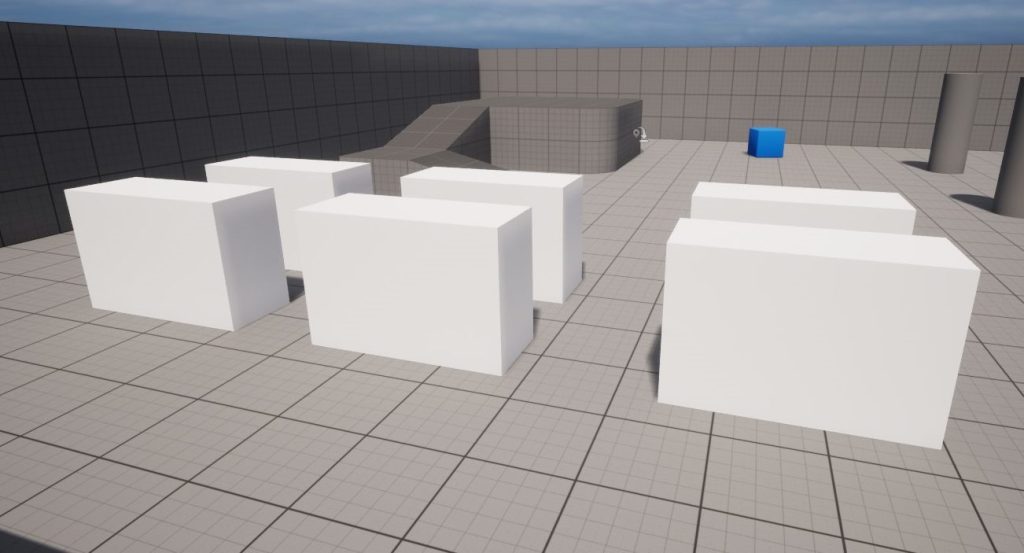
Next, I will commit and reflect those changes back to the PC I was originally using.
▼I added an object, committed, and pushed.
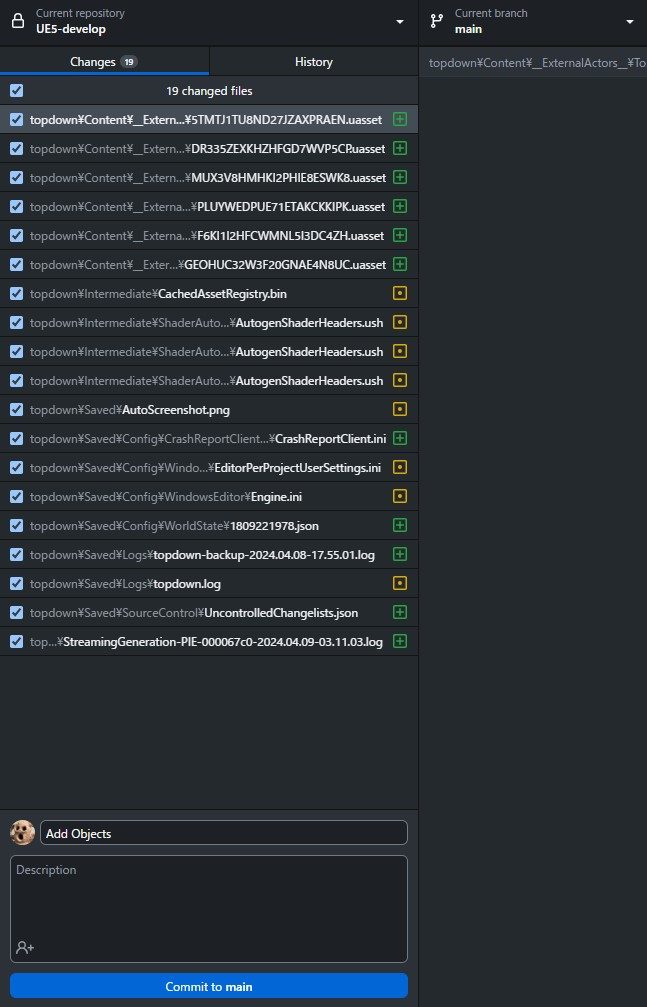
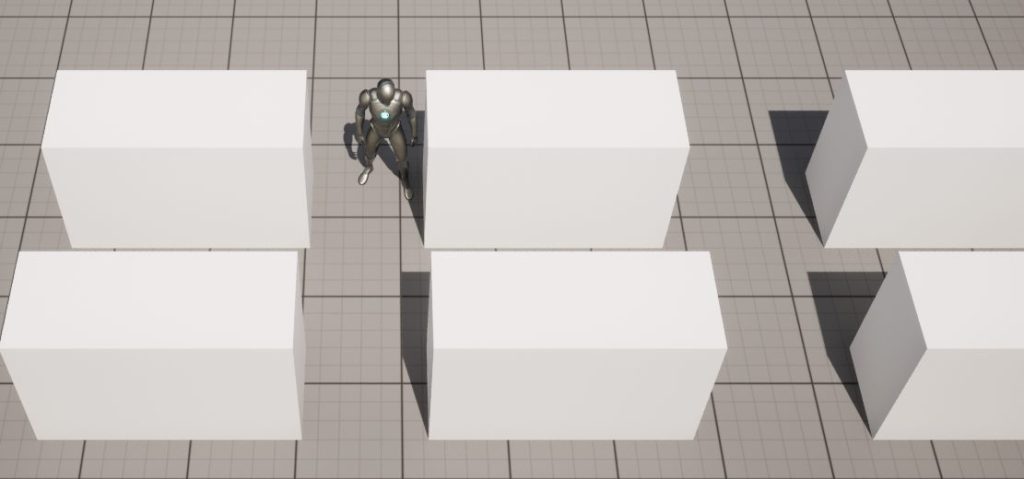
▼It was reflected correctly!
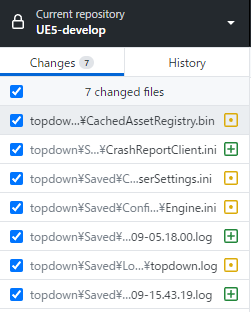
▼It seems that even just opening the project generates log files. If they are unnecessary, you can add them to .gitignore so they are not included during commits.
Trying the Diff Tool
Unreal Engine Blueprints have a feature to check differences, similar to Git.
▼The page for the Unreal Diff Tool is here:
https://dev.epicgames.com/documentation/ja-jp/unreal-engine/ue-diff-tool-in-unreal-engine
▼This article was also helpful:
https://qiita.com/EGJ-Kaz_Okada/items/5be2df3c7fff8c394193
By default, objects are not set as targets for difference monitoring, so you need to configure them.
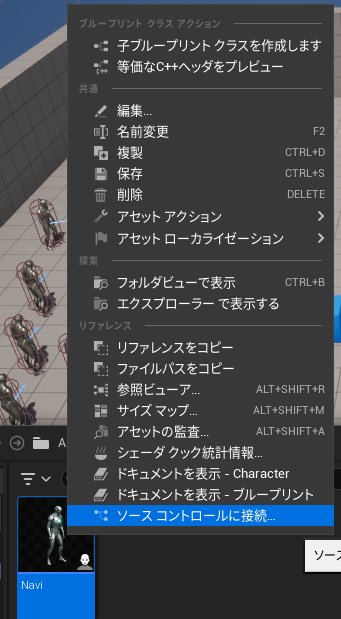
▼Right-click the object whose Blueprint differences you want to monitor and select "Connect to Source Control."
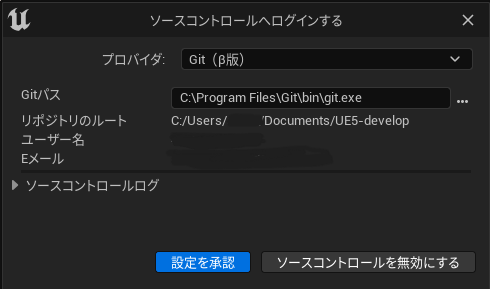
▼This time, I will manage it with Git.
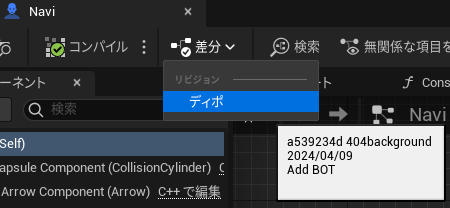
▼When you select Blueprint differences, the revisions are displayed.
▼The changed areas are displayed in a visually intuitive way. You can see the parts where links were removed.


Finally
Now that I can manage UE5 history with Git/GitHub, I plan to proceed with development in earnest.
I learned for the first time that Git LFS can be used with GitHub Desktop. Although there are capacity limits, it seems very useful.
Back when I used Git Bash for operations like committing, it was tough until I got used to the commands. Since switching to GitHub Desktop, switching branches has become easy, and selecting what to add during a commit is also simpler, so I highly recommend it.