Switching Between Multiple CUDA Versions (WSL2 Ubuntu 22.04)
 管理人
管理人Introduction
In this post, I experimented with switching CUDA versions within a WSL2 Ubuntu 22.04 environment.
Previously, when I built an environment for 3D Gaussian Splatting (3DGS), I used an installation method that involved deleting the existing CUDA version.
▼I tried that in this article:
Trying Out 3D Gaussian Splatting Part 1 (Environment Setup, WSL2 Ubuntu 20.04)
Info This article is translated from Japanese to English. Introduction In this post, I set up the environment to use 3D Gaussian Splatting.I have been creating…
 趣味的ロボット研究所
This time, I tried to see if I could change the CUDA version while minimizing the impact on other environments as much as possible.
▼Previous articles are here:
Object Detection with YOLO Part 4 (GPU Setup, CUDA 12.6)
Info This article is translated from Japanese to English. Introduction In this post, I tried object detection with YOLO using a GPU.According to the Ultralytic…
Trying Out 3D Gaussian Splatting Part 2 (Reconstructing 3D Models from Image and Video Data, WSL2 Ubuntu 20.04)
Info This article is translated from Japanese to English. Introduction In this post, I tried reconstructing 3D models using 3D Gaussian Splatting (3DGS) from i…

Installing CUDA
I'll perform the verification in a WSL2 Ubuntu environment.
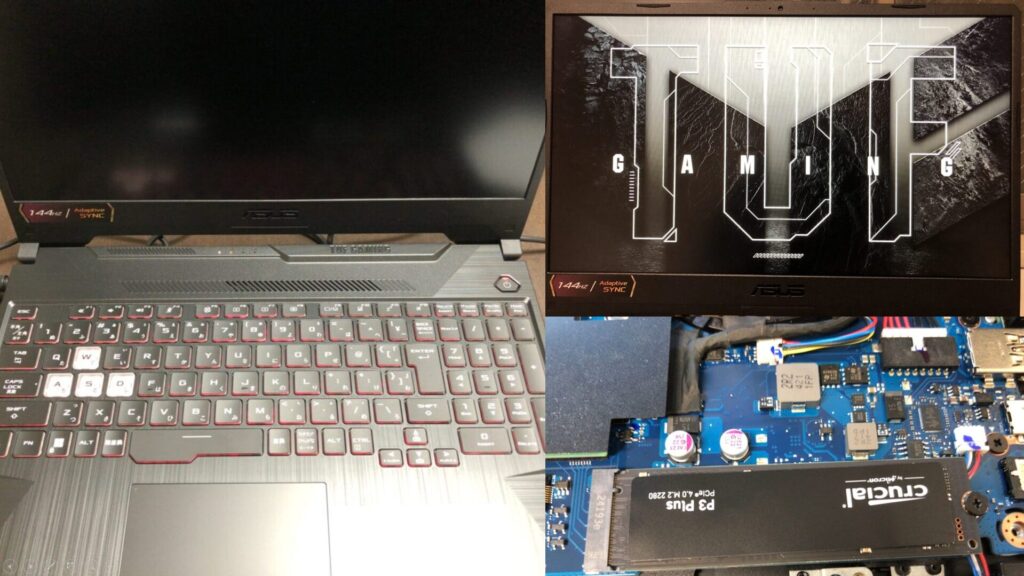
▼I am using a gaming laptop purchased for around 100,000 yen, running Windows 11.
Shopping: New Laptop and SSD Expansion (ASUS TUF Gaming A15)
Info This article is translated from Japanese to English. Introduction In this post, I’ll be talking about replacing my PC after my previous one broke down. I …

 ポチップ
ポチップ
▼Since I can now install multiple Ubuntu 22.04 environments, I will execute the process within one of those instances.
Using WSL2 Part 5 (Installing Multiple Instances of the Same Distribution, Ubuntu 22.04)
Info This article is translated from Japanese to English. Introduction In this post, I installed a second instance of the same Ubuntu version on WSL2.I didn't …

▼Documentation regarding CUDA support on WSL2 can be found on the following page:
https://docs.nvidia.com/cuda/wsl-user-guide/index.html#getting-started-with-cuda-on-wsl-2
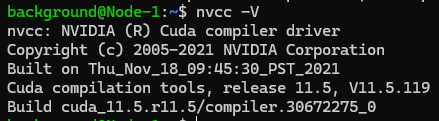
I checked the current version by running "nvcc -V".
▼It seems "nvidia-cuda-toolkit" is required to run nvcc.

I installed "nvidia-cuda-toolkit" with the following command:
sudo apt update
sudo apt install nvidia-cuda-toolkit
▼It looks like CUDA 11.5 is installed.
Next, I'll try installing the latest CUDA Toolkit.
▼Installation commands tailored to your environment are displayed on the following site:
▼At this point, 13.0 seemed to be the latest version. "WSL-Ubuntu" is available as an option.
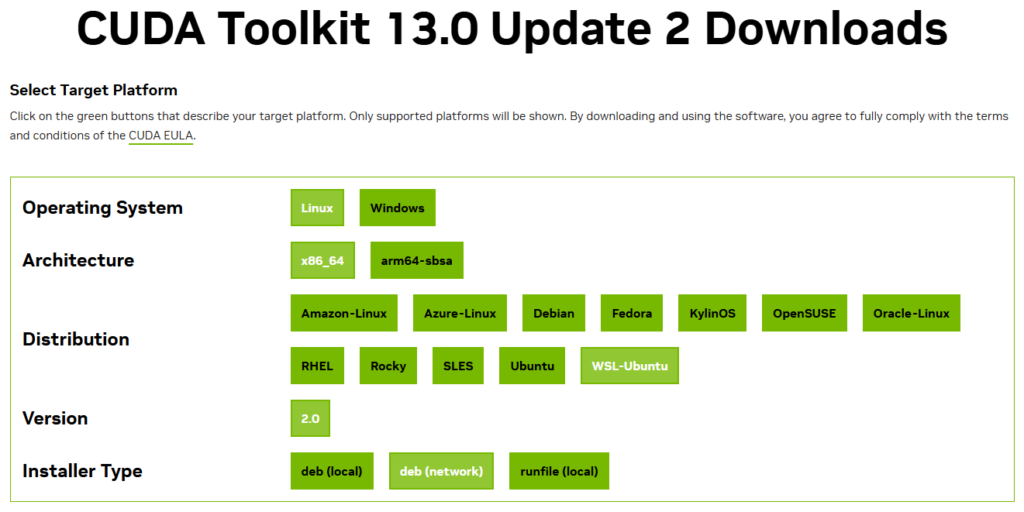
After making the selections, I executed the commands displayed at the bottom:
wget https://developer.download.nvidia.com/compute/cuda/repos/wsl-ubuntu/x86_64/cuda-keyring_1.1-1_all.deb
sudo dpkg -i cuda-keyring_1.1-1_all.deb
sudo apt-get update
sudo apt-get -y install cuda-toolkit-13-0
After the execution finished, running "nvcc -V" still didn't show the CUDA version as 13.0.
I asked ChatGPT and tried the following commands:
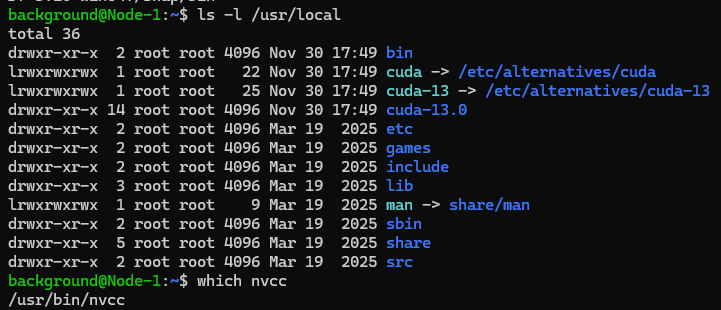
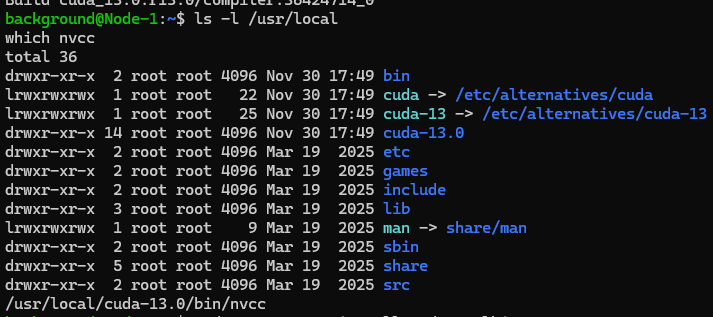
ls -l /usr/local
which nvcc
▼It appeared that "cuda-13" had been added to /usr/local.
I executed a command to change the environment variables:
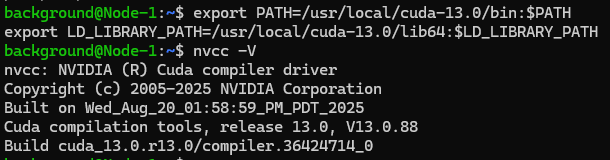
export PATH=/usr/local/cuda-13.0/bin:$PATH
nvcc -V
▼The version was successfully changed to CUDA 13.0.
Installing a Different Version of CUDA
The previous CUDA Toolkit was the latest one, but archives of older versions are also available.
▼This is the page:
https://developer.nvidia.com/cuda-toolkit-archive
From there, since I wanted to use CUDA 11.8 this time, I selected CUDA Toolkit 11.8.
▼Here is the link:
I executed the following commands:
wget https://developer.download.nvidia.com/compute/cuda/repos/wsl-ubuntu/x86_64/cuda-keyring_1.0-1_all.deb
sudo dpkg -i cuda-keyring_1.0-1_all.deb
sudo apt-get update
sudo apt-get -y install cuda
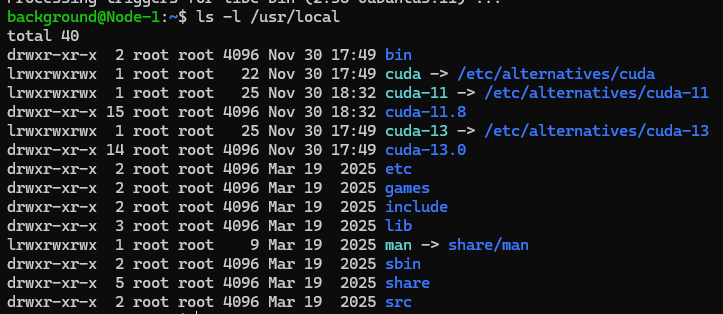
▼At this point, I couldn't find the 11.8 version.
Previously, I specified the CUDA Toolkit version when installing with apt-get. I suspected that simply using "cuda" without a version number was the cause, so I ran the following command:
sudo apt-get -y install cuda-toolkit-11-8▼"cuda-11.8" has been added!
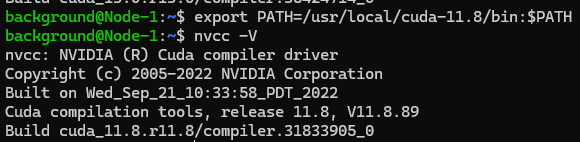
In this state, I tried changing the environment variables:
export PATH=/usr/local/cuda-11.8/bin:$PATH▼The version changed to CUDA 11.8.
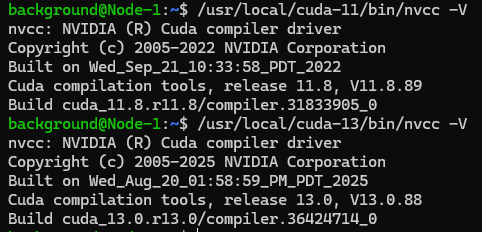
Both "cuda-11.8" and "cuda-13.0" contain nvcc, and specifying the path directly allowed me to see each version.
▼Both versions were output correctly.
Configuring via .bashrc
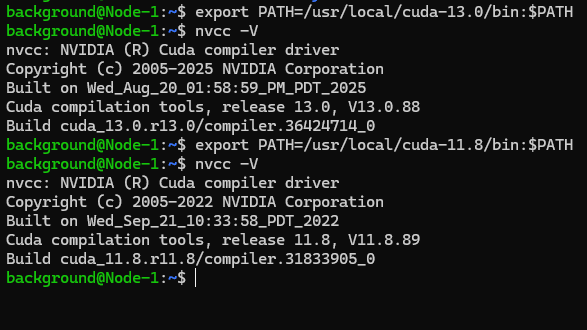
Based on the results so far, it seems like I can simply switch versions by running the following commands:
export PATH=/usr/local/cuda-13.0/bin:$PATH
export PATH=/usr/local/cuda-11.8/bin:$PATH
▼Just to be sure, I confirmed that switching works like this.
I decided to include these in my ".bashrc" file, which is familiar territory for setting ROS masters or IPs. These will be executed upon startup to set the environment variables.
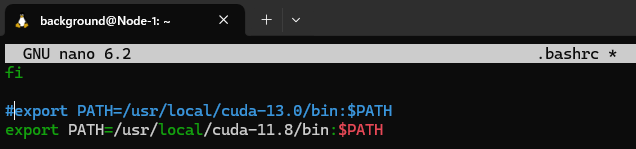
I ran "sudo nano .bashrc" and added them to the very end.
▼Since I wanted to use 11.8 immediately, I commented out 13.0.
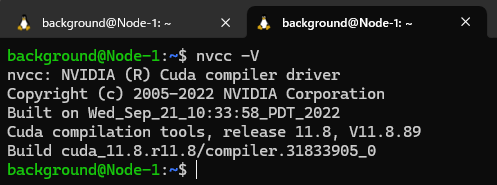
Now, if I run "source .bashrc" or open a new terminal, it should start in the CUDA 11.8 state.
▼When I opened a new terminal, it output as CUDA 11.8!
Finally
Now that I can install fresh WSL2 environments and switch between CUDA versions, I want to try running 3DGS in the WSL2 Ubuntu 22.04 environment again.
Documentation regarding environment variables also mentioned setting "LD_LIBRARY_PATH," so it might be better to execute that as well. I'll try running 3DGS and address any issues if they arise.
▼It was described on the following page:
https://docs.nvidia.com/cuda/cuda-installation-guide-linux/index.html#environment-setup
export LD_LIBRARY_PATH=${LD_LIBRARY_PATH}:/usr/local/cuda-13.0/lib64