Create Python Virtual Environments (venv, Windows)
 管理人
管理人Introduction
In this post, I have summarized how to create a Python virtual environment.
I was researching virtual environments in detail while developing a Node-RED node that utilizes Python. While you can easily find how to use a virtual environment via commands, in my case, I needed to use it within JavaScript. It might be a slightly unusual way of using it.
Creating a virtual environment offers the following benefits:
- It can be executed separately from the system-wide Python environment.
- It allows you to specify versions of Python and its packages for execution.
This makes the required packages for development clear, and it’s convenient because you can simply delete the virtual environment folder to start over.
▼This content is also related to the development of the python-venv node.
Creating Nodes for Node-RED Part 1 (python-venv)
Introduction I created a node for Node-RED that can use the Python virtual environment. I have created a node for Node-RED MCU before, but this is the seco…
 趣味的ロボット研究所
▼Previous articles are here:
Using VOICEVOX CORE with Python (Text to Speech)
Info This article is translated from Japanese to English. Introduction In a previous article, I tried speech synthesis and speech recognition using Google Clou…

Using OpensAI's Whisper (Speech Recognition, Python)
Introduction In this article, I used OpenAI's Whisper. I thought that OpenAI's service was a paid service with an API key, but the source code is available…

Related Information
▼The venv documentation is here. It seems venv was added starting from version 3.3.
https://docs.python.org/3/library/venv.html
▼The Python virtual environment construction guide for Windows is here.
https://www.python.jp/install/windows/venv.html
▼This site also introduces how to execute a script with the virtual environment's python using a Windows shortcut.
https://pi-trade.tech/programing-learning/python-venv-how-to
Installing Python
For this post, I am running Python in a Windows environment.
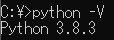
▼The system Python version displayed by python -V is 3.8.3.
▼I also installed 3.12.
https://www.python.org/downloads/release/python-3124
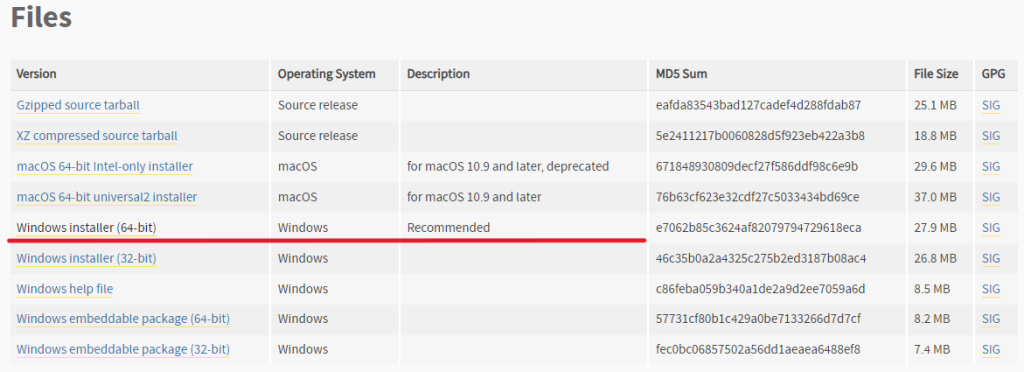
▼When installing, I downloaded and ran the recommended Windows installer (64-bit). The procedure is the same for installing other versions.
▼My PC already has various versions installed.
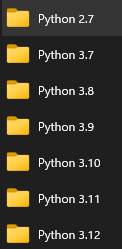
▼You can specify the version when creating a virtual environment later.
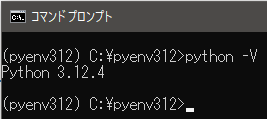
Depending on the Python package, it might not run on certain versions, or its dependent packages might fail to install. Being able to switch versions is very convenient. It’s a lot of work to uninstall and reinstall the system Python every time…
▼For example, in Python 3.12, the Setuptools package is no longer installed by default when a virtual environment is created. Changes like this occur between different versions.
Creating and Activating a Virtual Environment
Run this in the Windows command prompt. This time, I will create a virtual environment named pyenv.
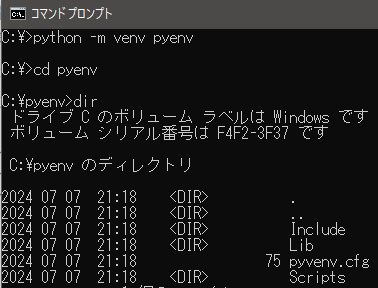
▼Here are the commands. I’ll move to the directory and list its contents.
 python -m venv pyenv
 cd pyenv
 dir
▼When executed, it looks like this.
Let’s look inside the Lib and Scripts folders.
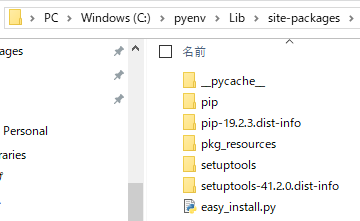
▼Installed packages are added to Lib/site-packages.
▼The Scripts folder contains executable files.
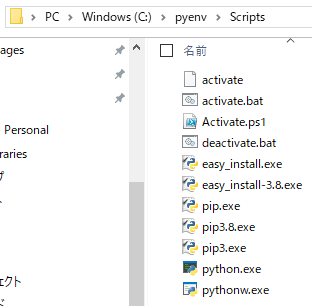
The virtual environment becomes active when you run activate.bat or activate in the Scripts folder. Conversely, running deactivate.bat deactivates it.
Running Activate.ps1 only opened the file in Notepad and did not activate the environment. This one is meant to be run in PowerShell rather than the Windows command prompt.
▼Execute the following command in the pyenv directory you moved to earlier.
Scripts\activate.bat
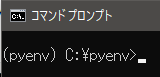
▼Once the virtual environment is active, its name is displayed on the left side.
▼Running pip list in this state shows that almost no packages are installed.
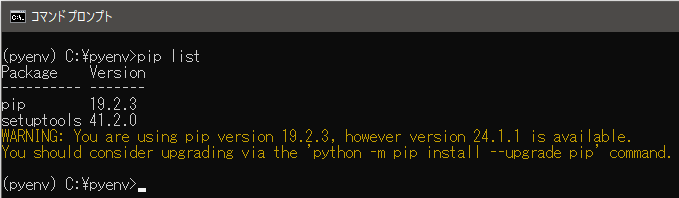
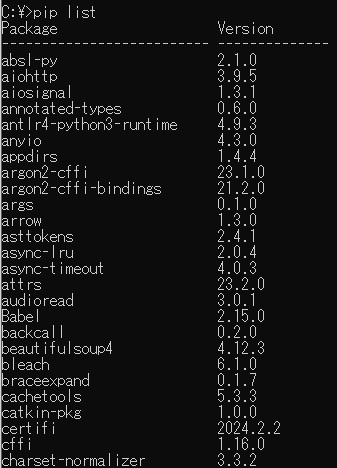
It is different from the packages installed in the system Python.
▼The output of the system pip list is different.
By the way, to run Activate.ps1 in Windows PowerShell, you need to grant execution permission in advance.
▼Here is the command:
Set-ExecutionPolicy RemoteSigned -Scope CurrentUser -Force
▼The virtual environment is now activated in PowerShell as well.

Creating a Virtual Environment Specifying the Python Version
The system was Python 3.8, but let’s try creating a virtual environment that runs on Python 3.12.
On Windows, you can use py.exe to specify the version and create a virtual environment.
▼It is described here in the documentation:
https://www.python.jp/install/windows/venv.html#4vYgls
As a prerequisite, the version of Python you want to use must be installed on the system.
▼If you try to create one with a version of Python that is not installed, it displays "No suitable Python runtime found."

Create and activate the virtual environment. This time, I created a virtual environment named pyenv312.
▼Here are the commands:
 py -3.12 -m venv pyenv312
 cd pyenv312
 Scripts\activate.bat
▼Checking the version with python -V shows Python 3.12.
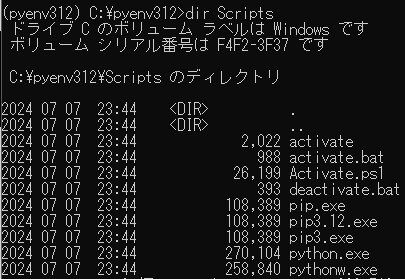
▼Looking at the Scripts folder with the dir command, pip3.12.exe is also included.
Running a Program in the Virtual Environment
Let’s check if it can be separated from the system environment by using a package that is not installed by default.
This time, I verified the operation with a program that requires the requests package. I saved the Python program as test.py in the pyenv312 folder created earlier.
▼Please change the url as appropriate.
import requests
url = 'https://example.com/'

try:
    response = requests.get(url)

    if response.status_code == 200:
        print(response.text)
    else:
        print(f"Failed to retrieve data. Status code: {response.status_code}")
except requests.RequestException as e:
    print(f"An error occurred: {e}")
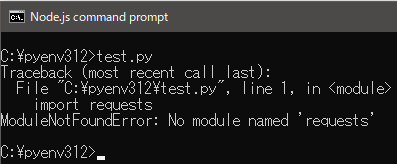
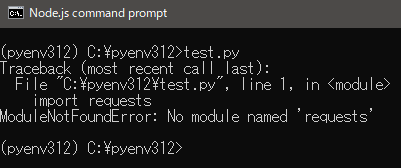
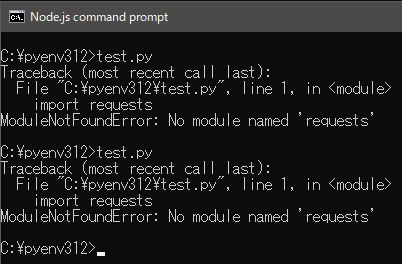
If requests is not installed, an error "ModuleNotFoundError: No module named 'requests'" occurs.
▼It fails to run both before and after activating the virtual environment.
I installed requests in the virtual environment and ran it again.
▼Here is the command to install:
pip install requests
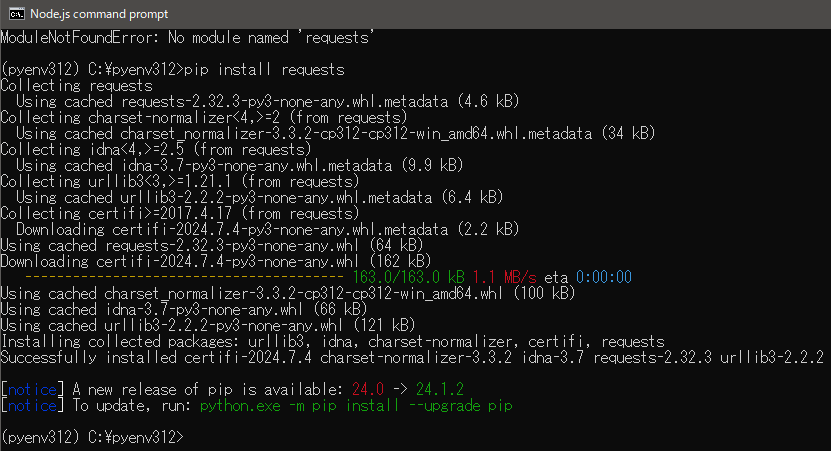
▼I was able to run it!
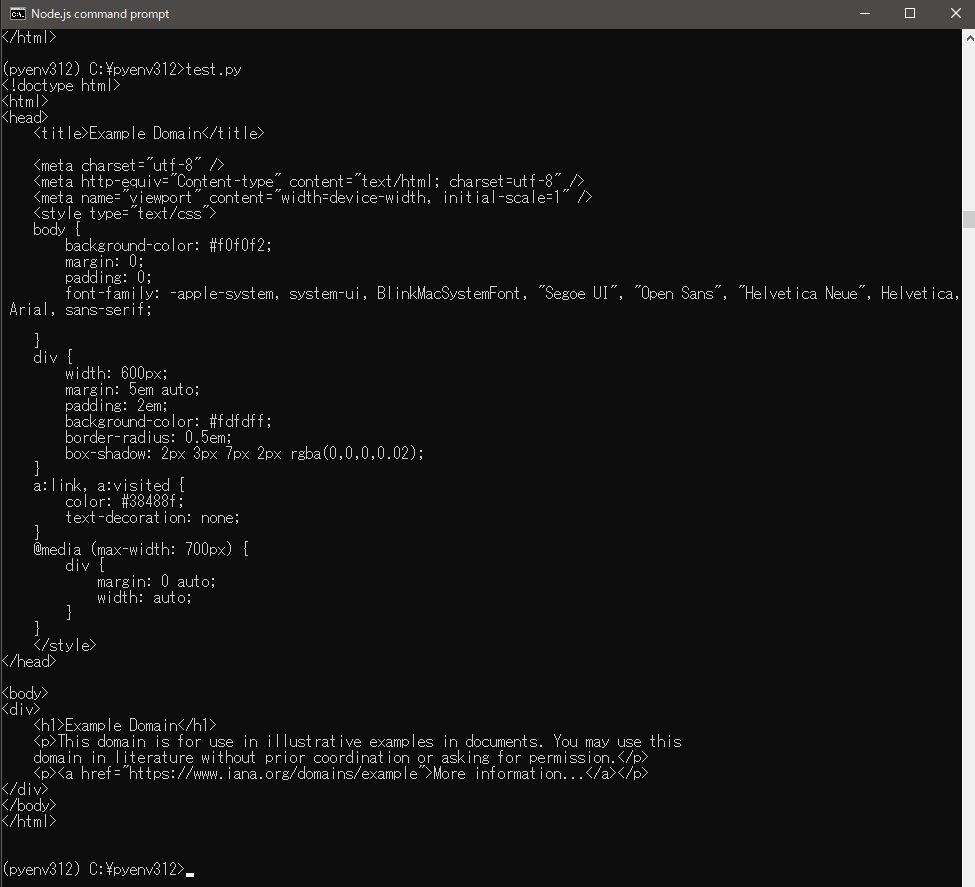
▼Even if you run it again with the system Python, requests remains uninstalled. The packages are successfully separated from the virtual environment.
Running a Program in a Virtual Environment Without Activating
When executing via CLI, the program could be run in the virtual environment as long as it was activated first. In contrast, when calling a program from another program, it is easier to use if it can be executed without activation.
In this case, you can execute it by using the python.exe or pip.exe included in the created virtual environment.
Let’s verify the operation again with the program using requests. Without activating the virtual environment, I will run the program using the python.exe located in the Scripts folder.
▼Execute the following command in the created virtual environment directory:
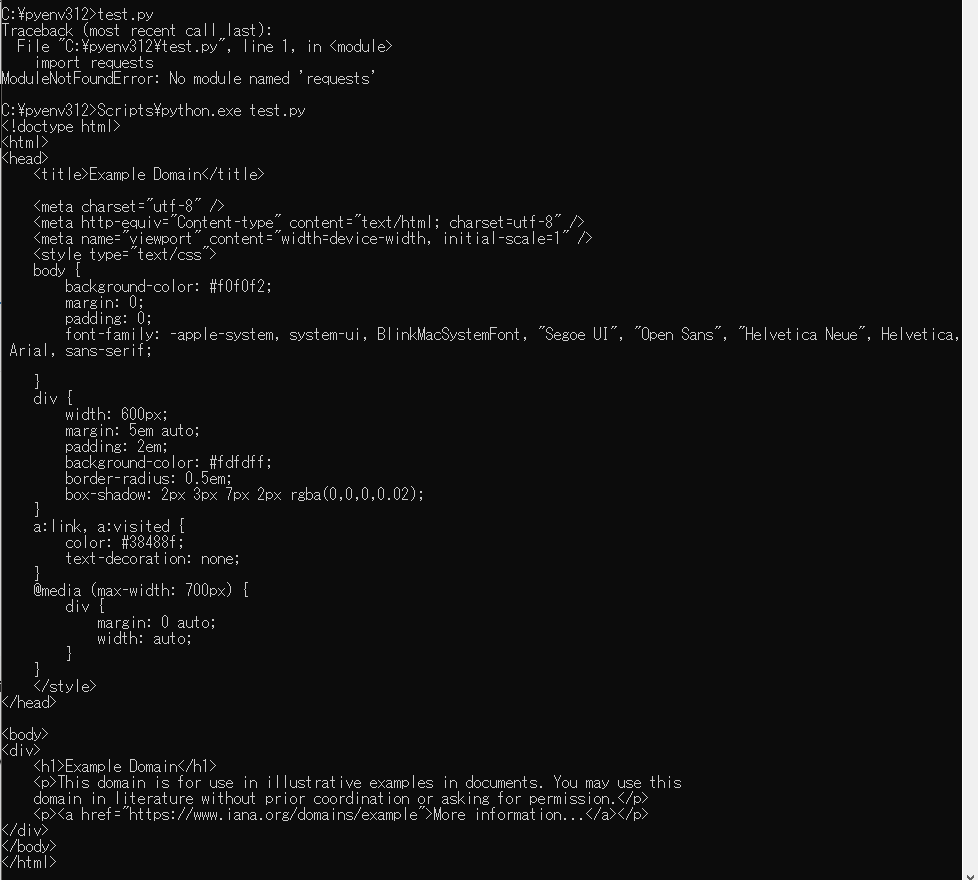
Scripts\python.exe test.py
▼The program was executed in the virtual environment without activation!
Similarly, when using a virtual environment to run Python from JavaScript, you can execute it by passing the path to python.exe in the virtual environment's Scripts folder and the path to the program.
▼When running JavaScript with Node.js, I have executed Python programs using exec, execSync, or spawn from child_process.
https://nodejs.org/api/child_process.html
Differences in venv Directory Structure by OS
As I also wrote in the article about the development of the python-venv node, there are differences depending on the OS.
It is mentioned in the documentation, and the file structure differs depending on whether it is a Windows environment.
▼It is described on this page:
https://docs.python.org/3/library/venv.html
▼To quote, it says:
It also creates a bin (or Scripts on Windows) subdirectory containing a copy/symlink of the Python binary/binaries (as appropriate for the platform or arguments used at environment creation time).
It also creates an (initially empty) lib/pythonX.Y/site-packages subdirectory (on Windows, this is Lib\site-packages).https://docs.python.org/3/library/venv.html
The following two folder names are different:
- bin (Scripts in the case of Windows)
- lib/pythonX.Y/site-packages (Lib\site-packages in the case of Windows)
bin/Scripts contains pip and python (or .exe files on Windows). Also, site-packages contains the packages installed in the virtual environment.
This is something to be careful about when creating software that utilizes virtual environments. In the python-venv node, it branches depending on whether the OS is Windows.
Finally
Utilizing Python virtual environments is very convenient for software development. They can also be called and used from other programs.
I have been using both JavaScript and Python a lot lately, specifically using Python for AI-related tasks and JavaScript for calling programs. However, since I am a mechanical engineering student and don't work in the field, I might be doing things in a somewhat unusual way.
If there are methods used in professional settings for versioning and package separation, or even more convenient methods, I would appreciate it if you could let me know in the comments.
▼The source code for the python-venv node is available on GitHub. Please take a look if you are interested.
https://github.com/404background/node-red-contrib-python-venv