Trying Out LM Studio Part 1 (Installation & Chatting with Local LLMs)
 管理人
管理人Introduction
In this post, I tried out LM Studio, a platform that allows you to run LLMs (Large Language Models) locally. I discovered it while browsing the "What's New" section during an NVIDIA driver update.
▼It is also mentioned alongside Ollama in the following article:
NVIDIA RTX PC で大規模言語モデルを始める方法 - NVIDIA | Japan Blog
Since it can be used not only for chat but also as an API endpoint, I decided to install it and give it a quick test.
▼I usually use Ollama:
 趣味的ロボット研究所
▼Previous articles:
GitHub Copilotを利用する その1(VS Codeとの連携)
はじめに 今回はGitHub CopilotをVisual Studio Code(VS Code)に導入してみました。 VS Codeで利用すると便利だと教えてもらったので使ってみたのですが、プロジェ…
ちょっと調べもの:GitHub CopilotのAgentモードでのエラー
はじめに 最近VS CodeのGitHub Copilotを利用して開発していたのですが、何かとエラーが起きて進まないことがありました。今回はそのエラーについて調べてみたという話…

Installation
I installed the Windows version of LM Studio.
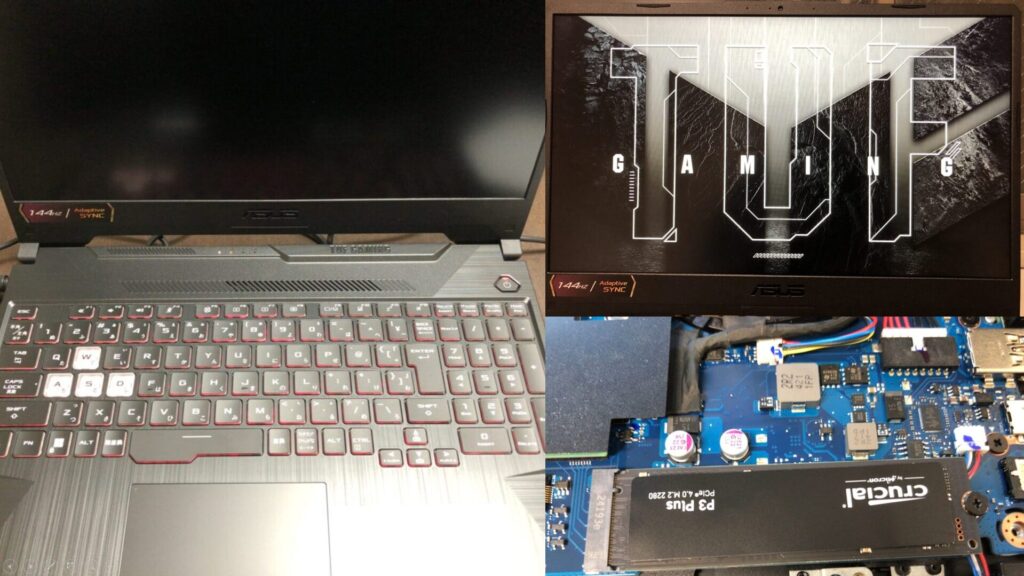
▼I am using a gaming laptop purchased for around 100,000 yen, running Windows 11.
Shopping: New Laptop and SSD Expansion (ASUS TUF Gaming A15)
Info This article is translated from Japanese to English. Introduction In this post, I’ll be talking about replacing my PC after my previous one broke down. I …

 ポチップ
ポチップ
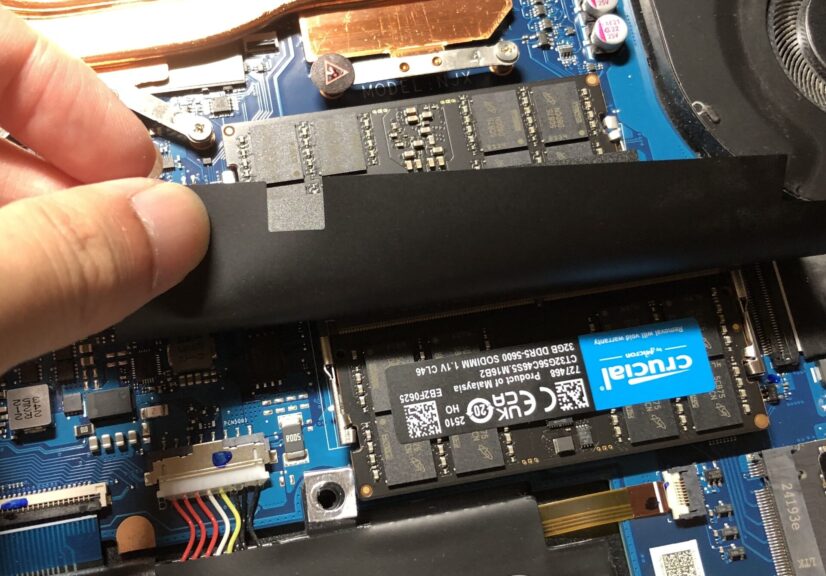
▼Memory has been upgraded to 64GB to run the local LLM.
Shopping: Upgrading Laptop Memory (ASUS TUF Gaming A15, gpt-oss-20b)
Info This article is translated from Japanese to English. Introduction In this post, I’ll be sharing my experience upgrading the RAM in my daily-use laptop fro…
 ポチップ
ポチップ
▼I downloaded and ran the installer from the following page:
LM Studio - Local AI on your computer
▼It requires about 1.8GB of space.
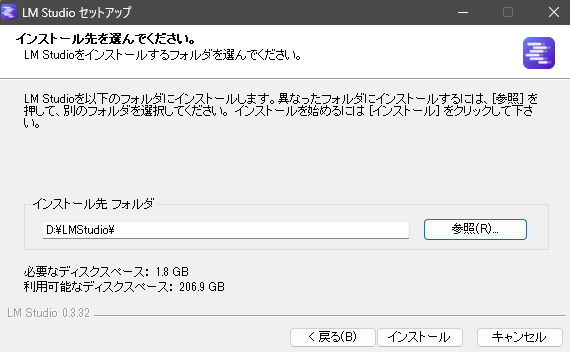
▼After installation, I launched the app.
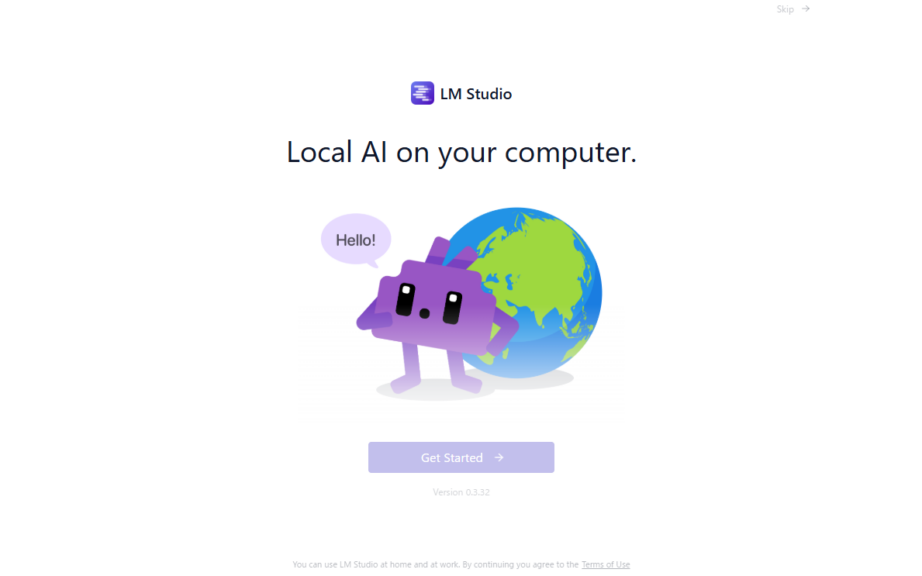
The "Get Started" button was semi-transparent at first, but became selectable after a short wait.
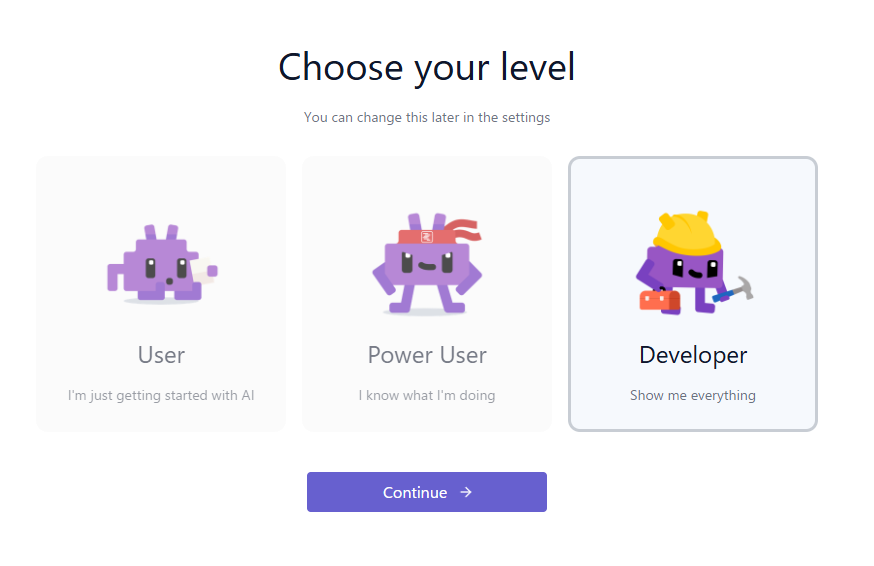
▼I set my experience level to "Developer."
Next, I downloaded an LLM model.
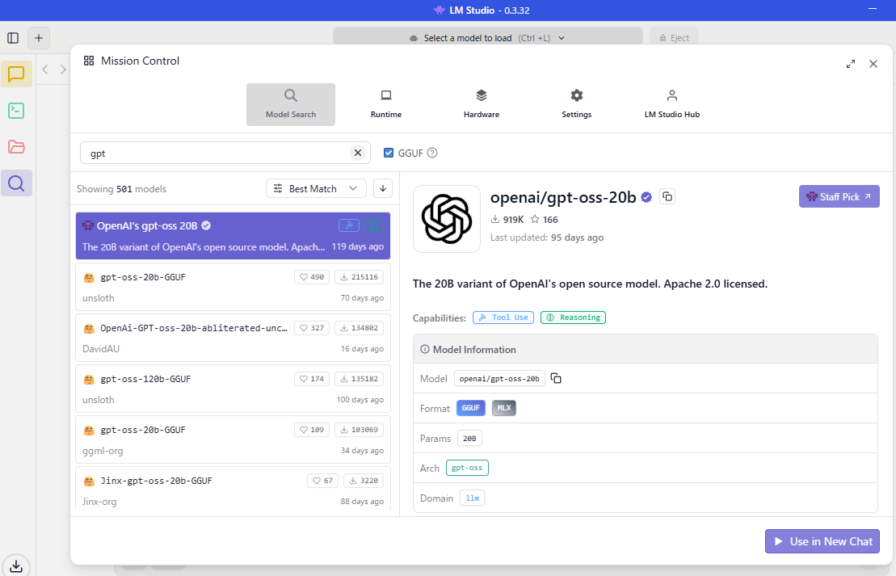
▼The first recommendation was gpt-oss-20b. I've used this one before.
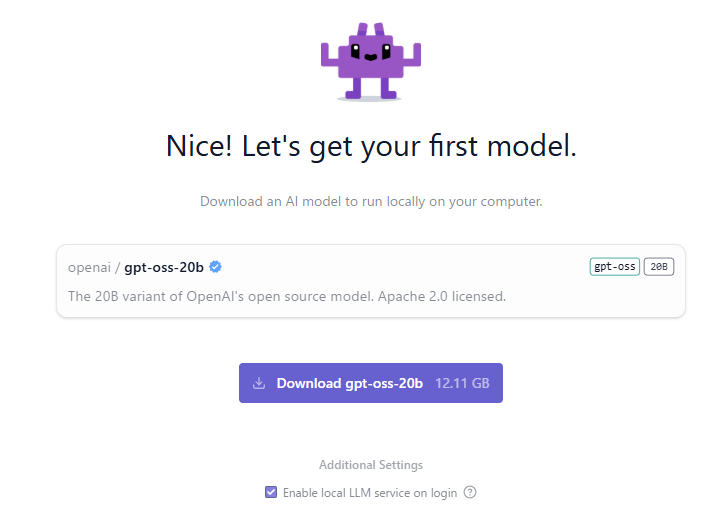
This download required 12.11GB, so storage capacity is definitely a key factor. While waiting for the download, I explored the app's settings.
▼By default, models are downloaded to the .lmstudio/models folder in the user directory.
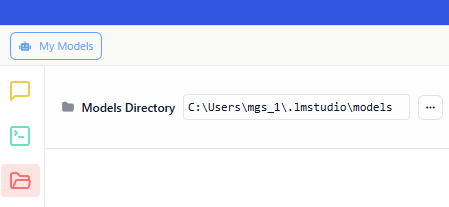
▼Although it wasn't selectable during the download, it is possible to change the default storage location.
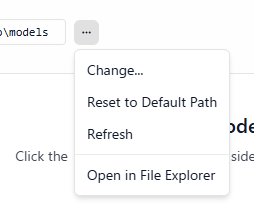
I wanted to keep my C drive free, so I later changed this to a different folder.
Trying the Chat Feature
I started a conversation with the LLM in the chat section.
▼Models can be selected via the search bar.
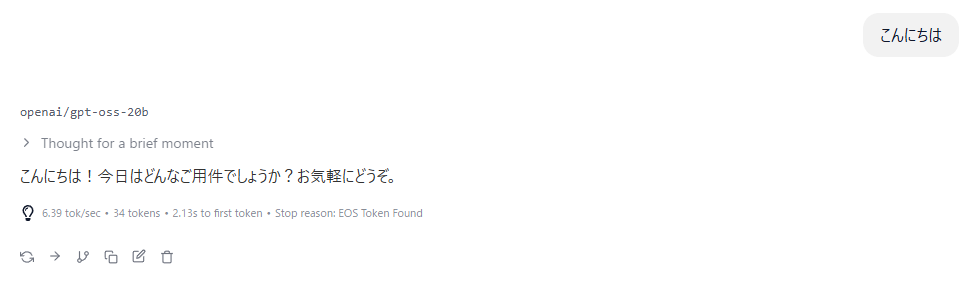
▼I can chat with it just like any other AI.
▼From the settings icon, you can adjust parameters such as context length.
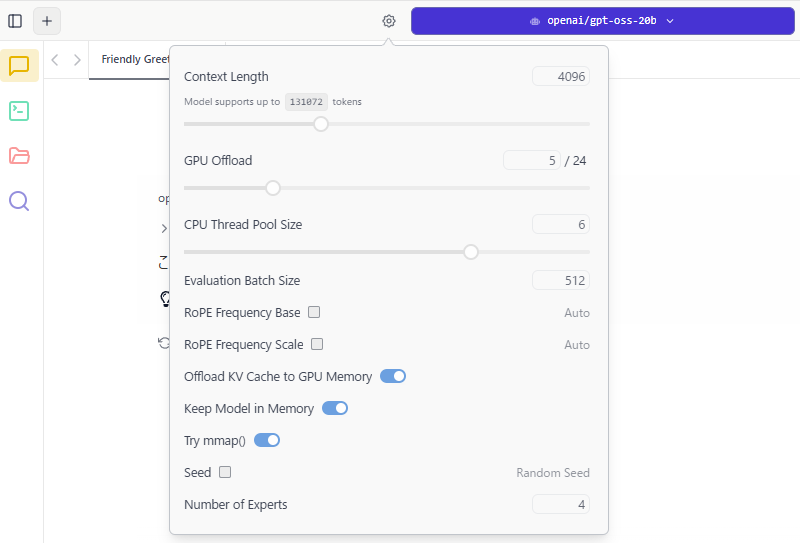
You can also fine-tune GPU and CPU utilization.
Using the API Endpoint
You can check the documentation directly within the LM Studio app.
▼Accessed via "Quick Docs."
▼The necessary commands were displayed.
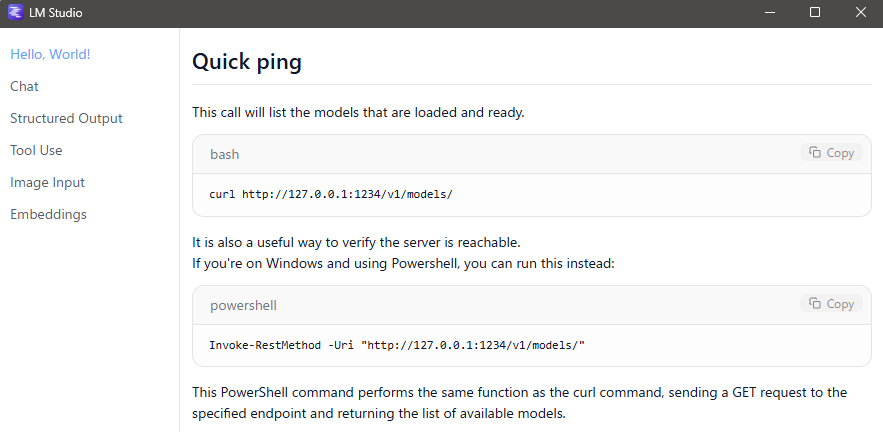
I tried communicating with the endpoint using these commands. Some examples recommended using Git Bash, so I proceeded with that.
▼About Git Bash:
https://git-scm.com/download/win
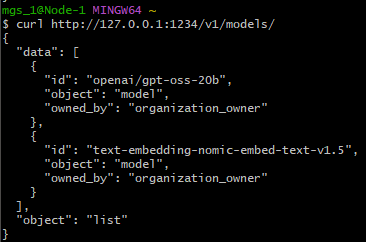
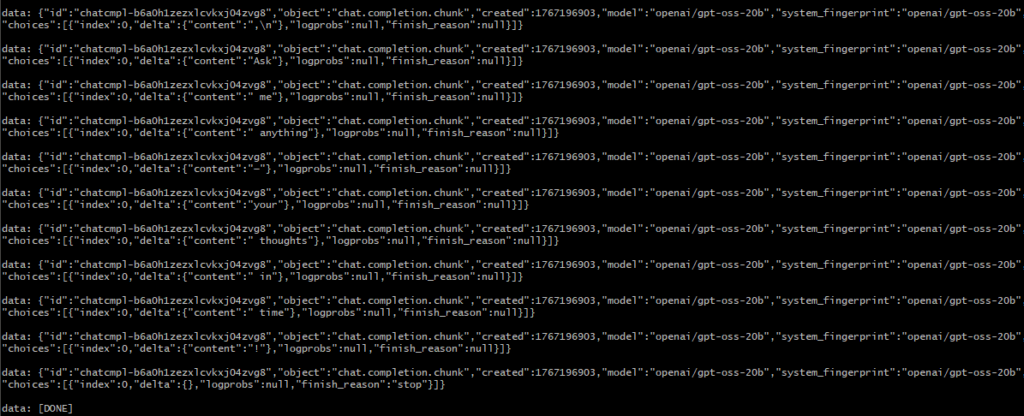
With gpt-oss-20b loaded in LM Studio, I ran the following command:
curl http://127.0.0.1:1234/v1/models/▼The loaded model was correctly displayed.
Next, I tested the chat completions with this command:
curl http://127.0.0.1:1234/v1/chat/completions \
  -H "Content-Type: application/json" \
  -d '{
    "model": "gpt-oss-20b",
    "messages": [
      { "role": "system", "content": "Always answer in rhymes." },
      { "role": "user", "content": "Introduce yourself." }
    ],
    "temperature": 0.7,
    "max_tokens": -1,
    "stream": true
  }'
▼The response came back bit by bit. This is because stream was set to true.
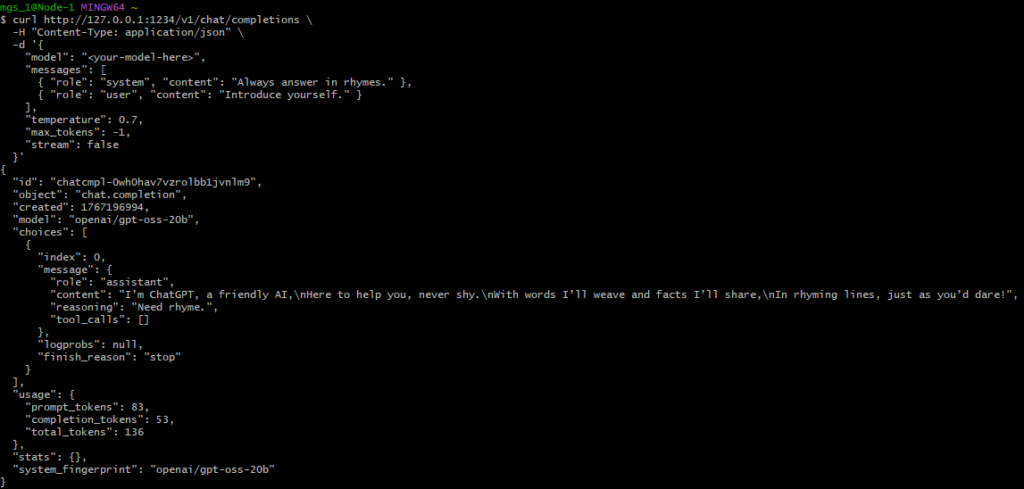
I then tried running it with stream: false.
curl http://127.0.0.1:1234/v1/chat/completions \
  -H "Content-Type: application/json" \
  -d '{
    "model": gpt-oss-20b",
    "messages": [
      { "role": "system", "content": "Always answer in rhymes." },
      { "role": "user", "content": "Introduce yourself." }
    ],
    "temperature": 0.7,
    "max_tokens": -1,
    "stream": false
  }'
▼The response was: "I’m ChatGPT, a friendly AI,\nHere to help you, never shy.\nWith words I’ll weave and facts I’ll share,\nIn rhyming lines, just as you’d dare!"
The documentation also introduced tool usage and image inputs.
Finally
It felt like a version of Ollama that makes handling endpoints even more intuitive. It might actually be easier to use when integrating with Node-RED. One thing to watch out for is that downloading LLM models can quickly consume storage space. My laptop has a total of 2.5TB, so I still have about 400GB free.
This was just a brief confirmation of the basic features, but I look forward to combining it with Node-RED in the future!