Trying Out WSL2 Part 2 (Ubuntu 22.04, ROS2 Iron)
 管理人
管理人Introduction
In a previous article, I built a ROS2 environment directly on Windows. Since then, I’ve tried to install and use various packages, but I often ran into issues where the installation commands were strictly for Linux or simply wouldn't work in a Windows environment.
Therefore, I decided to re-install ROS2 within the Ubuntu 22.04 environment I built on WSL2 and give it another shot.
▼By the way, the package I specifically wanted to use is MoveIt2.
https://moveit.ros.org/install-moveit2/binary
While the ROS2 installation went smoothly, I ended up struggling a bit with the MoveIt2 installation afterward. I wonder which environment is actually the easiest to use.
▼Previous articles are here:
Trying Out WSL2 Part 1 (Ubuntu 22.04, Node-RED, and Memory Limits)
Info This article is translated from Japanese to English. Introduction In this post, I set up a WSL (Windows Subsystem for Linux) environment, which allows you…
 趣味的ロボット研究所
ROS2を使ってみる その2(Turtlesim、rqt、Windows)
はじめに 今回はROS2でTurtlesimとrqtを試してみました。 ROSとROS2について最近触るようになったのですが、Turtlesimとrqtは書籍やオンラインのチュートリアルでよく…
Installing ROS2 Iron
About the Version
For MoveIt2, it is recommended to use ROS2 Iron on Ubuntu 22.04.
▼Learn more about MoveIt2 here:
https://moveit.picknik.ai/main/doc/tutorials/getting_started/getting_started.html
So, I installed ROS2 Iron this time.
▼I followed the instructions on this page:
https://docs.ros.org/en/iron/Installation/Ubuntu-Install-Debians.html
▼I skipped the optional RMW and ROS1 bridge for now. I plan to try them later if they become necessary.
https://docs.ros.org/en/iron/Installation/Ubuntu-Install-Debians.html#use-the-ros-1-bridge-optional
Installation Process
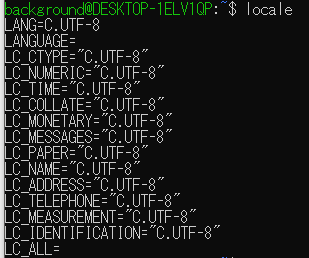
I proceeded with the commands. My locale was already set to UTF-8, so I didn't need to change it.
▼Everything was already UTF-8.
▼I entered the following commands:
 sudo apt install software-properties-common
 sudo add-apt-repository universe
 sudo apt update && sudo apt install curl -y
 sudo curl -sSL https://raw.githubusercontent.com/ros/rosdistro/master/ros.key -o /usr/share/keyrings/ros-archive-keyring.gpg
 echo "deb [arch=$(dpkg --print-architecture) signed-by=/usr/share/keyrings/ros-archive-keyring.gpg] http://packages.ros.org/ros2/ubuntu $(. /etc/os-release && echo $UBUNTU_CODENAME) main" | sudo tee /etc/apt/sources.list.d/ros2.list > /dev/null
▼I also installed the optional development tools:
sudo apt update && sudo apt install ros-dev-tools
▼And I installed the recommended Desktop version:
 sudo apt update
 sudo apt upgrade
 sudo apt install ros-iron-desktop
 sudo apt install ros-iron-ros-base
The installation finished without any errors this time. It was quite smooth.
Trying Out Examples
I tested the examples included in "ros-iron-desktop".
▼Here is the command for the talker:
 source /opt/ros/iron/setup.bash
 ros2 run demo_nodes_cpp talker
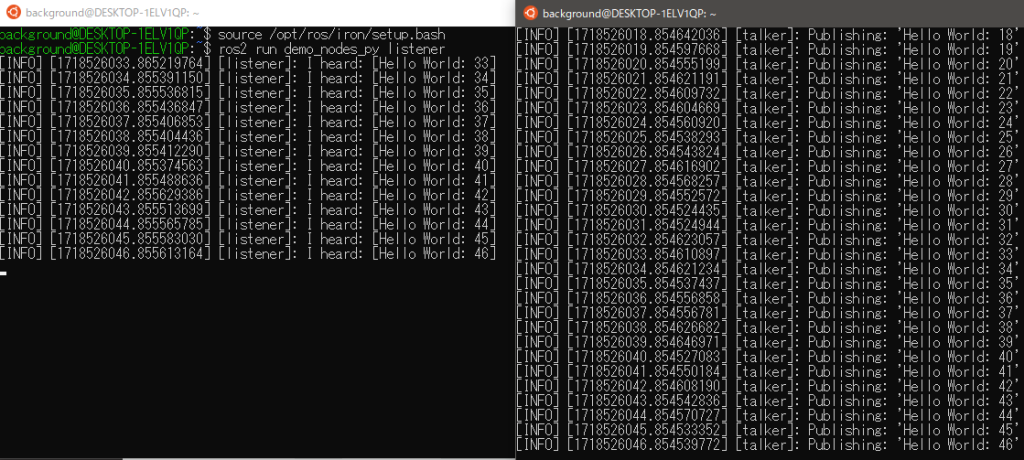
▼I opened another terminal and ran the following command for the listener:
 source /opt/ros/iron/setup.bash
 ros2 run demo_nodes_py listener
If they can communicate, then the basic setup is verified.
▼The listener and talker communicated successfully!
Running Turtlesim and rqt
I tried running Turtlesim and rqt, which I had previously tested in the Windows ROS2 environment.
▼I referred to this page:
Trying Turtlesim
Unlike on Windows where installation wasn't required, I needed to install it manually here.
▼Command to install:
 sudo apt update
 sudo apt install ros-iron-turtlesim
▼You can check the available executables with this command:
 source /opt/ros/iron/setup.bash
 ros2 pkg executables turtlesim

I launched Turtlesim.
▼The command is:
ros2 run turtlesim turtlesim_node
▼And of course, a light blue turtle appeared again…

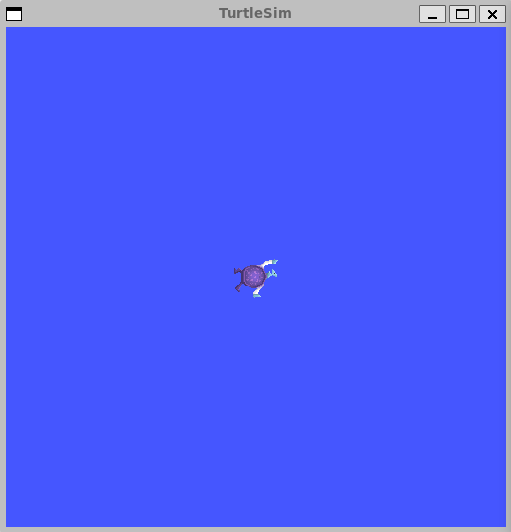
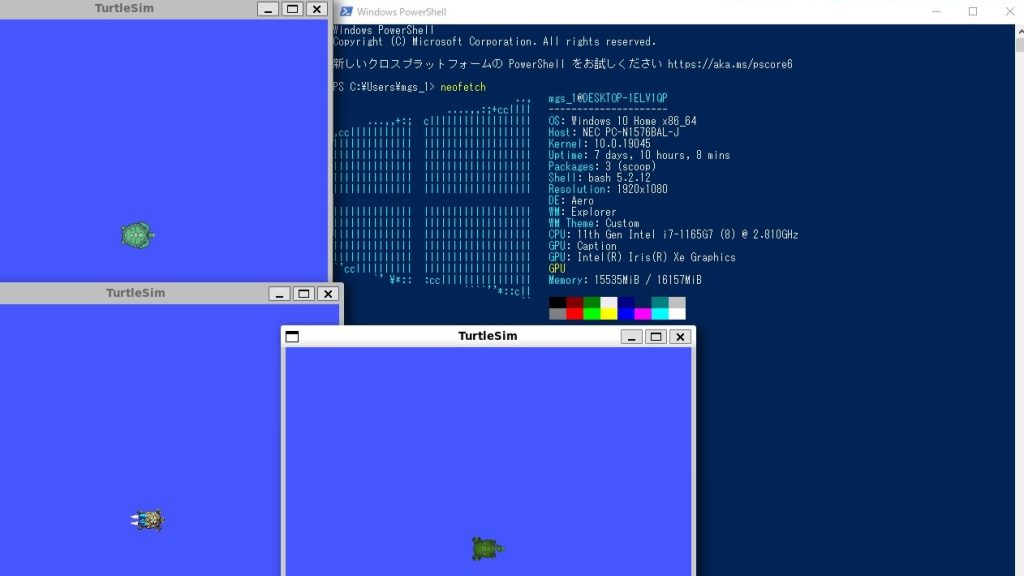
Running the command again spawns a different turtle. It was a bit hard to see, so I restarted it.
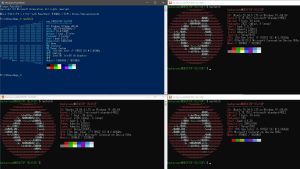
▼Just for fun, I lined it up with "neofetch" on Windows.
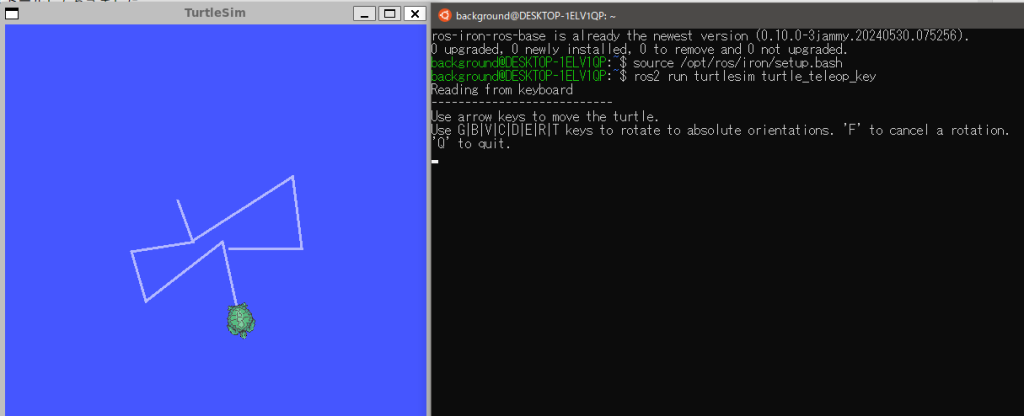
I tried controlling it with the keyboard.
▼The command is:
ros2 run turtlesim turtle_teleop_key
▼This also worked perfectly.
Trying rqt
I opened another terminal and ran rqt.
▼Command to install:
 sudo apt update
 sudo apt install '~nros-iron-rqt*'
▼Launch rqt with the following command:
 source /opt/ros/iron/setup.bash
 rqt
▼The rqt window appeared.
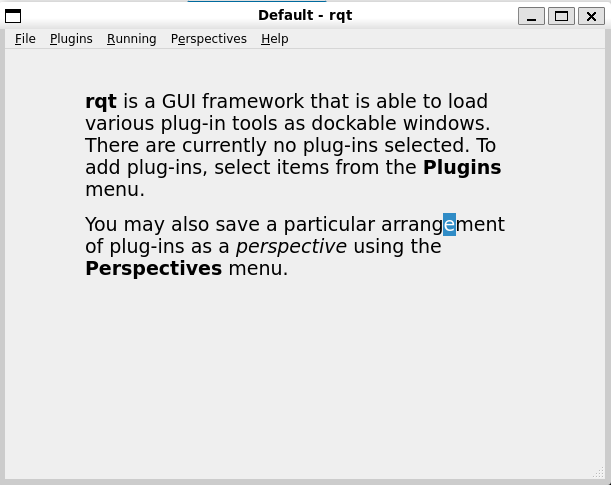
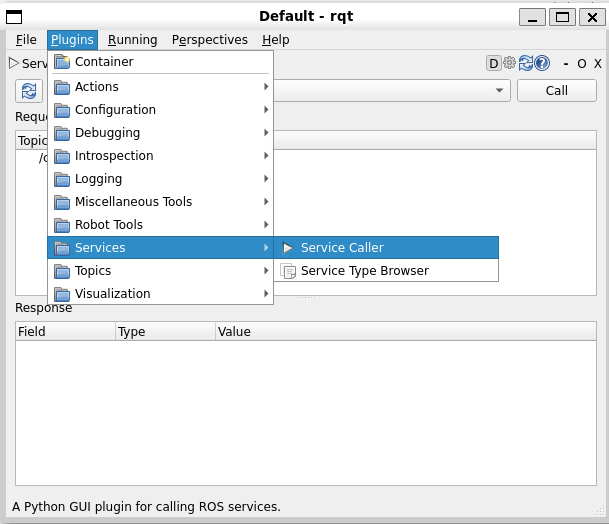
You can select various functions from the Plugins menu.
▼Just like on Windows, "Service Caller" is available.
▼Calling a service like "clear" removes the lines drawn by the turtle.
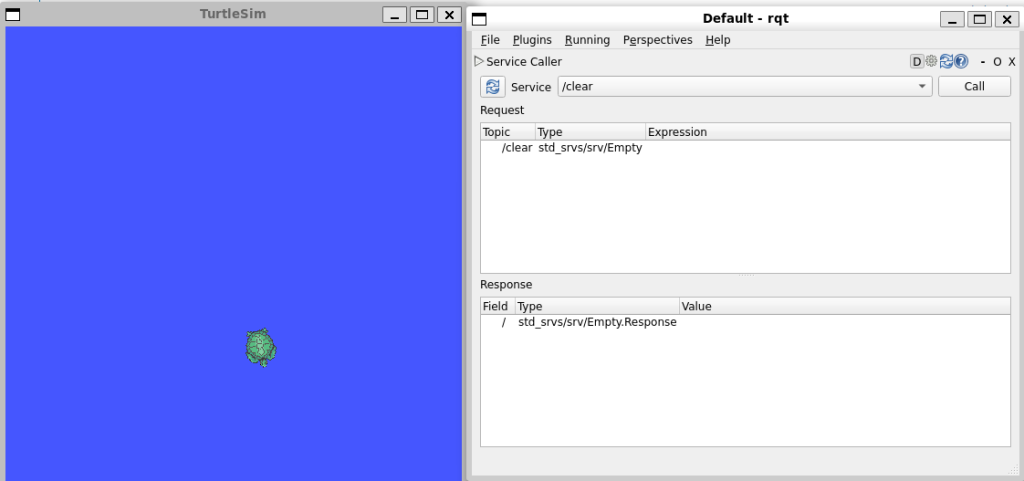
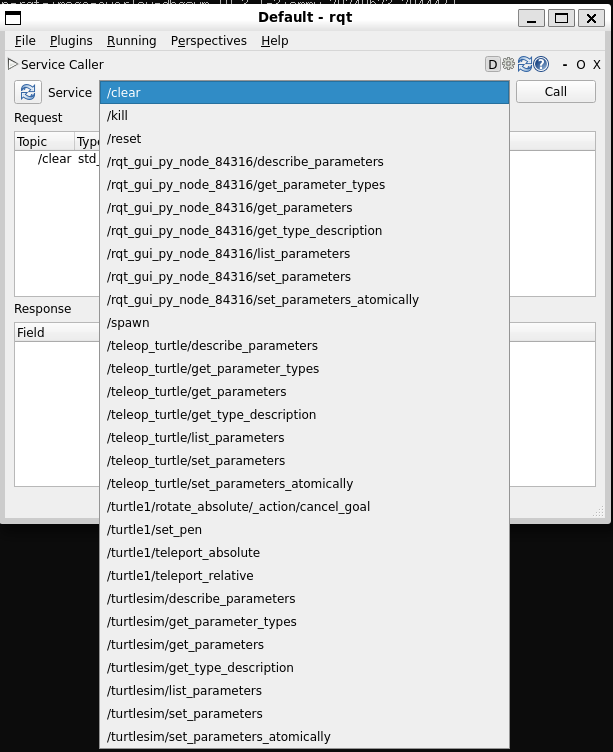
▼There were other services available as well.
Finally
When I built the ROS2 environment on Windows, there were many more steps, but this time it was relatively easy. I’m relieved it finished without any errors.
I was worried that GUI applications wouldn't display without a full Ubuntu desktop environment, but they launched directly on my Windows screen (via WSLg). It feels just like running any other Windows application.
Now that I've also managed to set up MoveIt2, I’m planning to try out various experiments.