Trying Out ROS2 Part 1 (Environment Setup on Windows)
 管理人
管理人Introduction
In this post, I will be setting up the ROS2 environment. I have tried this several times in the past and ended up giving up, but this time I am determined to get it running properly.
At a recent ROS Japan UG (User Group) meeting I attended, I heard that migrating from ROS1 to ROS2 is quite a challenge. Apparently, it is much smoother to just start fresh with ROS2. So, I will begin my journey directly with ROS2.
▼I participated in this event:
https://rosjp.connpass.com/event/304753/
While several books on ROS2 have been published, the environment setup methods described in them can sometimes be outdated. This time, I will be building the environment by following the official documentation strictly.
Building the Environment
It appears that only Windows 10 is supported.
▼Official Documentation:
https://docs.ros.org/en/iron/Installation/Windows-Install-Binary.html
▼Initially, I accidentally read the older documentation. This version is no longer officially supported, though it often appears first in search results.
https://docs.ros.org/en/dashing/Installation/Windows-Install-Binary.html#
Installing Chocolatey
▼Installation instructions:
https://chocolatey.org/install#individual
There is a command to be executed in PowerShell.
▼The command:
Set-ExecutionPolicy Bypass -Scope Process -Force; [System.Net.ServicePointManager]::SecurityProtocol = [System.Net.ServicePointManager]::SecurityProtocol -bor 3072; iex ((New-Object System.Net.WebClient).DownloadString('https://community.chocolatey.org/install.ps1'))
▼When I ran it, I received the following error:
 警告: 'choco' was found at 'C:\ProgramData\chocolatey\bin\choco.exe'.
 警告: An existing Chocolatey installation was detected. Installation will not continue. This script will not overwrite existing installations.
 If there is no Chocolatey installation at 'C:\ProgramData\chocolatey', delete the folder and attempt the installation again.
There was already a Chocolatey folder at C:\ProgramData\chocolatey. I deleted it once and ran the command again.
▼Then, I encountered this error:
Installation of Chocolatey to default folder requires Administrative permissions. Please run from elevated prompt. Please see https://chocolatey.org/install for details and alternatives if needing to install as a non-administrator.
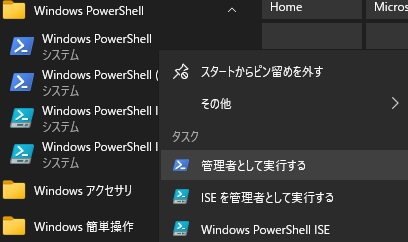
It seems it cannot be executed without Administrative privileges. I was running it in the VS Code terminal PowerShell, so I restarted PowerShell as an Administrator.
▼You can select this by right-clicking Windows PowerShell in the Start menu.
I continued executing the following commands with Administrative privileges. I installed Python and the Visual C++ Redistributables.
 choco install -y python --version 3.8.3
 choco install -y vcredist2013 vcredist140
Installing OpenSSL
▼Download link:
https://slproweb.com/products/Win32OpenSSL.html
I downloaded the Win64 OpenSSL v3.2.1 EXE file. Upon execution, it seemed a folder already existed for this as well. I reinstalled it.
▼Set the environment variable using setx:
setx /m OPENSSL_CONF "C:\Program Files\OpenSSL-Win64\bin\openssl.cfg"
Installing Visual Studio
▼Download link:
https://visualstudio.microsoft.com/ja/downloads/
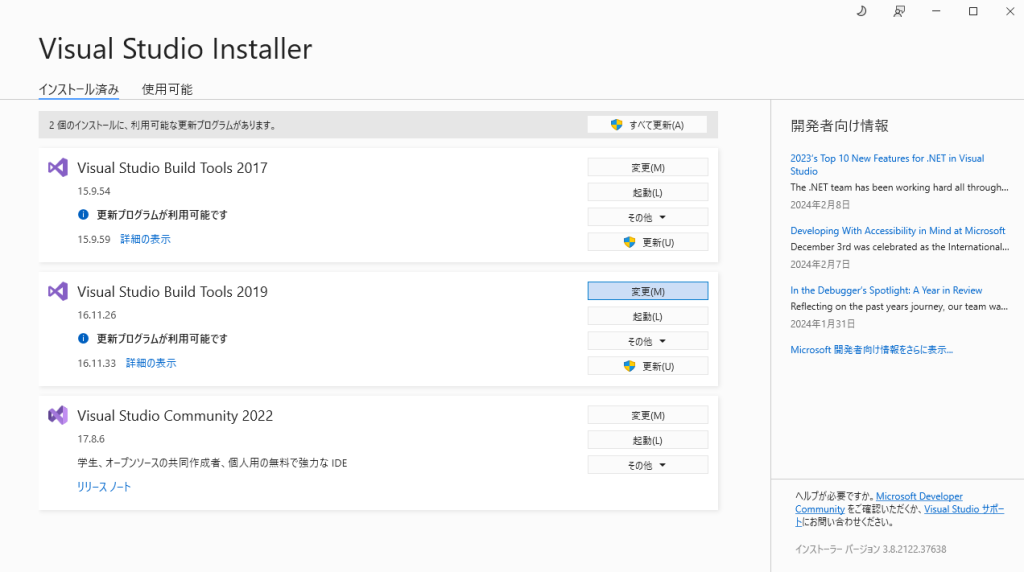
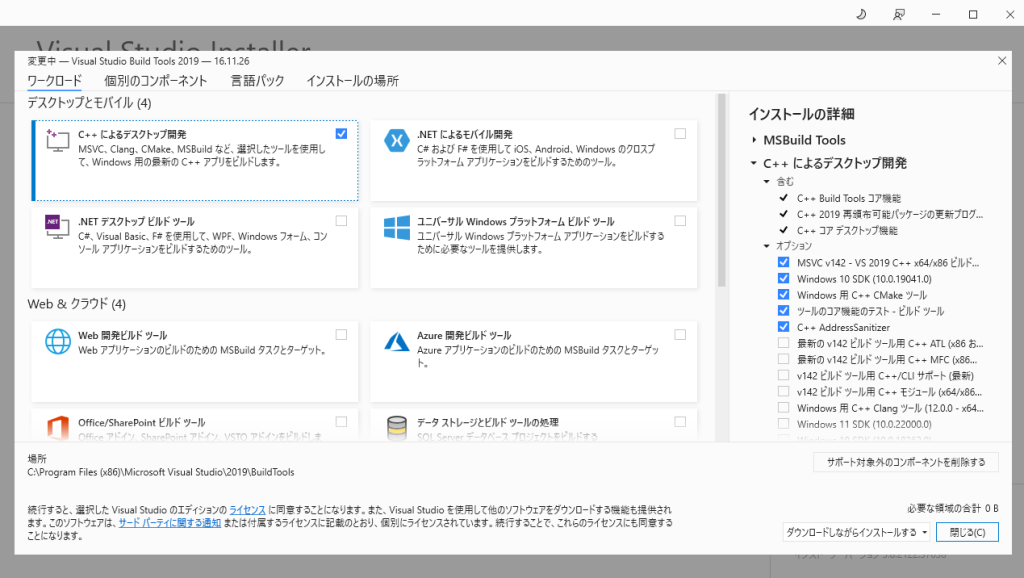
"Desktop development with C++" for Visual Studio 2019 is required. Since I already had it installed, I launched the installer to verify.
▼You can check settings by selecting "Modify" in the installer.
▼"Desktop development with C++" is already installed.
Installing OpenCV
▼Clicking this link starts the download:
https://github.com/ros2/ros2/releases/download/opencv-archives/opencv-3.4.6-vc16.VS2019.zip
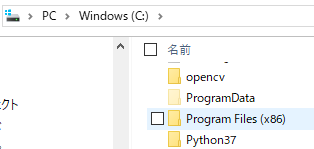
After extracting the downloaded file, move it directly under the C: drive.
▼Moved state:
▼Set the environment variable:
setx -m OpenCV_DIR C:\opencv
Installing Dependencies
▼Install CMake:
choco install -y cmake
▼Download the necessary packages from this page:
https://github.com/ros2/choco-packages/releases/tag/2022-03-15
▼Required packages:
- asio.1.12.1.nupkg
- bullet.3.17.nupkg
- cunit.2.1.3.nupkg
- eigen-3.3.4.nupkg
- tinyxml-usestl.2.6.2.nupkg
- tinyxml2.6.0.0.nupkg
▼Install the downloaded packages. Replace <PATH\TO\DOWNLOADS> with your actual path.
choco install -y -s <PATH\TO\DOWNLOADS\> asio cunit eigen tinyxml-usestl tinyxml2 bullet
In my case, the path was C:\Users\mgs_1\Downloads.
▼If packages are missing, an error will occur.

▼Install further dependencies. I received an error unless I upgraded pip first.
 python -m pip install -U pip setuptools==59.6.0
 python -m pip install -U catkin_pkg cryptography empy importlib-metadata jsonschema lark==1.1.1 lxml matplotlib netifaces numpy opencv-python PyQt5 pillow psutil pycairo pydot pyparsing==2.4.7 pyyaml rosdistro
Installing xmllint
▼Download page:
https://www.zlatkovic.com/pub/libxml/64bit/
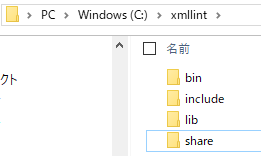
I downloaded libxml2-2.9.3-win32-x86_64.7z. As recommended, I created an xmllint folder directly under the C: drive and extracted it there.
▼The folder after extraction:
Following the instruction to "Add C:\xmllint\bin to the PATH," I added C:\xmllint\bin to the Environment Variables Path.
Installing Qt5
I installed it using the recommended "5.12.x Offline Installers." It took quite a long time.
▼After installation, I set the environment variables:
 setx /m Qt5_DIR C:\Qt\Qt5.12.12\5.12.12\msvc2017_64
 setx /m QT_QPA_PLATFORM_PLUGIN_PATH C:\Qt\Qt5.12.12\5.12.12\msvc2017_64\plugins\platforms
If you plan to use rqt_graph, Graphviz is required, so I installed that as well. It is used for visualizing node-to-node communication.
▼I downloaded the graphviz-9.0.0 (64-bit) EXE installer:
https://graphviz.org/download/
The installer asks about adding it to the environment variables, so I enabled that option.
Installing ROS2
▼Download link:
https://github.com/ros2/ros2/releases
I downloaded ros2-iron-20240209-windows-release-amd64.zip.
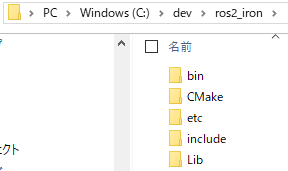
▼I placed it in the C:\dev\ros2_iron folder.
The documentation states that you should run call C:\dev\ros2_iron\local_setup.bat to set up the environment. However, I received an error saying call was not defined.
▼When I ran the .bat file without call, I got the following error:
 "[rti_connext_dds_cmake_module][warning] RTI Connext DDS environment script not found (\resource\scripts\rtisetenv_x64Win64VS2017.bat).
 RTI Connext DDS will not be available at runtime, unless you already configured PATH manually."
However, running the .ps1 file followed by the ros2 command worked perfectly.
▼This command sequence worked:
 C:\dev\ros2_iron\local_setup.ps1
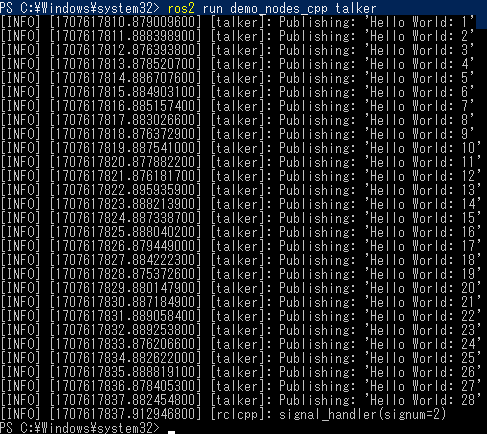
 ros2 run demo_nodes_cpp talker
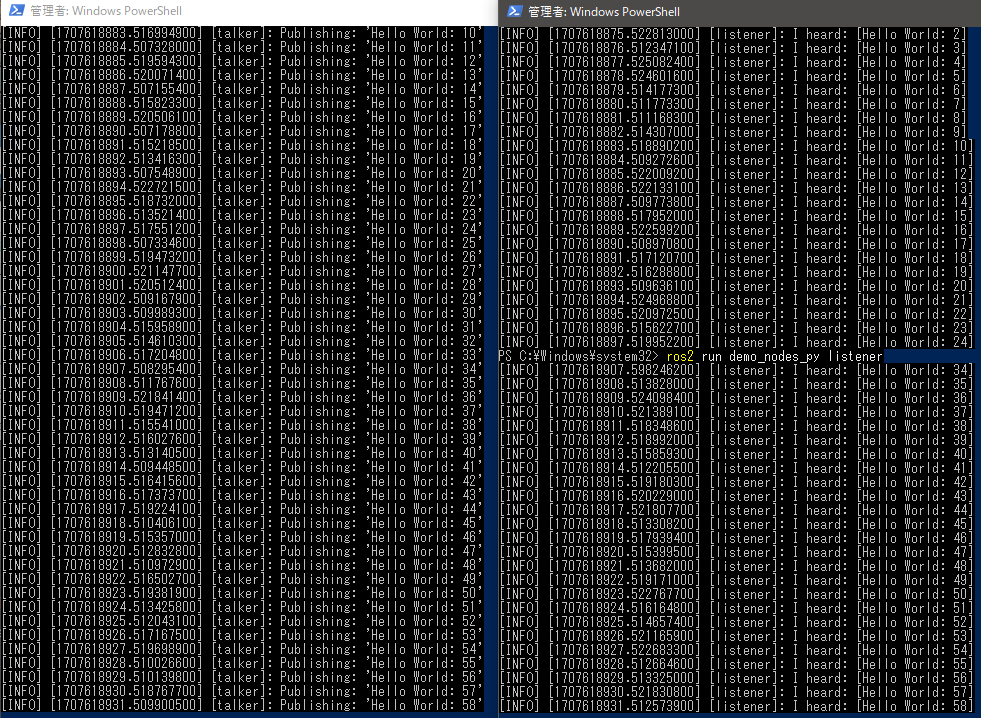
▼"Hello World" is being Published!
Note that if you open a new PowerShell window, ros2 will be undefined unless you run the setup script again.
▼With the talker running, I opened another PowerShell and started the listener.
ros2 run demo_nodes_py listener
▼It is successfully receiving messages from the talker!
Addendum
Later, when I opened a new PowerShell, I couldn't run the commands immediately, so I re-verified the process.
▼For example, if you try to run a ros2 command without having executed local_setup.ps1, it is not recognized.

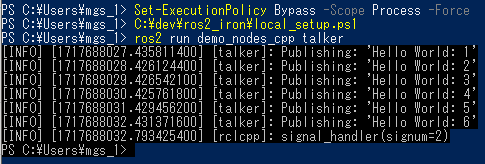
▼Furthermore, local_setup.ps1 could not be executed without changing the Execution Policy.

After changing the policy and running local_setup.ps1, I was able to call the ros2 command.
▼The commands executed in order:
 Set-ExecutionPolicy Bypass -Scope Process -Force
 C:\dev\ros2_iron\local_setup.ps1
 ros2 run demo_nodes_cpp talker
▼The talker is running successfully.
Finally
Looking at the table of contents, there are certainly many things to install! I am a bit concerned about version dependencies.
For now, I think the Installation page is covered. Since I’ve only run a simple sample, I will try the tutorials next.
▼Tutorials page:
https://docs.ros.org/en/iron/Tutorials.html
I also hope to build this environment on a Raspberry Pi in the future.