Trying Out Ollama Part 7 (Communication via the Internet Using Tailscale)
 管理人
管理人Introduction
In this post, I tried using Ollama via API and VPN connections. On the laptop I usually use, processing large LLMs can be quite heavy. Therefore, I’m planning to distribute the workload by having my desktop PC handle the Ollama processing over the internet. As a first step, I also tested the Ollama API using curl commands.
▼I recently checked the LM Studio API as well:
LM Studioを使ってみる その1(インストール、ローカルLLMとの会話)
はじめに 今回はローカルLLMを利用できる、LM Studioを使ってみました。 NVIDIAドライバーの更新のときに新着情報を眺めていたら見つけました。 ▼以下の記事でもOllam…
 趣味的ロボット研究所
▼Previous articles:
Trying Out Ollama Part 5 (Multimodal Processing of Images and Text with llama3.2-vision)
Info This article is translated from Japanese to English. Introduction In this post, I tried multimodal processing of images and text using llama3.2-vision wit…
Trying Out Ollama Part 6 (Combining Local LLM with Web Search Results using Node-RED)
Info This article is translated from Japanese to English. Introduction In this post, I combined the Python-based web search functionality I tested previously w…
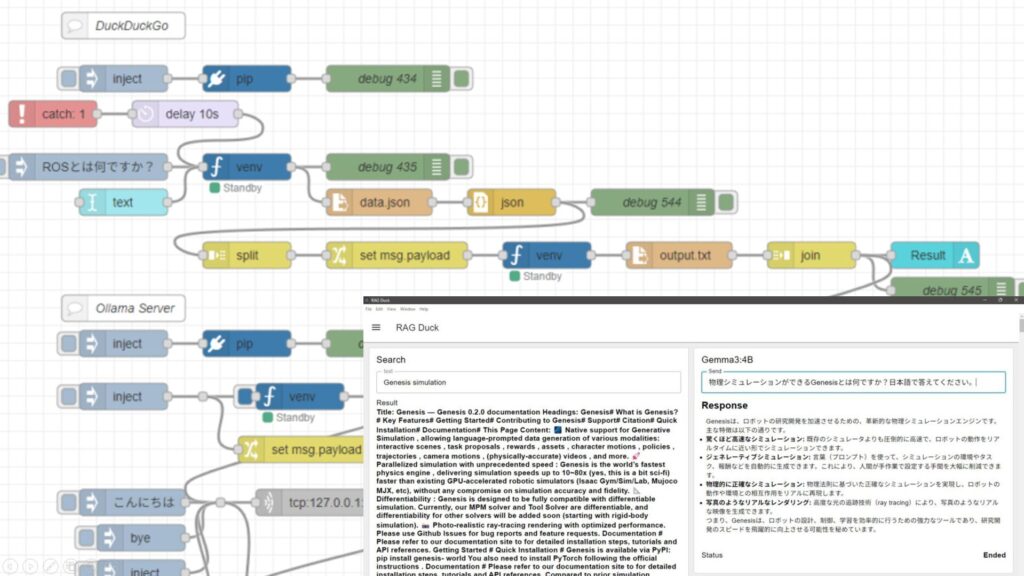
Checking the API
In this section, I’ll verify the operation of the Ollama API using curl commands.
▼Ollama was installed in a previous article:
Using Ollama Part 1 (Gemma2, Node-RED)
Info This article is translated from Japanese to English. Introduction This time, I tried using Ollama, a tool that lets you run LLMs locally. You can install …
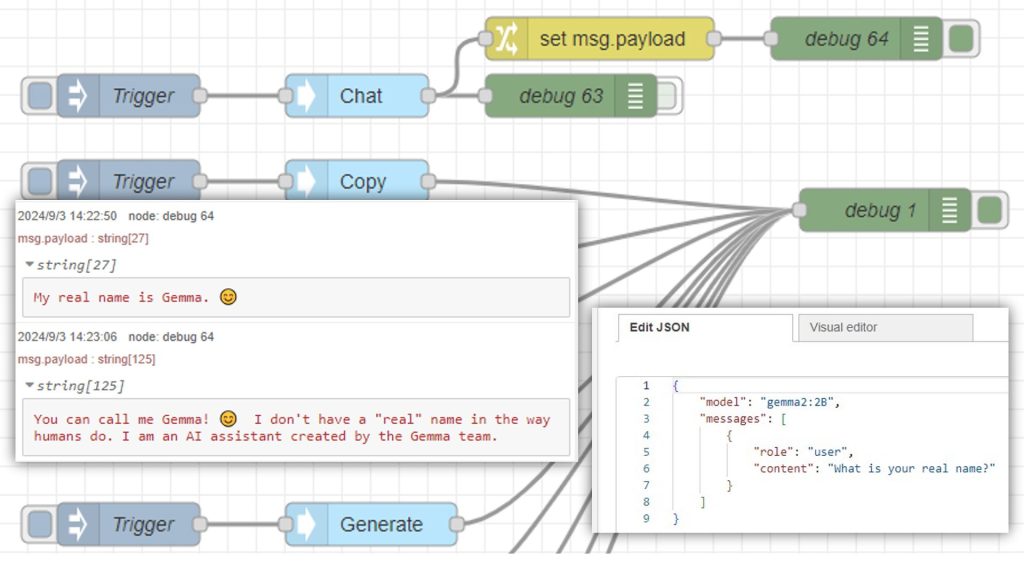
First, I’ll perform the check on my laptop.
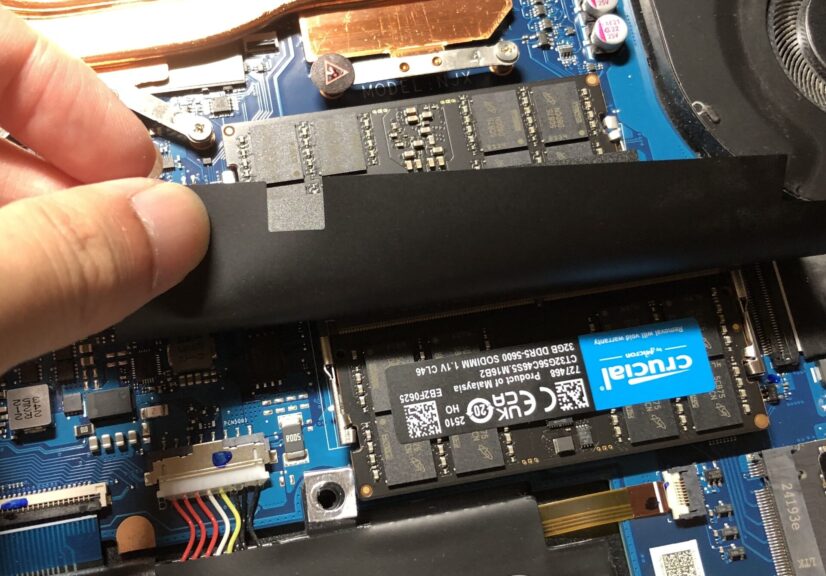
▼Memory has been upgraded to 64GB to run the local LLM.
Shopping: Upgrading Laptop Memory (ASUS TUF Gaming A15, gpt-oss-20b)
Info This article is translated from Japanese to English. Introduction In this post, I’ll be sharing my experience upgrading the RAM in my daily-use laptop fro…

 ポチップ
ポチップ
▼I’ll execute commands following the API documentation here:
https://docs.ollama.com/api/introduction
I’ll run the curl commands in the Windows Command Prompt. First, I tried retrieving the list of models.
curl http://localhost:11434/api/tags▼The downloaded models were displayed.
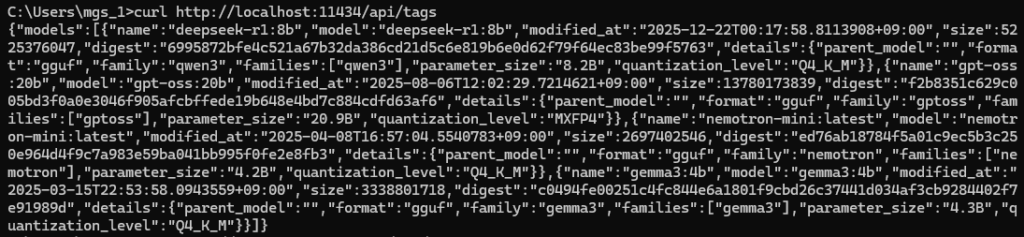
▼You can also check this with the ollama list command.
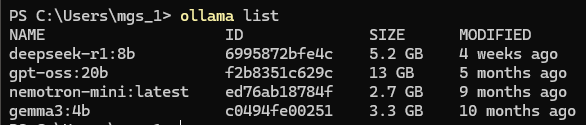
Next, I tried the API to get a chat response, but it couldn't be executed exactly as shown in the documentation. On Windows, it seems necessary to change the surrounding quotation marks and escape the double quotes within the JSON.
curl http://localhost:11434/api/chat -d "{\"model\": \"gemma3:4b\",\"messages\": [{\"role\": \"user\",\"content\": \"why is the sky blue?\"}]}"▼Similar to when I used LM Studio, the output was being generated word by word (streaming).
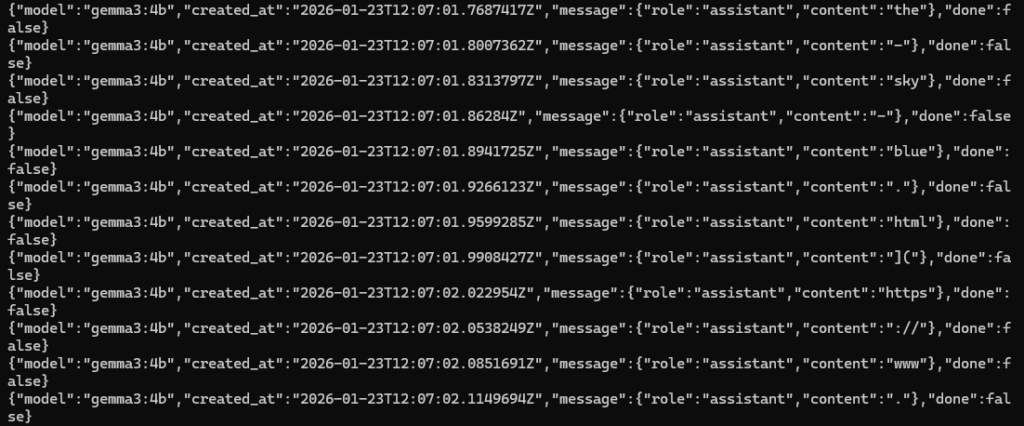
I added "stream": false to the data.
curl http://localhost:11434/api/chat -d "{\"model\": \"gemma3:4b\",\"messages\": [{\"role\": \"user\",\"content\": \"why is the sky blue?\"}],\"stream\": false}"▼The output was displayed all at once after the processing was finished.
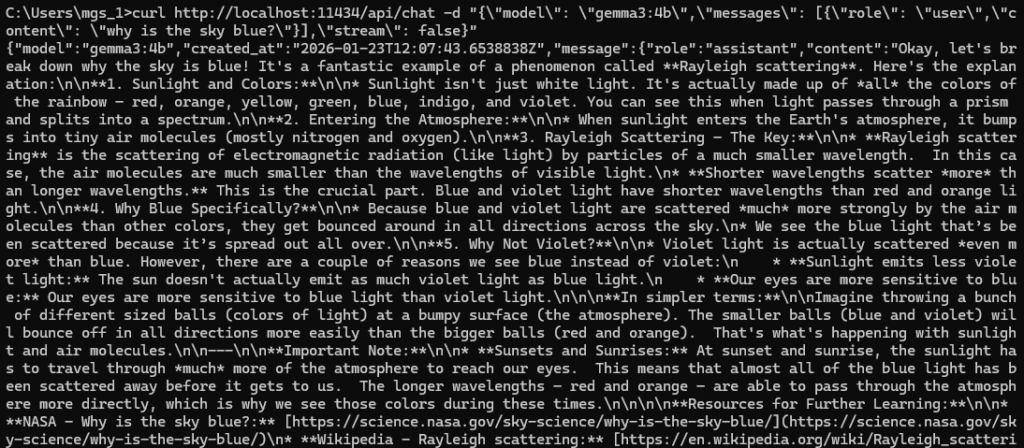
Since the response for the sky question was long, I tried a simple "Hello!".
curl http://localhost:11434/api/chat -d "{\"model\": \"gemma3:4b\",\"messages\": [{\"role\": \"user\",\"content\": \"Hello! \"}],\"stream\": false}"▼The answer came back in about 3 seconds.

Communication via the Internet
Now, I’ll perform communication between two Windows 11 PCs using a Tailscale VPN connection. The Ollama processing will be handled by the desktop PC.
▼Tailscale was introduced in this article:
Trying Out Jetson Xavier Part 2 (Communication Settings, Node-RED, and Tailscale)
Info This article is translated from Japanese to English. Introduction In this post, I configured the communication settings for the Jetson Xavier, following t…
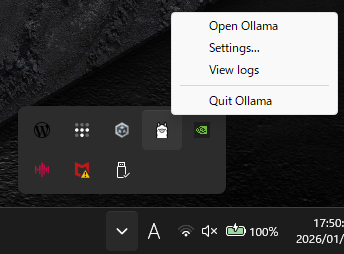
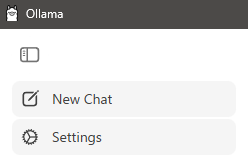
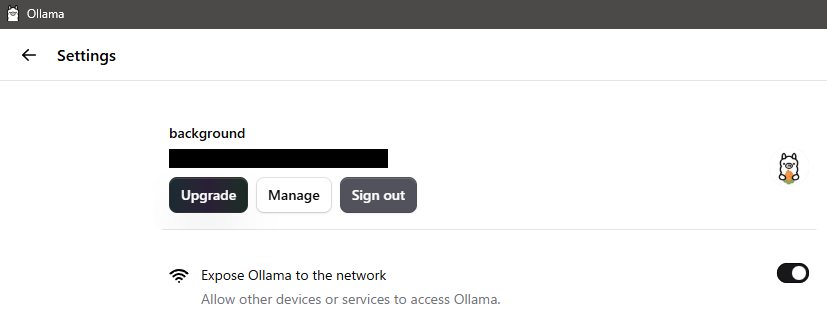
I found network-related settings in the Ollama GUI, so I configured them.
▼Right-clicking the llama icon in the taskbar reveals the "Open Ollama" option.
▼I enabled "Expose Ollama to the network" in the Settings.
Now, I’ll send a request to the Ollama instance on the desktop PC using its Tailscale IP address.
First, I checked the models. Please replace the IP address part with your own.
curl http://<IP address>:11434/api/tags▼Models different from the ones on my laptop were displayed.

Since I hadn't downloaded gemma3:4b on the desktop yet, I tried gemma3:27b.
curl http://<IP address>:11434/api/chat -d "{\"model\": \"gemma3:27b\",\"messages\": [{\"role\": \"user\",\"content\": \"Hello! \"}],\"stream\": false}"▼The response came back.

Note that it took about 13 seconds for the output.
Next, I executed a pull request via the API to download gemma3:4b.
curl http://<IP address>:11434/api/pull -d "{\"model\": \"gemma3:4b\"}"Once finished, I sent a request using gemma3:4b again.
curl http://<IP address>:11434/api/chat -d "{\"model\": \"gemma3:4b\",\"messages\": [{\"role\": \"user\",\"content\": \"Hello! \"}],\"stream\": false}"▼The response came back immediately in about 1 second.

Despite communicating over the network, the response was much faster than running it locally on the laptop.
Finally
Since I could use Ollama via Tailscale with fast response times, I’m interested in setting up communication from a Raspberry Pi to interact with the LLM. I’d like to mount this on a robot, combined with speech recognition and other features.
While I’ve used curl commands in Linux environments for CTFs, I found them a bit tedious to type in the Windows Command Prompt due to the need for escaping characters. Since Ollama provides libraries for various languages, using those seems to be the much more user-friendly approach.
▼I also noticed an API for "Creating a Model," which looks very interesting for future exploration.
https://docs.ollama.com/api/create