Trying Out Ollama Part 5 (Multimodal Processing of Images and Text with llama3.2-vision)
 管理人
管理人Introduction
In this post, I tried multimodal processing of images and text using llama3.2-vision with Ollama. I recently tested GPT-4o's reasoning capabilities on images and was amazed at how well it recognized them. I wanted to try doing something similar locally.
▼Previous articles:
Using Ollama Part 2 (Local LLM for Code Generation and Execution, qwen2.5-coder, Node-RED)
Info This article is translated from Japanese to English. Introduction This time, I tried generating code with a local LLM and created a Node-RED flow so that …
 趣味的ロボット研究所
Trying Out Ollama Part 4 (Conversations Between LLMs, Gemma3:4B, Python, Node-RED)
Info This article is translated from Japanese to English. Introduction In this post, I tried using Ollama to facilitate a conversation between two local LLMs.I…
Environment Setup
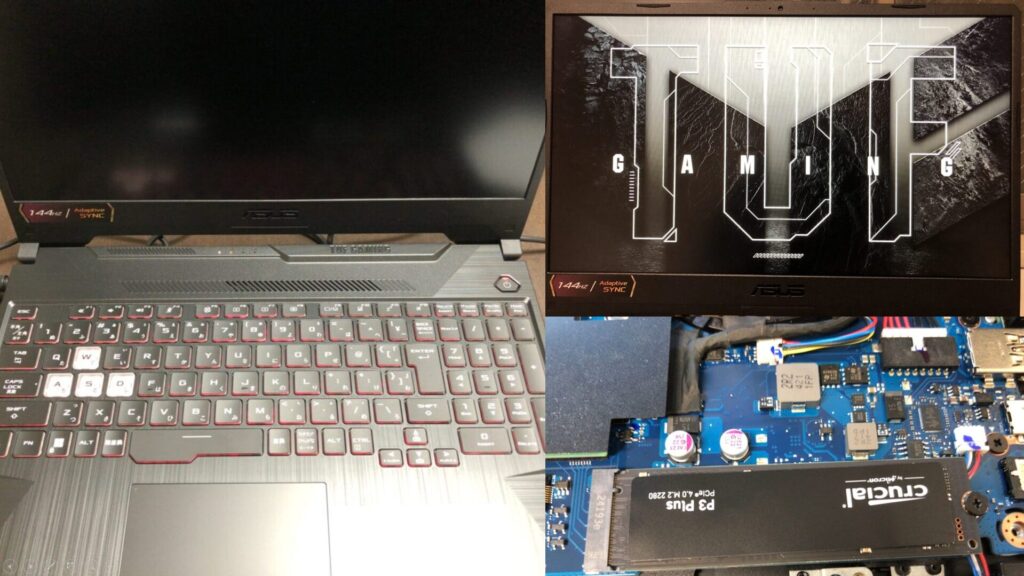
▼I am using a gaming laptop purchased for around 100,000 yen, running Windows 11.
Shopping: New Laptop and SSD Expansion (ASUS TUF Gaming A15)
Info This article is translated from Japanese to English. Introduction In this post, I’ll be talking about replacing my PC after my previous one broke down. I …

 ポチップ
ポチップ
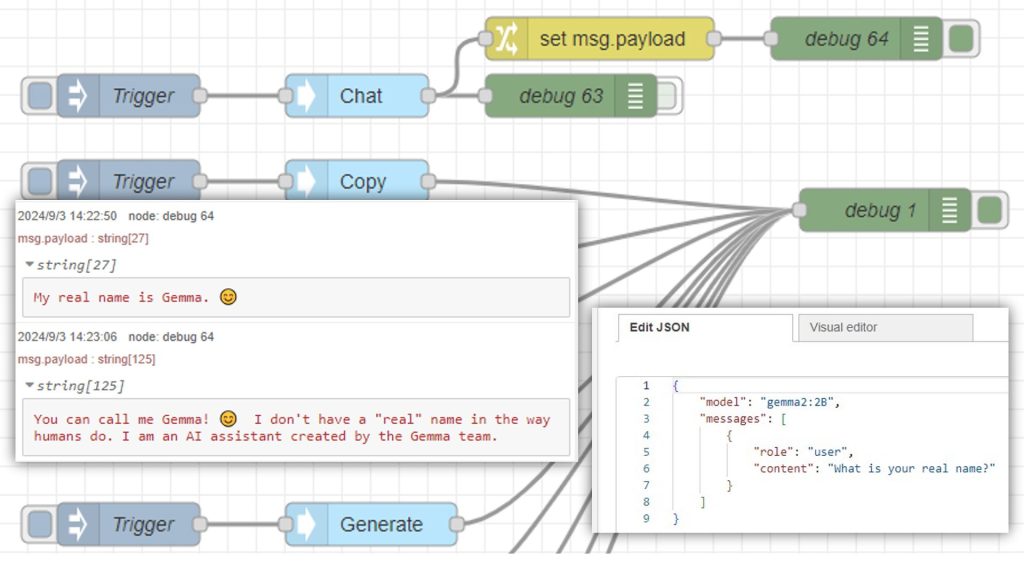
▼Ollama was installed in a previous article:
Using Ollama Part 1 (Gemma2, Node-RED)
Info This article is translated from Japanese to English. Introduction This time, I tried using Ollama, a tool that lets you run LLMs locally. You can install …
Now, I'll install llama3.2-vision.
▼Ollama model library page:
https://ollama.com/library/llama3.2-vision
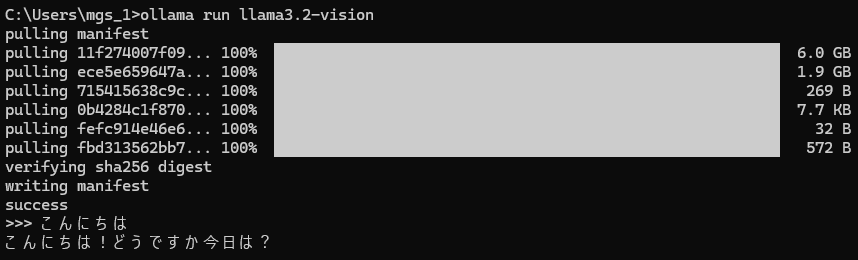
I installed it using the following command:
ollama run llama3.2-vision▼The responses in Japanese are a bit hit-or-miss. Japanese is not listed among the officially supported languages.
Running the Model
▼I'll run it using Python, referring to the sample code on Ollama's llama3.2-vision page.
https://ollama.com/library/llama3.2-vision
▼I also used the Ollama Python library in this article:
Trying Out Ollama Part 3 (Usage in Python, Node-RED, Gemma 3:4B)
Info This article is translated from Japanese to English. Introduction In this post, I checked how to use Ollama with Python and set it up so that it can be ex…
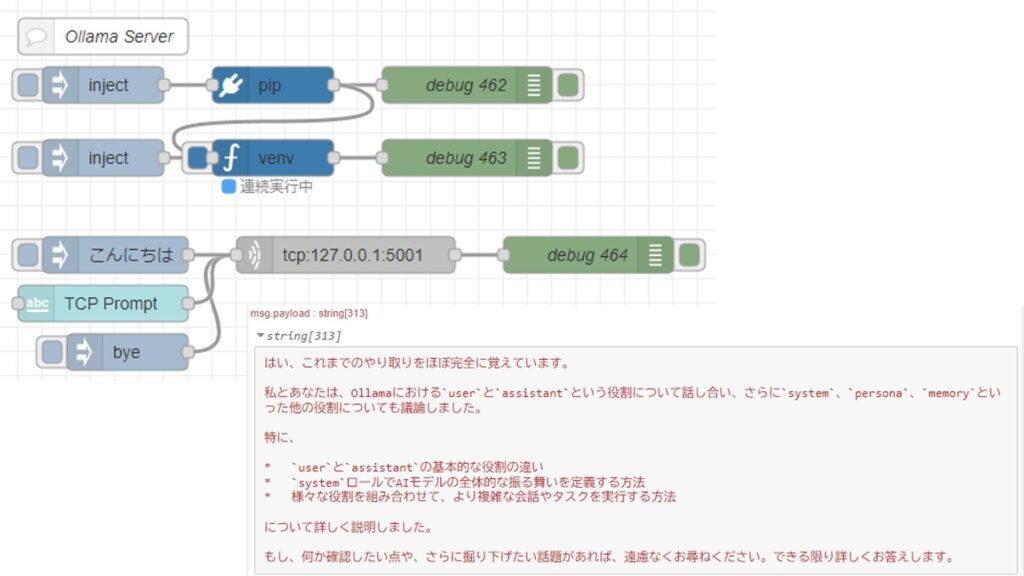
To make it easier to integrate with other processes later, I'll execute Python via Node-RED. For running Python in Node-RED, I use the "python-venv" node that I developed. It allows you to create a Python virtual environment and execute code as a Node-RED node.
▼I wrote about the development history at the end of last year (Japanese):
https://qiita.com/background/items/d2e05e8d85427761a609
▼Here is the flow:
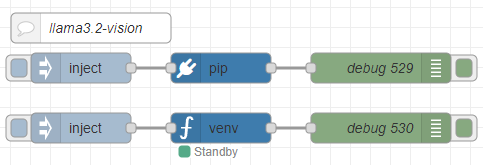
[{"id":"2d7c065837bd9d93","type":"pip","z":"22eb2b8f4786695c","venvconfig":"015784e9e3e0310a","name":"","arg":"ollama","action":"install","tail":false,"x":1870,"y":6020,"wires":[["688253b96a229f9d"]]},{"id":"bd8b9f06c697d482","type":"venv","z":"22eb2b8f4786695c","venvconfig":"015784e9e3e0310a","name":"","code":"import ollama\n\nresponse = ollama.chat(\n model='llama3.2-vision',\n messages=[{\n 'role': 'user',\n 'content': 'この画像には何が写っていますか?',\n 'images': ['japanese.jpg']\n }]\n)\n\nprint(response['message']['content'])","continuous":false,"x":1870,"y":6080,"wires":[["49d2facb11c942ba"]]},{"id":"e285bf36db741971","type":"inject","z":"22eb2b8f4786695c","name":"","props":[],"repeat":"","crontab":"","once":false,"onceDelay":0.1,"topic":"","x":1730,"y":6020,"wires":[["2d7c065837bd9d93"]]},{"id":"3fb26a0a1fe792dc","type":"inject","z":"22eb2b8f4786695c","name":"","props":[],"repeat":"","crontab":"","once":false,"onceDelay":0.1,"topic":"","x":1730,"y":6080,"wires":[["bd8b9f06c697d482"]]},{"id":"688253b96a229f9d","type":"debug","z":"22eb2b8f4786695c","name":"debug 529","active":true,"tosidebar":true,"console":false,"tostatus":false,"complete":"false","statusVal":"","statusType":"auto","x":2030,"y":6020,"wires":[]},{"id":"49d2facb11c942ba","type":"debug","z":"22eb2b8f4786695c","name":"debug 530","active":true,"tosidebar":true,"console":false,"tostatus":false,"complete":"false","statusVal":"","statusType":"auto","x":2030,"y":6080,"wires":[]},{"id":"2fba1fc7fbc81a46","type":"comment","z":"22eb2b8f4786695c","name":"llama3.2-vision","info":"","x":1740,"y":5980,"wires":[]},{"id":"015784e9e3e0310a","type":"venv-config","venvname":"AI","version":"3.10"}]I asked the model to describe what was in an image.
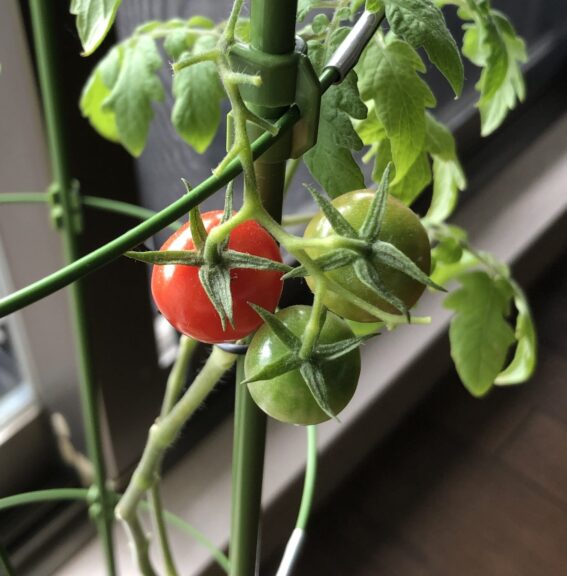
▼I used an image of tomatoes I grew at home.
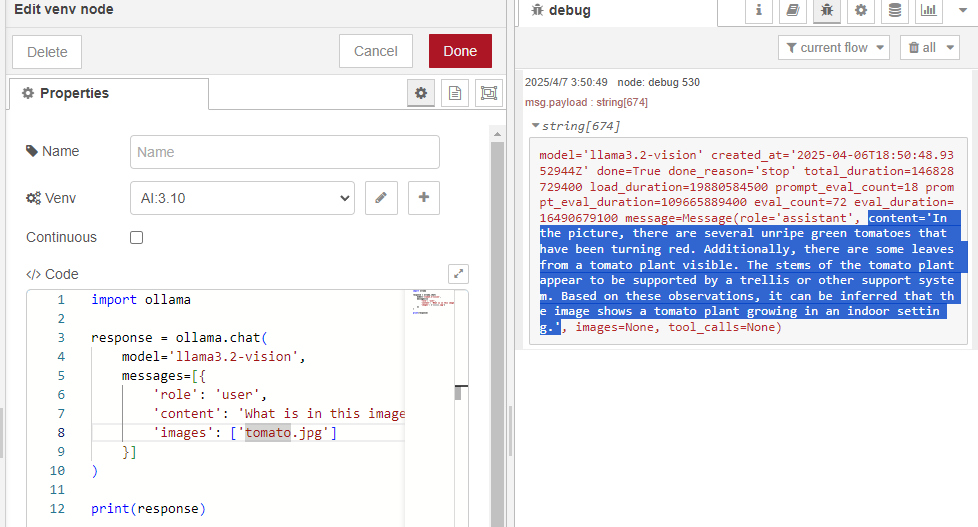
▼The output is a bit hard to read in the log, but results are being generated.
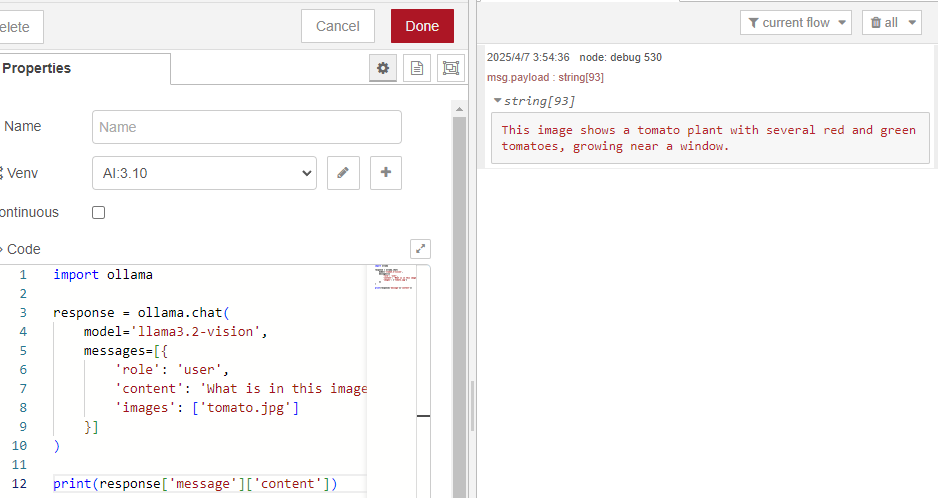
I modified it to output only the "content" value of the message property.
▼Now I can get just the result.
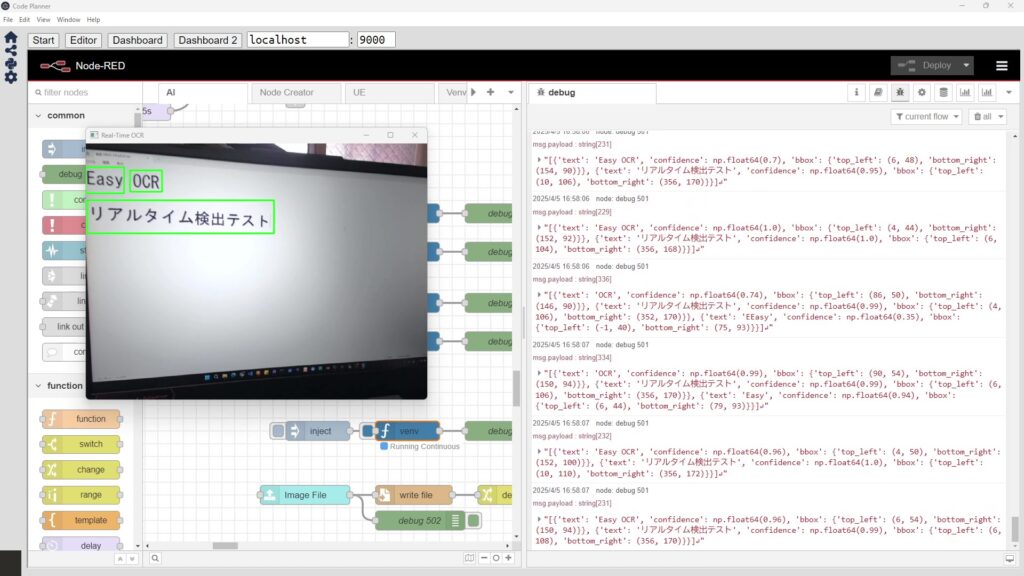
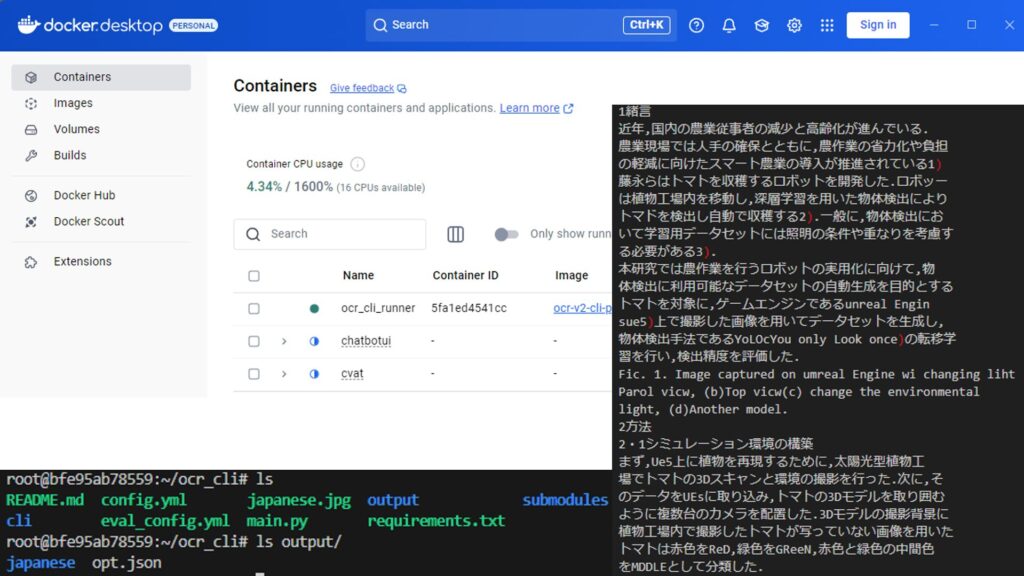
I also tried an image from when I was testing OCR software recently.
▼I was testing EasyOCR and NDLOCR.
Pythonで画像に対する文字認識 その1(EasyOCR、Node-RED)
はじめに 今回はEasyOCRを利用して、画像に対する文字認識を試してみました。 OCR系のソフトウェアはいろいろあって、Tesseractも使ってみたのですが、リアルタイムで…
Pythonで画像に対する文字認識 その2(NDLOCR)
はじめに 今回はNDLOCRを利用した画像に対する文字認識を試してみました。 NDLOCRはQiitaの記事で見つけました。国立国会図書館が提供しているライブラリということで…
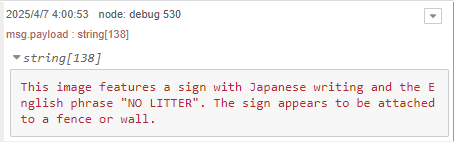
▼I sent "japanese.jpg" from the EasyOCR examples folder.
https://github.com/JaidedAI/EasyOCR/blob/master/examples/japanese.jpg
▼The results are output, but in English.
▼When I asked the question in Japanese, it output the following:
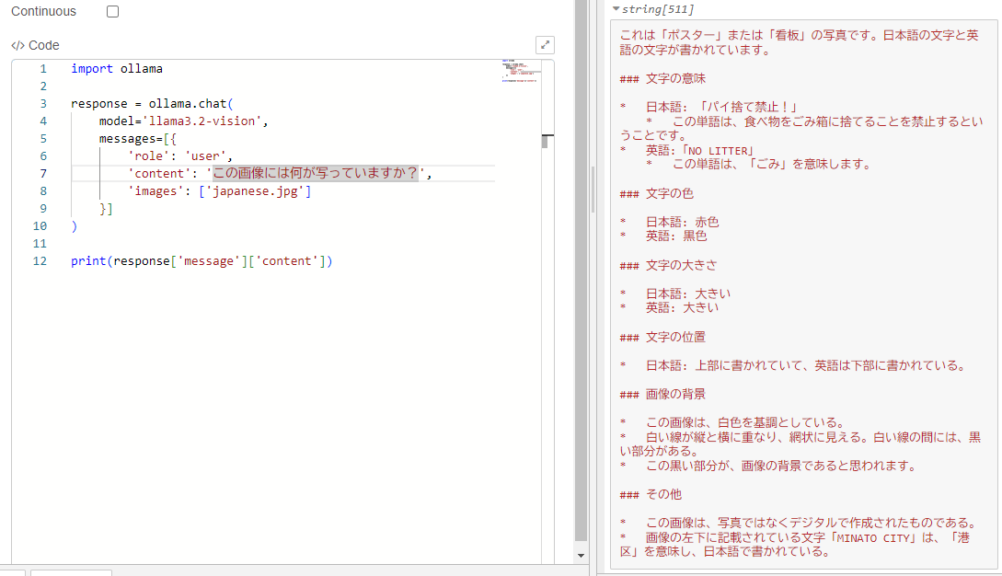
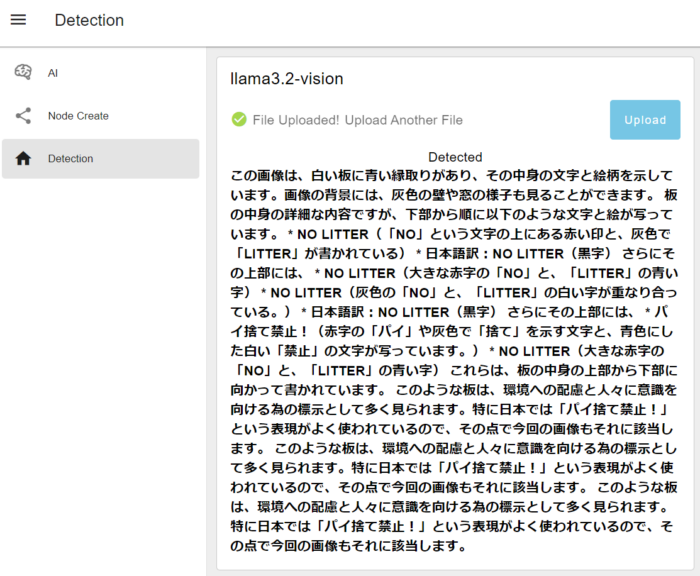
It says "パイ捨て禁止" (No Pie Littering) instead of "ポイ捨て禁止" (No Littering), which is a bit off. However, it is recognizing characters to some extent and understanding the meaning.
Note that it took about 2 to 3 minutes from execution to outputting the result.
Integrating with Node-RED Nodes
Just like when I used EasyOCR, I combined it with other Node-RED nodes. I used nodes from Node-RED Dashboard 2.0 to make it easy to upload image files.
▼I created the following flow:
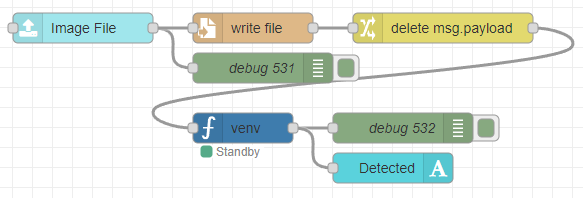
[{"id":"12bf25dd47e24dca","type":"ui-file-input","z":"22eb2b8f4786695c","group":"c77471ec89bc6ce2","name":"","order":2,"width":0,"height":0,"topic":"topic","topicType":"msg","label":"Image File","icon":"paperclip","allowMultiple":false,"accept":"","className":"","x":1710,"y":6160,"wires":[["ec40ba03120d97f1","0bfdd78c059bb753"]]},{"id":"0bfdd78c059bb753","type":"file","z":"22eb2b8f4786695c","name":"","filename":"file.name","filenameType":"msg","appendNewline":true,"createDir":true,"overwriteFile":"true","encoding":"none","x":1880,"y":6160,"wires":[["f033aafe3bf1749c"]]},{"id":"ec40ba03120d97f1","type":"debug","z":"22eb2b8f4786695c","name":"debug 531","active":true,"tosidebar":true,"console":false,"tostatus":false,"complete":"true","targetType":"full","statusVal":"","statusType":"auto","x":1890,"y":6200,"wires":[]},{"id":"f033aafe3bf1749c","type":"change","z":"22eb2b8f4786695c","name":"","rules":[{"t":"delete","p":"payload","pt":"msg"}],"action":"","property":"","from":"","to":"","reg":false,"x":2070,"y":6160,"wires":[["a0989eedfc0a597a"]]},{"id":"a0989eedfc0a597a","type":"venv","z":"22eb2b8f4786695c","venvconfig":"015784e9e3e0310a","name":"","code":"import ollama\n\nresponse = ollama.chat(\n model='llama3.2-vision',\n messages=[{\n 'role': 'user',\n 'content': 'この画像には何が写っていますか?',\n 'images': [msg['file']['name']]\n }]\n)\n\nprint(response['message']['content'])","continuous":false,"x":1870,"y":6260,"wires":[["c55d0826756d6a2e","899617b736b5d7ce"]]},{"id":"c55d0826756d6a2e","type":"debug","z":"22eb2b8f4786695c","name":"debug 532","active":true,"tosidebar":true,"console":false,"tostatus":false,"complete":"false","statusVal":"","statusType":"auto","x":2030,"y":6260,"wires":[]},{"id":"899617b736b5d7ce","type":"ui-text","z":"22eb2b8f4786695c","group":"c77471ec89bc6ce2","order":4,"width":0,"height":0,"name":"","label":"Detected","format":"{{msg.payload}}","layout":"col-center","style":false,"font":"","fontSize":16,"color":"#717171","wrapText":true,"className":"","x":2020,"y":6300,"wires":[]},{"id":"c77471ec89bc6ce2","type":"ui-group","name":"llama3.2-vision","page":"42252fd6f309916f","width":"6","height":"1","order":-1,"showTitle":true,"className":"","visible":"true","disabled":"false","groupType":"default"},{"id":"015784e9e3e0310a","type":"venv-config","venvname":"AI","version":"3.10"},{"id":"42252fd6f309916f","type":"ui-page","name":"Detection","ui":"ba89d595c555beb9","path":"/page3","icon":"home","layout":"grid","theme":"e2c9a4f37a42314e","breakpoints":[{"name":"Default","px":"0","cols":"3"},{"name":"Tablet","px":"576","cols":"6"},{"name":"Small Desktop","px":"768","cols":"9"},{"name":"Desktop","px":"1024","cols":"12"}],"order":3,"className":"","visible":"true","disabled":"false"},{"id":"ba89d595c555beb9","type":"ui-base","name":"My Dashboard","path":"/dashboard","appIcon":"","includeClientData":true,"acceptsClientConfig":["ui-notification","ui-control"],"showPathInSidebar":false,"headerContent":"page","navigationStyle":"default","titleBarStyle":"default","showReconnectNotification":true,"notificationDisplayTime":"1","showDisconnectNotification":true},{"id":"e2c9a4f37a42314e","type":"ui-theme","name":"Default Theme","colors":{"surface":"#ffffff","primary":"#0094CE","bgPage":"#eeeeee","groupBg":"#ffffff","groupOutline":"#cccccc"},"sizes":{"density":"default","pagePadding":"12px","groupGap":"12px","groupBorderRadius":"4px","widgetGap":"12px"}}]The Python execution node is set up to process the saved image file.
I tried uploading a file.
▼The results were output as follows. It still says "No Pie Littering"…
▼Of course, you can also upload from a smartphone. This seems very convenient.
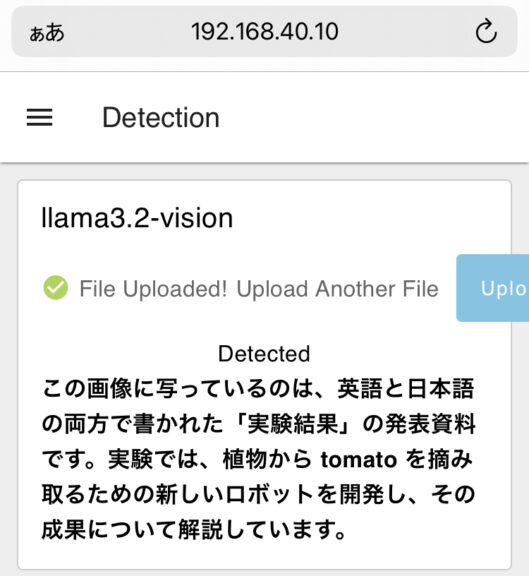
The detection result above is from a photo I took of a printed summary of my academic conference presentation. It might give more detail if I ask further questions, but the overview is correct.
Finally
I can now perform image descriptions using a local LLM. It's obviously slower than using GPT-4o via API, but it's great for experimenting without spending money.
I’d like to speed up the processing, but I suspect that the GPU isn't being utilized when running Ollama. I plan to review my settings soon.