Trying Out WSL2 Part 3 (Ubuntu 20.04, ROS Noetic, Open Manipulator)
 管理人
管理人Introduction
In this post, I tried installing ROS on Ubuntu 20.04 within WSL2.
The environment I built last time was Ubuntu 22.04 on WSL2. Since WSL2 allows the installation of multiple versions of Ubuntu, I am testing several versions of ROS by installing them side-by-side.
As a result of over-installing, my laptop now has four sets of Ubuntu and ROS/ROS2 environments…
▼Previous articles are here:
ROS2を使ってみる その1(環境構築、Windows)
はじめに 今回はROS2の環境構築です。何度か挑戦して諦めていたのですが、今度こそちゃんと動かせるようにしてみます。 つい最近参加していたROS Japan UGでは、ROS1…
 趣味的ロボット研究所
Trying Out WSL2 Part 1 (Ubuntu 22.04, Node-RED, and Memory Limits)
Info This article is translated from Japanese to English. Introduction In this post, I set up a WSL (Windows Subsystem for Linux) environment, which allows you…
About Versions
There are various versions of ROS, and each seems to correspond to a specific version of Ubuntu.
▼It appears ROS1 only supports up to Ubuntu 20.04.
https://qiita.com/atsuto/items/d7a7730b278ef8c9b662
▼When I built the ROS2 environment on WSL2, I used Ubuntu 22.04.
Trying Out WSL2 Part 2 (Ubuntu 22.04, ROS2 Iron)
Info This article is translated from Japanese to English. Introduction In a previous article, I built a ROS2 environment directly on Windows. Since then, I’ve …
Since I wanted to use ROS1 this time, I decided to use Ubuntu 20.04 and install ROS Noetic.
Installing Different Versions of Ubuntu on WSL2
Microsoft has a page titled "Manual installation steps for older versions of WSL," but following the steps to install the distribution didn't seem to reflect the changes correctly.
▼This is the page:
https://learn.microsoft.com/ja-jp/windows/wsl/install-manual
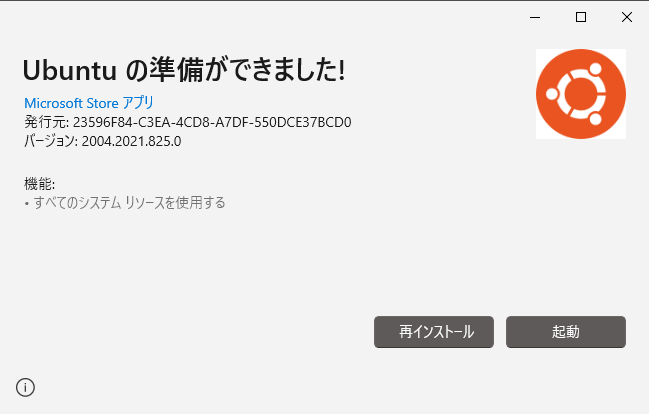
I tried downloading and running the Ubuntu 20.04 .appx file, but it remained as Ubuntu 22.04.
▼Running the .appx file launches a screen like this.
While looking for other methods, I found that you can display the list of installable distributions using a wsl command.
▼This is the page I referred to:
▼You can display installable distributions with the following command:
wsl.exe --list --online
▼Ubuntu, Debian, and OracleLinux are available.
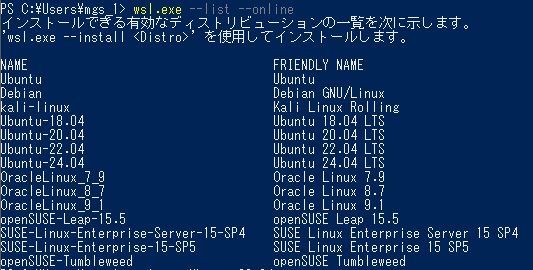
Since the installation command was also displayed, I followed it.
▼I installed it using this command:
wsl.exe --install Ubuntu-20.04
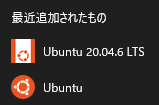
Once the installation was complete, Ubuntu 20.04.6 LTS became available.
▼It is separate from the Ubuntu already installed.
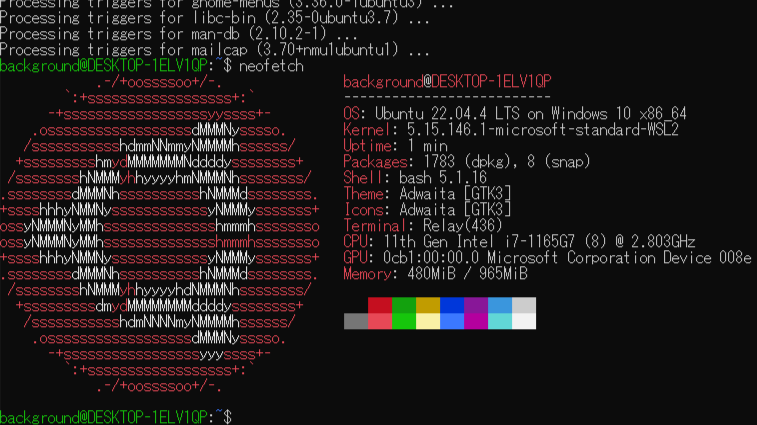
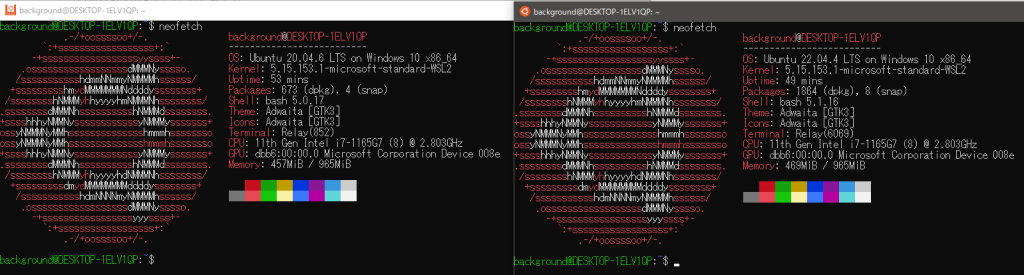
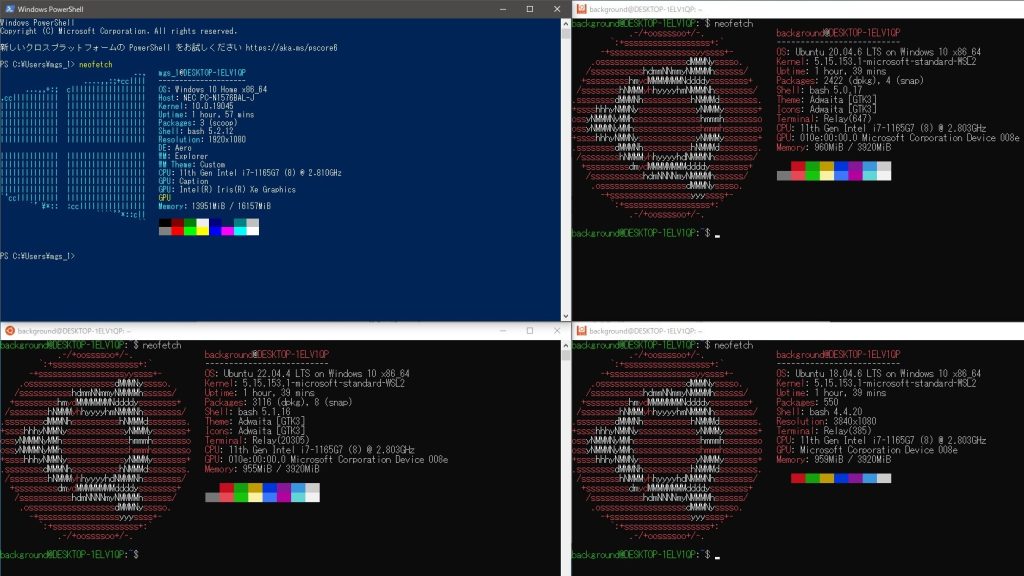
As I did in previous articles, I used neofetch to display the version.
▼The commands are:
 sudo apt update
 sudo apt upgrade
 sudo apt install neofetch
 neofetch
▼It is running on a different version.
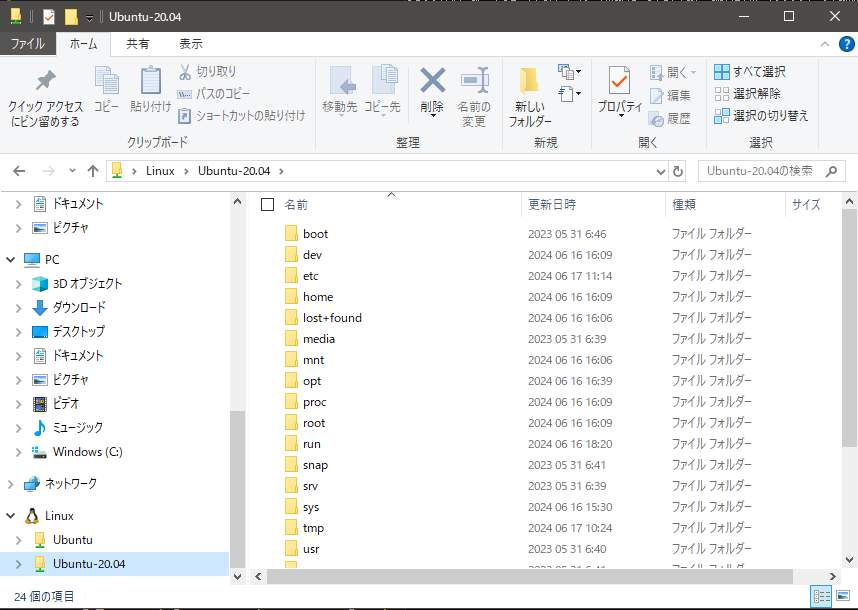
▼The "Linux" section in Explorer has also been created as a separate folder.
I also went ahead and installed Ubuntu 18.04.
▼The command is just this:
wsl.exe --install Ubuntu-18.04
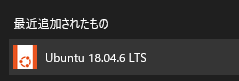
▼Ubuntu 18.04 was added.
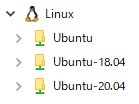
▼It was also created as a separate folder in Explorer.
I installed neofetch on Windows PowerShell and Ubuntu 18.04 as well.
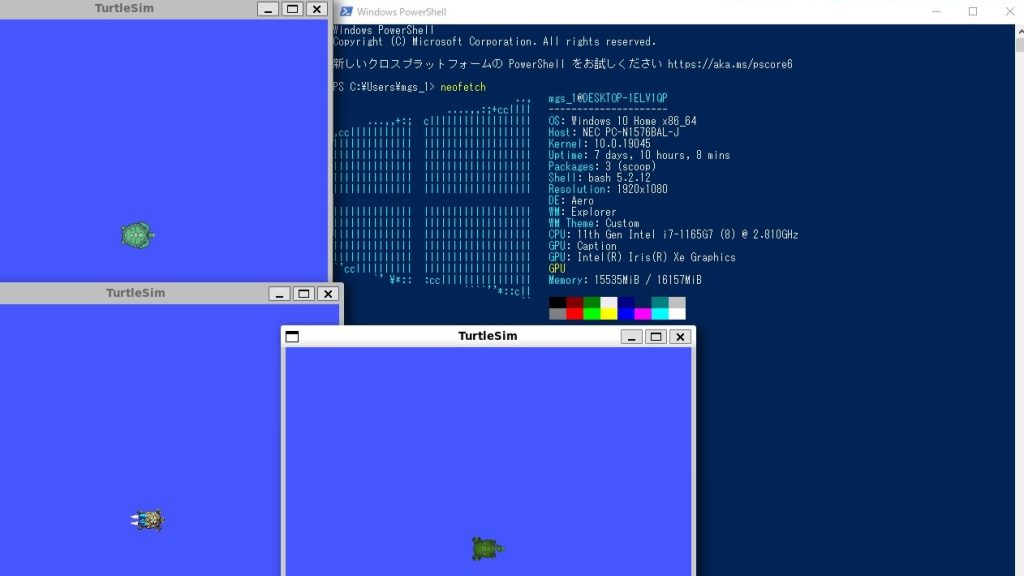
▼Here is what it looks like with neofetch windows lined up.
Installing ROS Noetic
I wanted to operate the Open Manipulator afterward, so I referred to its documentation.
▼The Quick Start Guide is here:
https://emanual.robotis.com/docs/en/platform/openmanipulator_x/quick_start_guide
▼As mentioned at the top of the page, you can switch between versions. This time it is Noetic.

Since the Ubuntu installation is complete, I’ll install ROS. Thanks to it being prepared by ROBOTIS-GIT, it was much easier than installing ROS2 on Windows.
▼The commands for installation are:
 sudo apt update
 wget https://raw.githubusercontent.com/ROBOTIS-GIT/robotis_tools/master/install_ros_noetic.sh
 chmod 755 ./install_ros_noetic.sh
 bash ./install_ros_noetic.sh
▼The shell script used for the installation is here:
https://github.com/ROBOTIS-GIT/robotis_tools/blob/master/install_ros_noetic.sh
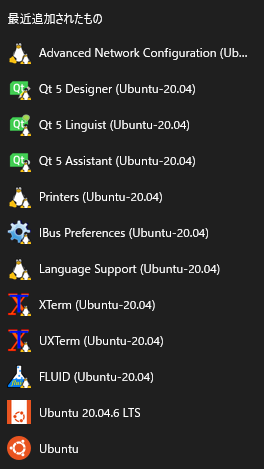
▼Qt and other tools seem to have been included.
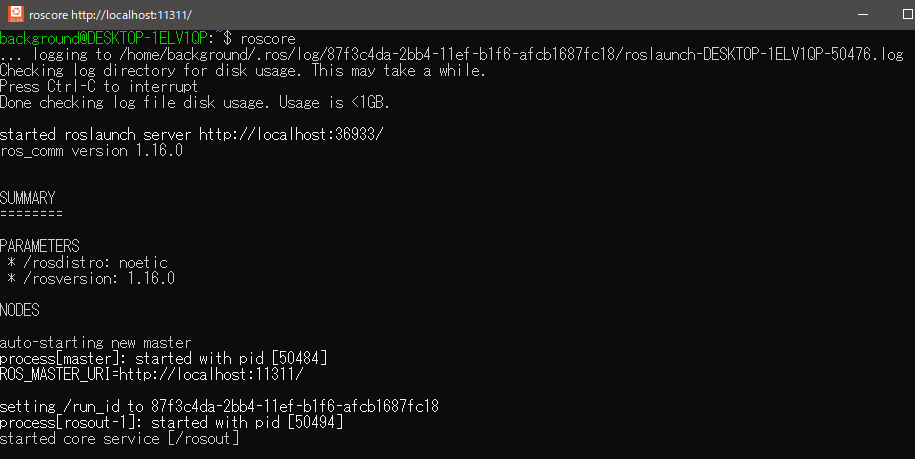
When I ran "roscore," it launched successfully.
▼It is running properly.
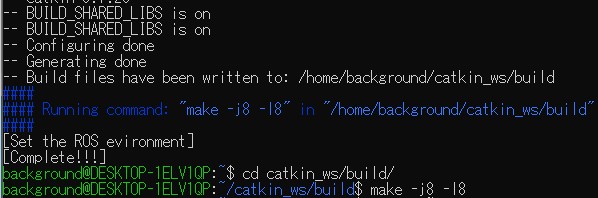
I noticed while trying other environments that a command was displayed upon completion of the environment setup. Running this might prevent errors later.
▼When rebuilding on Ubuntu 16.04, running "make -j8 -l8" in the /home/background/catkin_ws/build directory prevented subsequent errors.
Installing ROS Packages
Next, I’ll install the packages required for Open Manipulator.
▼The commands are:
 source ~/.bashrc
 sudo apt-get install ros-noetic-ros-controllers ros-noetic-gazebo* ros-noetic-moveit* ros-noetic-industrial-core
 sudo apt install ros-noetic-dynamixel-sdk ros-noetic-dynamixel-workbench*
 sudo apt install ros-noetic-robotis-manipulator
Everything went smoothly following the documentation up to this point, but an error occurred when running "catkin_make."
▼The commands were:
 cd ~/catkin_ws/src/
 git clone -b noetic-devel https://github.com/ROBOTIS-GIT/open_manipulator.git
 git clone -b noetic-devel https://github.com/ROBOTIS-GIT/open_manipulator_msgs.git
 git clone -b noetic-devel https://github.com/ROBOTIS-GIT/open_manipulator_simulations.git
 git clone https://github.com/ROBOTIS-GIT/open_manipulator_dependencies.git
 cd ~/catkin_ws && catkin_make
▼The error message was "Invoking 'make -j8 -l8' failed."
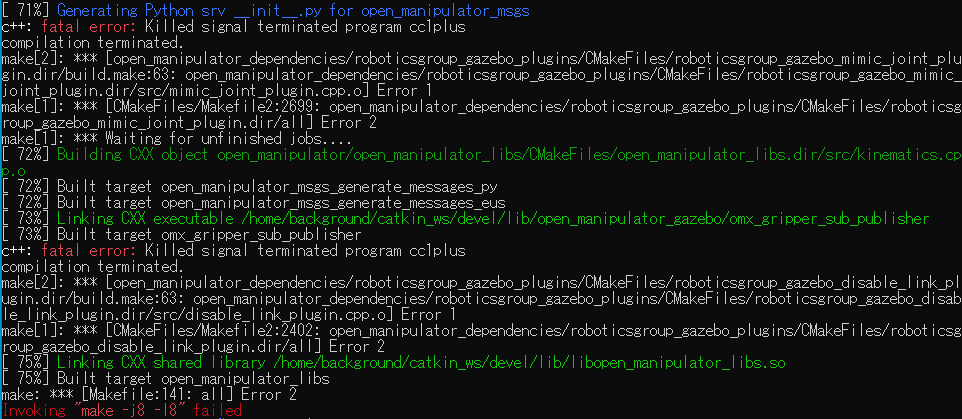
As mentioned earlier, this error might have been avoided if I had run the command displayed after the ROS setup.
It was resolved by deleting CMakeLists.txt once and running "catkin_make" again.
▼The commands are:
 rm -r src/CMakeLists.txt
 cd ~/catkin_ws && catkin_make
Connecting USB Devices to the WSL2 Environment
It seems that Ubuntu on WSL2 cannot connect to USB devices without specific settings. I realized this when I tried to use a USB device called U2D2 to connect the Open Manipulator to the PC.
▼The page regarding USB device connections for WSL2 is here:
https://learn.microsoft.com/ja-jp/windows/wsl/connect-usb
A prerequisite was having "usbipd-win 4.0.0 or higher installed," so I installed it.
▼Downloading and running the msi file from here starts the installation:
https://github.com/dorssel/usbipd-win/releases/tag/v4.2.0
Run the commands in Windows PowerShell. Please start it with administrator privileges.
▼The command to check connected USB devices is:
usbipd list
▼In this state, "USB Serial Converter" is the U2D2.
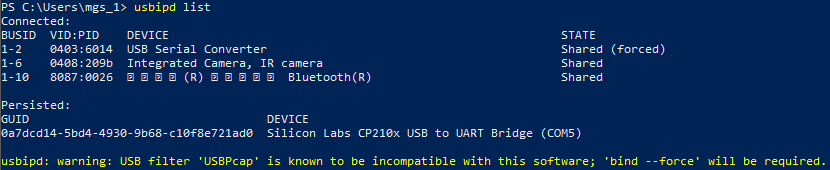
In this case, the BUSID shown on the left is 1-2. Use this BUSID in the command to share the USB device.
▼Please change the busid according to your situation.
usbipd bind --busid <busid>
▼Executing this showed the following warning:
usbipd: warning: USB filter 'USBPcap' is known to be incompatible with this software; 'bind --force' will be required.
▼Running it with "--force" cleared the warning.

▼The following command makes the device accessible to the distribution connected to WSL2:
usbipd attach --wsl --busid <busid>
By opening the Ubuntu terminal and running "lsusb" in this state, I could confirm it was connected.
▼Images before and after connection. It was connected properly.


After this, I tried unplugging the USB, but I found that I needed to run the command again to reconnect it.
Operating the Open Manipulator
I was able to borrow an actual Open Manipulator unit, so I tried operating it.
I used U2D2 and its peripherals to connect the PC and the Open Manipulator.
▼I have purchased these before, but they are quite expensive for an individual…
U2D2 PHB Set [902-0145-001] - ¥4,180.- : アールティロボットショップ, ロボットキット、部品は専門スタッフがいるアールティへ! (rt-shop.jp)
▼The command to connect using U2D2 is:
roslaunch open_manipulator_controller open_manipulator_controller.launch
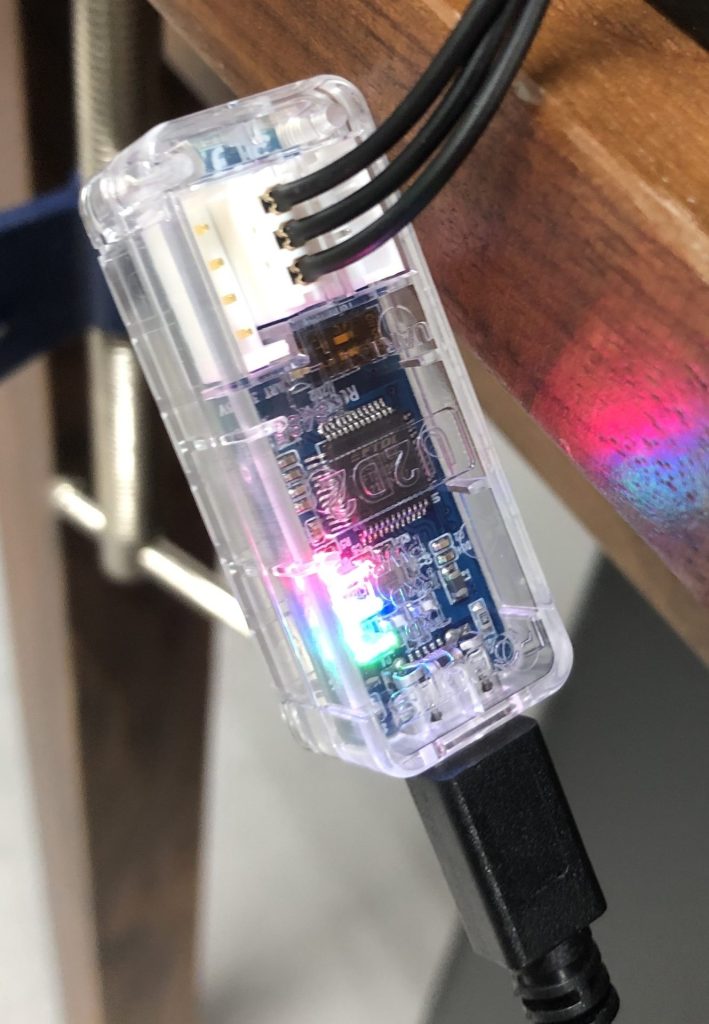
▼When successfully connected to the U2D2, the LED lights up.
▼I opened another terminal and ran the following command:
roslaunch open_manipulator_teleop open_manipulator_teleop_keyboard.launch
▼Operating keys for the keyboard will be displayed.
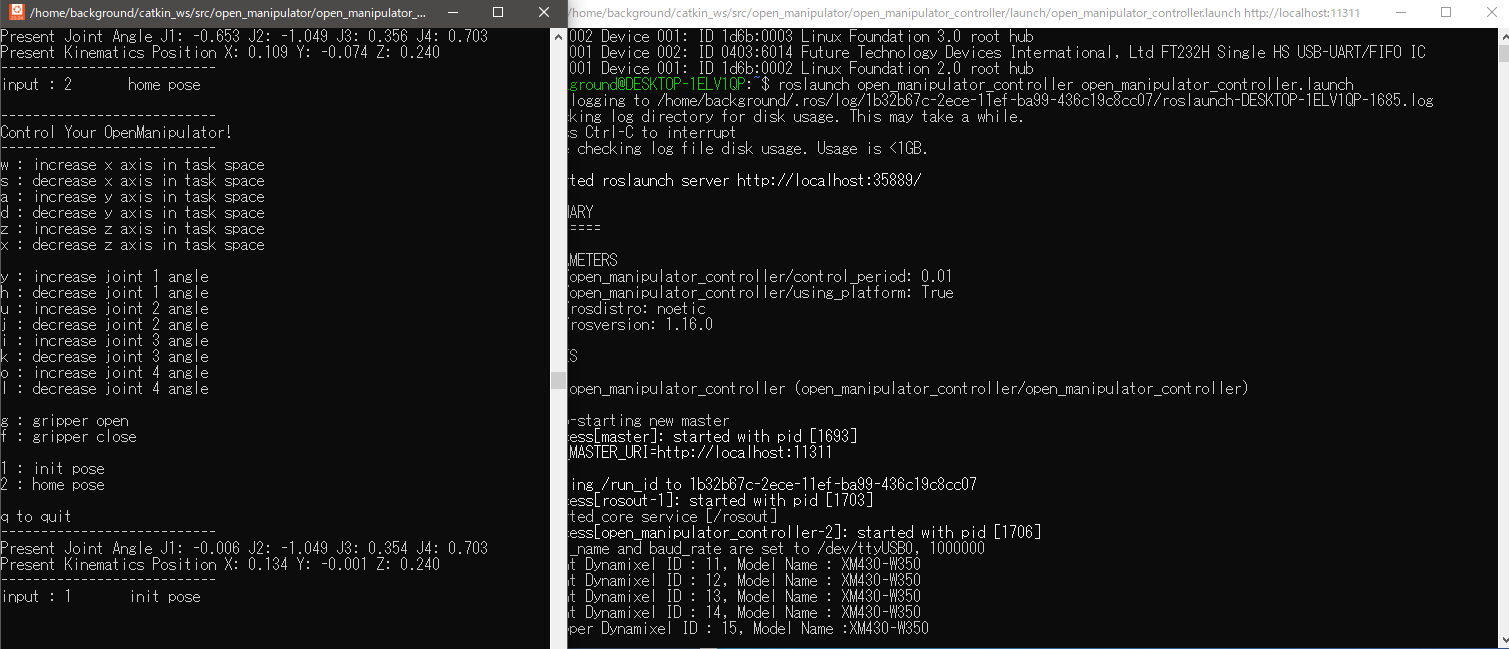
▼When I created the Open Manipulator model in Unreal Engine 5, I matched it to this key assignment.
Unreal Engine 5を使ってみる その7(Open Manipulator)
はじめに 前回、Unreal Engine 5(UE5)でロボットアームのようなものを作成しました。今回はROBOTIS社がオープンソースとして公開している、Open Manipulatorというロ…
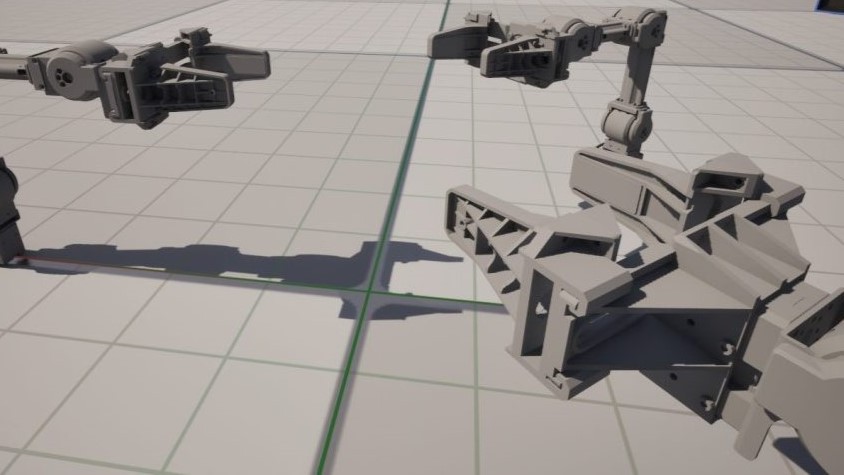
Entering keys allowed me to operate it. Repeated tapping made it unresponsive, but holding the key down made it rotate slowly.
▼I was able to move it.


Incidentally, I tried to run a program to move it with a PS4 controller afterward, but I couldn't install it. I've encountered the same issue with ROS Noetic installed on a non-WSL2 Ubuntu environment.
▼The installation method is described on this page, but even when switching to Noetic, it remained as Kinetic.
https://emanual.robotis.com/docs/en/platform/openmanipulator_x/ros_operation/#ps4-joystick-1
▼It cannot be installed with Kinetic.

▼It seems the packages depending on "ros-noetic-joystick-drivers" cannot be installed.
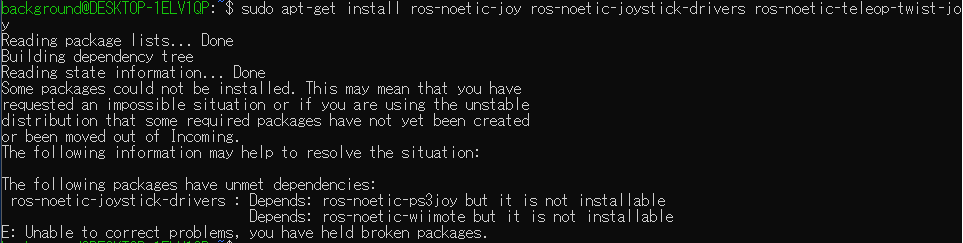
I tried building from source, and while I managed to install it, it didn't work. I don't quite understand the build process yet, so I intend to research it in more detail.
Finally
Being able to install multiple Ubuntu distributions on WSL2 seems very useful for verifying operations.
I suspect I will encounter more issues specific to running within WSL2, like the USB device connection this time. I need to be careful.
Now that I've been able to operate the actual machine, I'm looking forward to trying out other packages.