Trying Out WSL2 Part 1 (Ubuntu 22.04, Node-RED, and Memory Limits)
 管理人
管理人Introduction
In this post, I set up a WSL (Windows Subsystem for Linux) environment, which allows you to install Linux distributions directly within a Windows environment.
Recently, I’ve encountered several open-source software packages that couldn't be installed on Windows but ran perfectly on Ubuntu. This motivated me to give WSL a try.
I also attempted to set up a desktop environment, but I hit a bit of a wall, so I plan to revisit that at a later date. Note that I am testing this on both Windows 10 and Windows 11 PCs.
▼Previous articles are here:
ROS2を使ってみる その1(環境構築、Windows)
はじめに 今回はROS2の環境構築です。何度か挑戦して諦めていたのですが、今度こそちゃんと動かせるようにしてみます。 つい最近参加していたROS Japan UGでは、ROS1…
 趣味的ロボット研究所
Unreal Engine 5を使ってみる その5(Ubuntu 22.04.4での環境構築)
はじめに 今回はUbuntu環境にUnreal Engine 5をインストールしてみました。Windows環境でのインストールよりはややこしいのですが、比較的簡単にできました。 Node-RE…

WSL2 Setup
From what I researched, it seemed like a straightforward process if you've never installed it before. However, in my case, I had previously built an environment using Docker and partially deleted it, which made things a bit complicated.
There seem to be better ways to manage this using snapshots or virtual environment creation. I should probably adopt those methods moving forward.
▼I found an article titled "How to Redo a Messy 'Ubuntu on WSL2' Installation." It seems getting into a "messy" state is a common occurrence…
https://qiita.com/PoodleMaster/items/b54db3608c4d343d27c4
If You Have Never Installed It Before
Since I already had it installed, I couldn't replicate the fresh experience, but it's supposed to be doable with a single command.
▼The commands for installation are listed here. It seems WSL2 is installed by default now.
▼Right-click Windows PowerShell and select "Run as administrator."
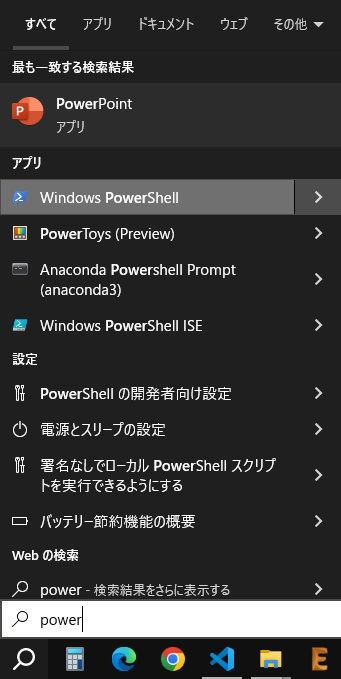
▼This is the only command needed. If it installs smoothly, you're good to go.
wsl --install
▼If you want to use other versions or distributions, this manual is a good reference:
https://learn.microsoft.com/ja-jp/windows/wsl/install-manual
If You Have Already Installed It Before
In my case, running "wsl --install" didn't trigger the installation.
▼Instead, it just displayed the help menu.
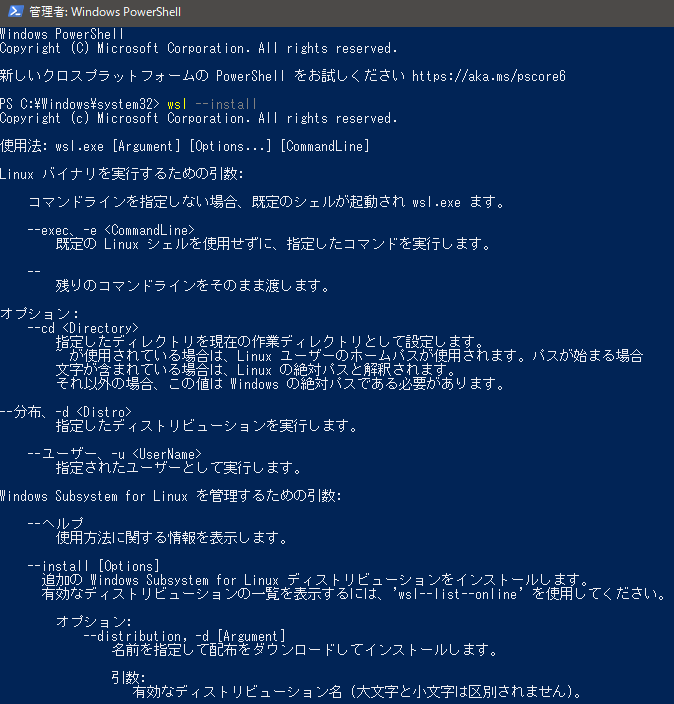
Since I had already deleted the app itself, I was stuck for a moment. However, I was able to install it after disabling the "Virtual Machine Platform" and "Windows Subsystem for Linux" features in Windows.
▼I referred to this article, which also explains the deletion process:
https://jp.minitool.com/news/uninstall-wsl.html
▼I disabled the features in "Turn Windows features on or off."
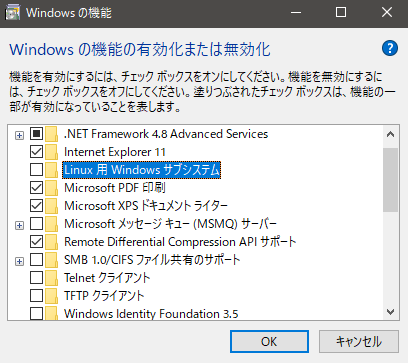
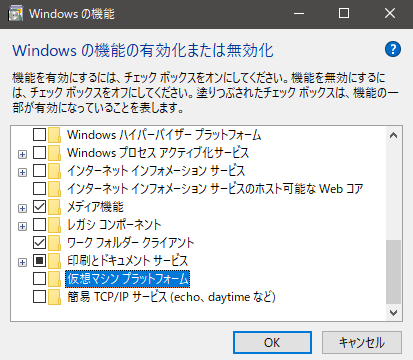
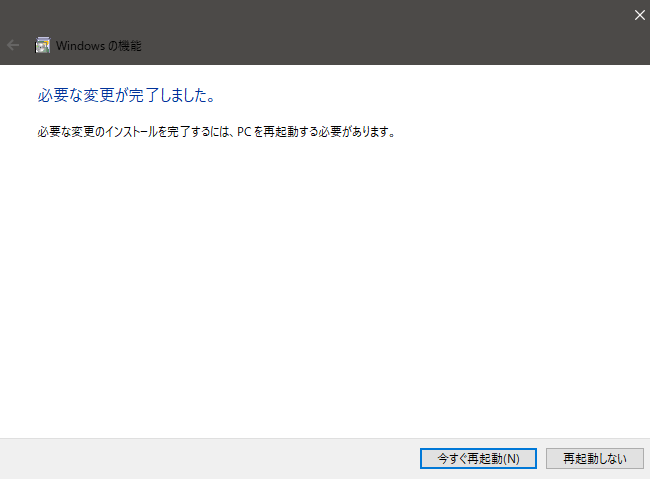
▼Then, I restarted the PC.
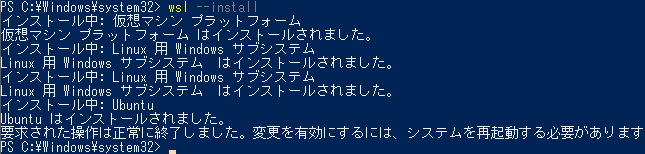
▼After restarting, running "wsl --install" worked successfully.
I restarted the PC once more.
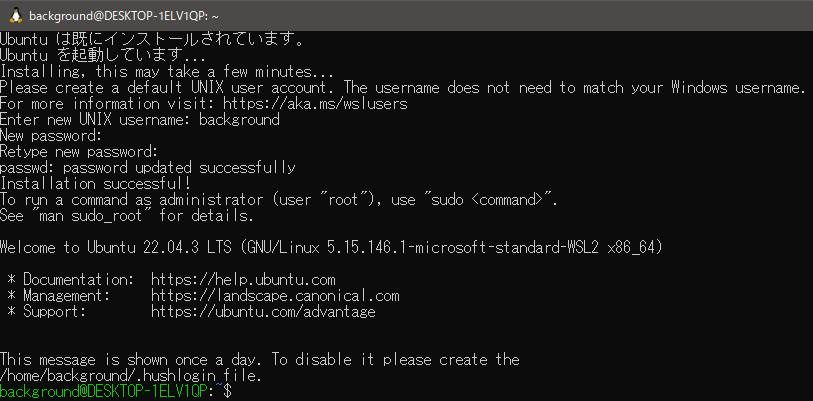
▼After the reboot, I set the Ubuntu username and password in the command prompt. It looks like Ubuntu 22.04.3 was installed.
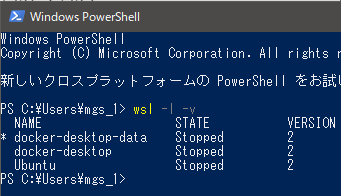
▼I checked the WSL version. It confirmed that WSL2 is running.
wsl -l -v
Trying to Delete and Reinstall
After building the environment once, I wanted to start over to test the process again. This time, I made sure to delete the application properly.
▼Again, I referred to this article:
https://jp.minitool.com/news/uninstall-wsl.html
▼I deleted Ubuntu from "Apps & features." I couldn't find "Windows Subsystem for Linux" there.
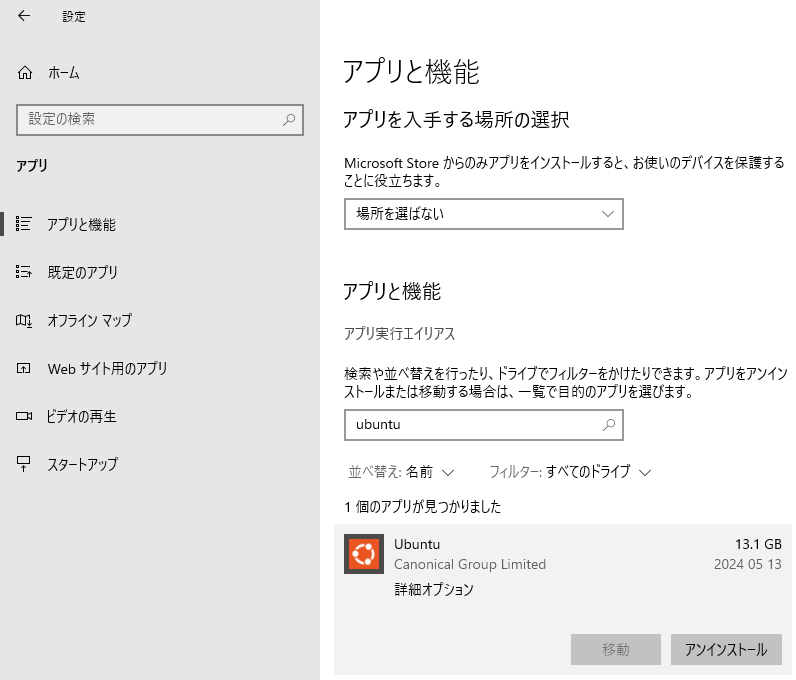
When I tried "wsl --install" in this state, I got the following error:
Error code: Wsl/Service/CreateInstance/MountVhd/HCS/ERROR_FILE_NOT_FOUND
▼It seemed Ubuntu was still partially registered.

The issue was resolved by unregistering the distribution from WSL.
▼These articles were helpful:
https://qiita.com/insilicomab/items/7d23020206939c821864
https://www.rk-k.com/archives/6873
I used "wsl -l" to check the distribution name and then entered the following command.
▼The distribution name was "Ubuntu".
 wsl -l
 wsl --unregister <DistributionName>
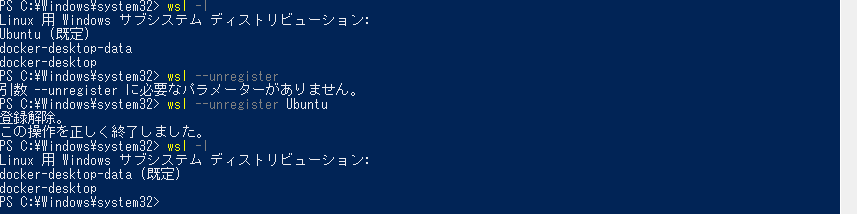
▼When I launched Ubuntu again, the initial setup began.

Installing Node-RED
I have built Node-RED environments on Linux before, so I tried it on WSL2 as well.
Installing Necessary Packages
▼The following commands install Node.js, npm, and Node-RED.
 sudo apt install npm nodejs
 sudo npm install -g --unsafe-perm node-red
▼An error was displayed, likely due to version conflicts.
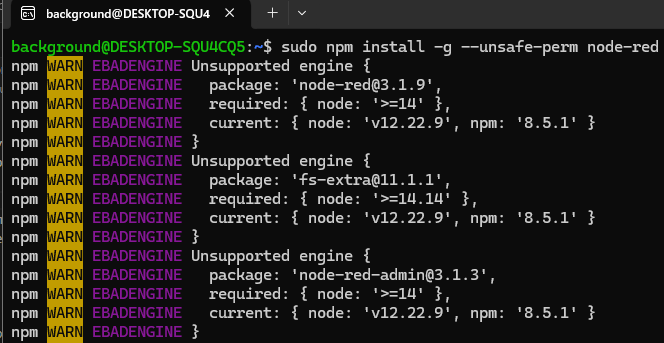
▼When I checked the versions, I got another error there as well.
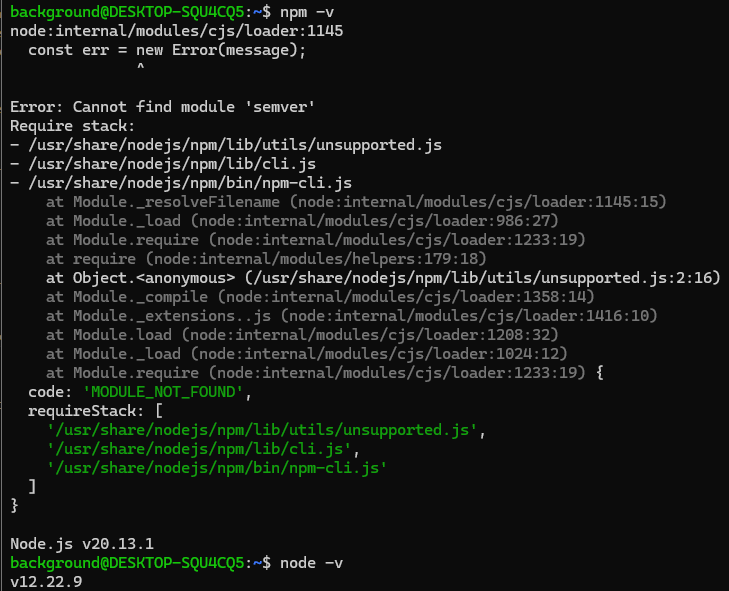
I tried installing a newer version based on an article.
▼I referred to this article:
https://qiita.com/nouernet/items/d6ad4d5f4f08857644de
▼I ran the following commands:
 sudo npm install n -g
 sudo n stable
 sudo apt purge -y nodejs npm
 sudo apt autoremove -y
▼After running the commands, checking the version initially returned nothing.

Remembering that I usually had to restart on Raspberry Pi, I closed the command prompt and reopened it. When I checked the version again, it showed up.
▼Node was v20.13.1 and npm was 10.5.2. Curiously, the version numbers seemed lower than before, but perhaps reopening the window was the key.
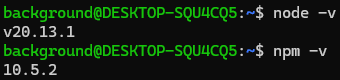
In this state, typing "node-red" successfully launched Node-RED.
Changing the Node-RED Port
Launching Node-RED was a success, but the port was conflicting between the WSL version and the Windows version of Node-RED.
▼Both were set to http://127.0.0.1:1880.
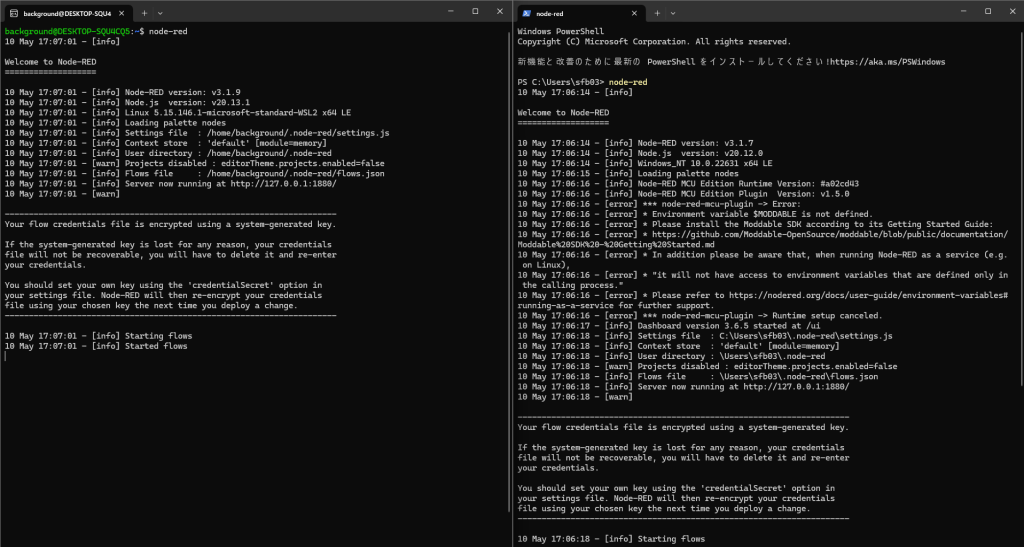
In this state, accessing the Node-RED editor would only show one of the two instances.
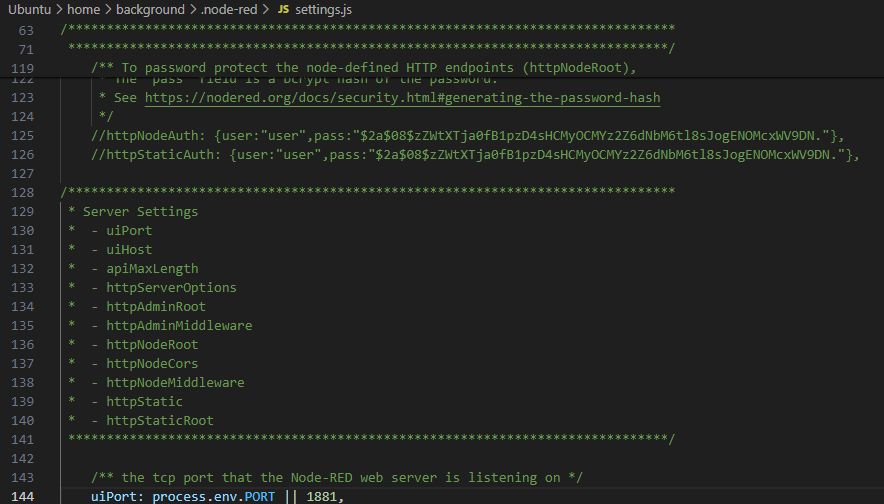
To fix this, I changed the port of the Node-RED running on WSL by editing "settings.js".
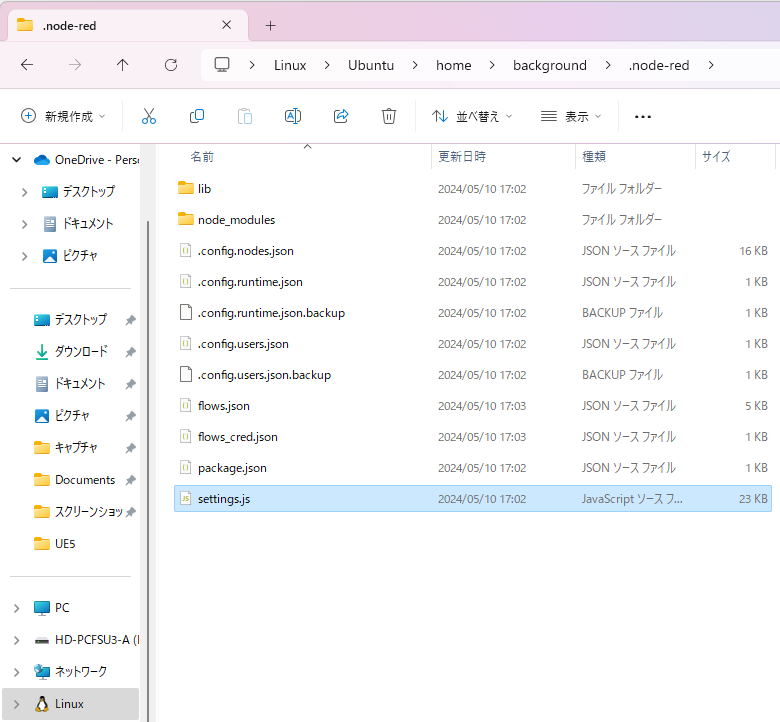
▼In Windows Explorer, there is a "Linux" item containing the "Ubuntu" folder.
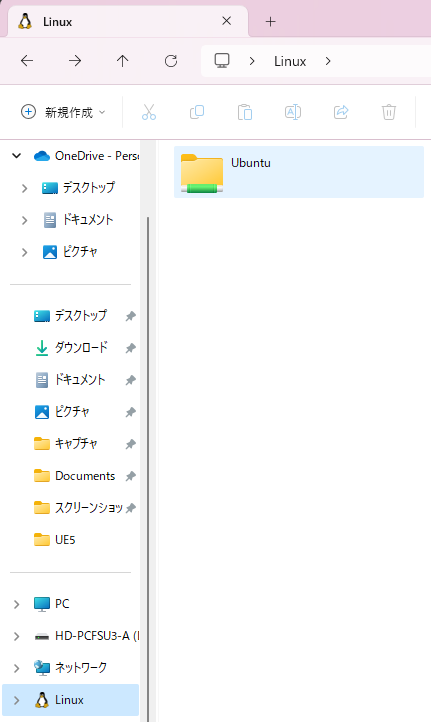
▼The "settings.js" file is located in the Linux/Ubuntu/home//.node-red folder. I edited this file.
▼I changed the port number to 1881.
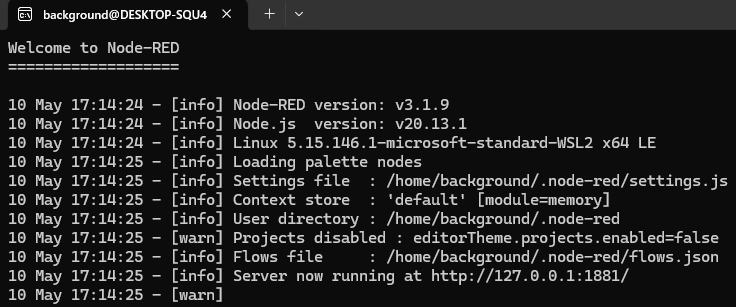
▼It successfully launched on port 1881! Now I can run Windows and Ubuntu Node-RED simultaneously.
Limiting WSL2 Memory Usage
After setting up the WSL2 environment, I felt my laptop was becoming sluggish, so I investigated.
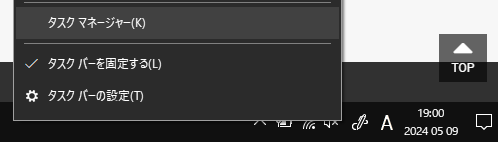
▼I checked the Task Manager (Right-click the taskbar to open).
▼Something called "Vmmem" was consuming a large percentage of resources.
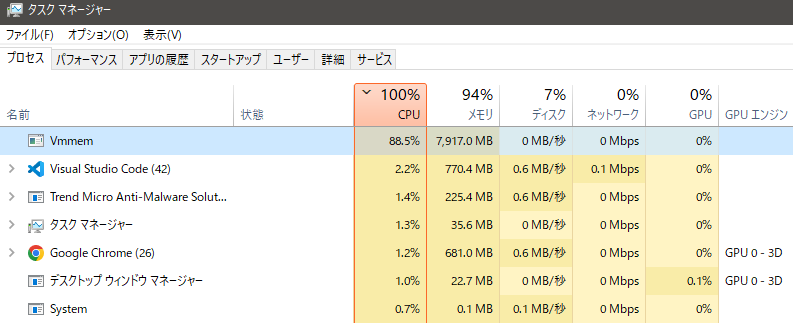
I looked up "Vmmem" and found it is related to WSL. I decided to limit its memory usage.
▼I referred to these two articles:
https://jp.minitool.com/news/vmmem-high-memory.html
https://helog.jp/windows/vmmem-memory
▼WSL can be stopped with this command:
wsl --shutdown
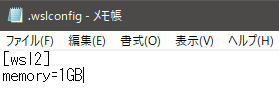
▼I created a file at C:\Users.wslconfig and added the following lines:
 [wsl2]
 memory=1GB
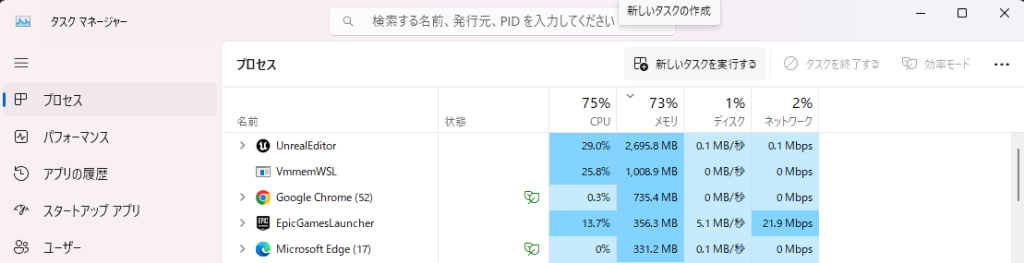
▼Checking the Task Manager again, the memory usage was now capped at around 1GB.
Trying neofetch
While looking for a good image for this article's eye-catcher, I found a way to display the Ubuntu icon in the prompt.
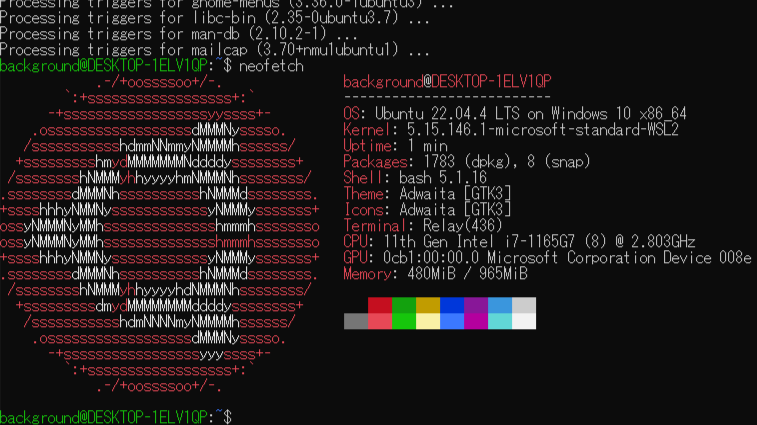
The "neofetch" command allows you to display system information in a cool way.
▼This article describes how to run it on other OSs as well:
https://qiita.com/yoshi_yast/items/74225c73f6e30ede07ea
▼After installing with apt, I ran neofetch.
 sudo apt install neofetch
 neofetch
▼This is what it looks like. You can see the memory usage is restricted to 965MiB.
Finally
Now that the WSL2 environment is ready, I want to try out software that didn't work on Windows but does on Ubuntu. I want to use this to verify if the Node-RED nodes and software I develop work in other environments.
I also want to try booting Ubuntu from a USB drive. I don't have much knowledge about it yet, so I'm a bit worried about accidentally wiping all my data. I wonder if it's as easy to switch as it is with a Raspberry Pi.