Trying Out Unity Part 1 (Installing Unity and Checking Tutorials)
 管理人
管理人Introduction
In this post, I installed Unity and checked out the tutorials.
I have used Unreal Engine before, but when considering integration with robots, Unity has an overwhelmingly larger amount of information regarding ROS/ROS2.
▼There are also various books available.


 ポチップ
ポチップ
I am planning to use Unity for future projects such as remote robot operation. First, this is a trial.
▼Previous articles are here:
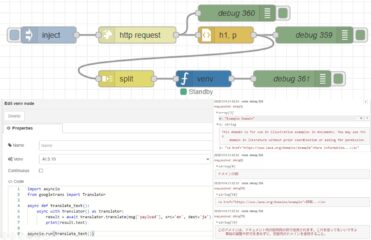
Unreal Engine 5を使ってみる その21(ObjectDeliverer、Node-RED、TCP/UDP通信)
はじめに 今回はUnreal EngineのプラグインであるObject Delivererを利用して、Node-REDとのTCP/UDP通信を試してみました。 HTTP通信については以前の記事で利用した…
 趣味的ロボット研究所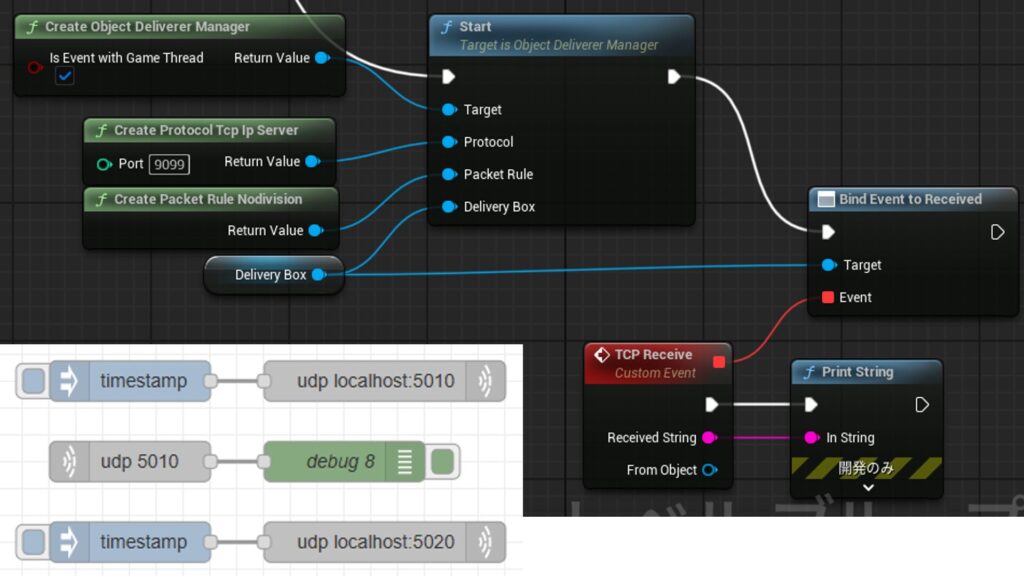
Jetson Xavierを使ってみる その3(ROSの環境構築、USBカメラ映像のPublish)
はじめに 今回はJetson XavierでROSの環境を構築して、USBカメラの映像をPublishしてみました。 ROSの通信で画像を送信して、物体検出や遠隔操作などを試したいなと思…
Installing Unity
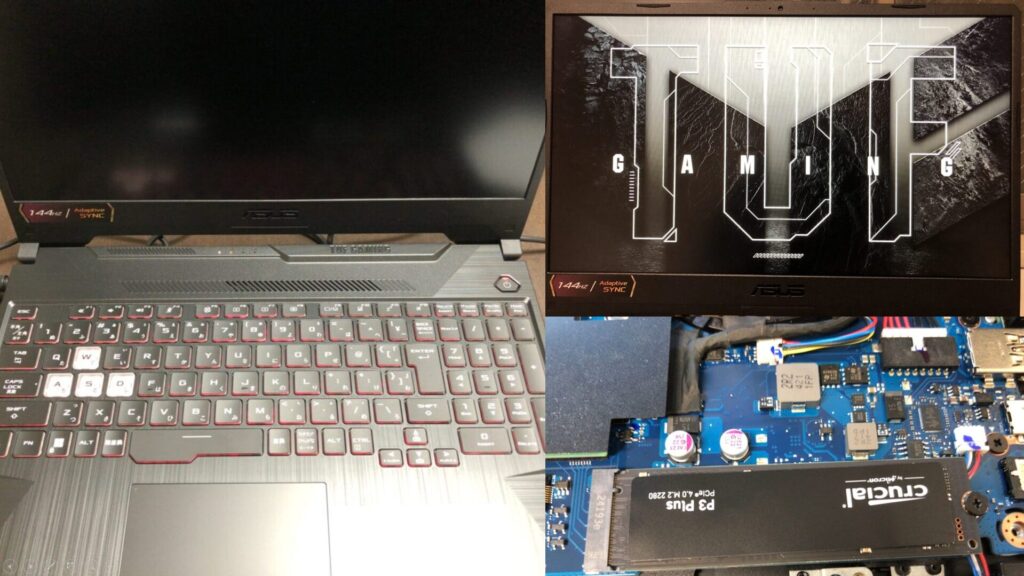
▼I am using a gaming laptop purchased for around 100,000 yen, running Windows 11.
Shopping: New Laptop and SSD Expansion (ASUS TUF Gaming A15)
Info This article is translated from Japanese to English. Introduction In this post, I’ll be talking about replacing my PC after my previous one broke down. I …
 ポチップ
ポチップ
Each version of Unity can be installed via Unity Hub. It’s similar to Epic Games Launcher for Unreal Engine.
▼The download page is here:
クリエイティブプロジェクトを開始して Unity Hub をダウンロードする | Unity
▼Unity Hub launched after running the installer.
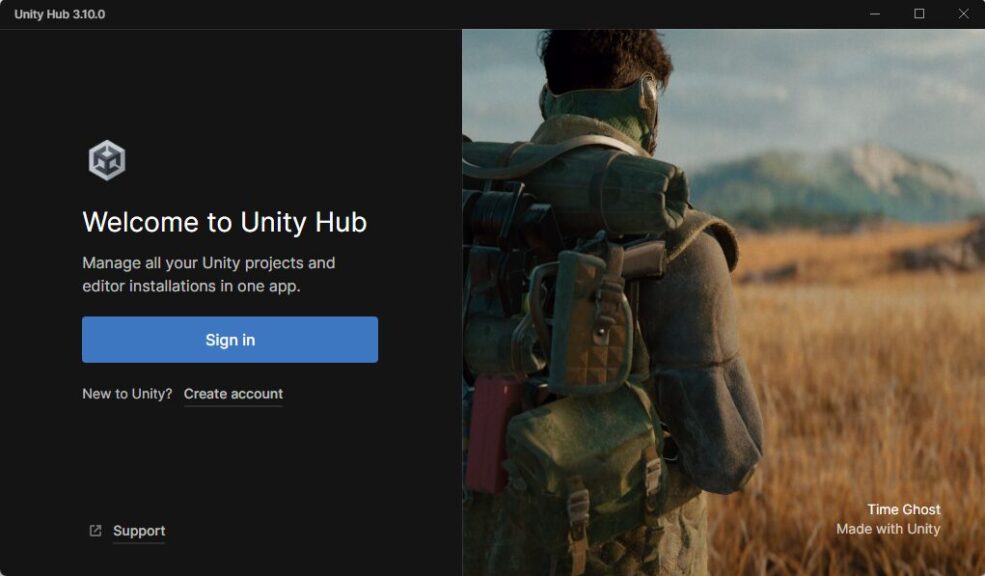
After creating an account, I logged in.
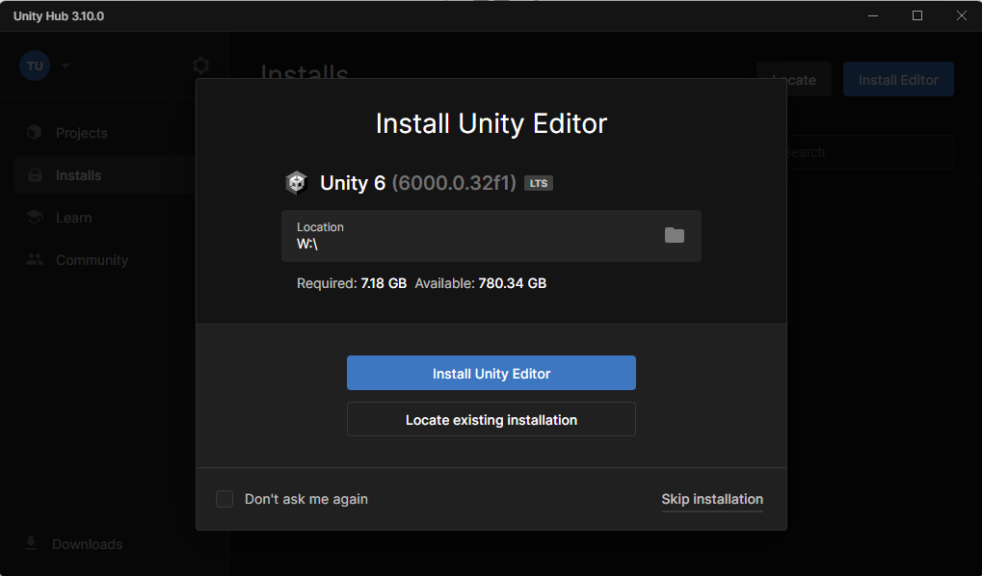
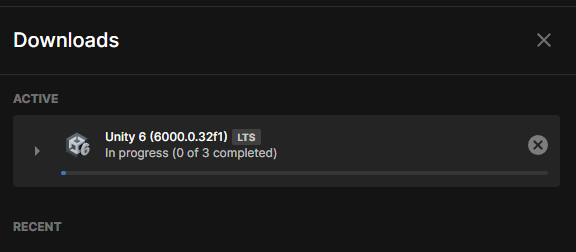
▼I tried installing the latest version available at the time.
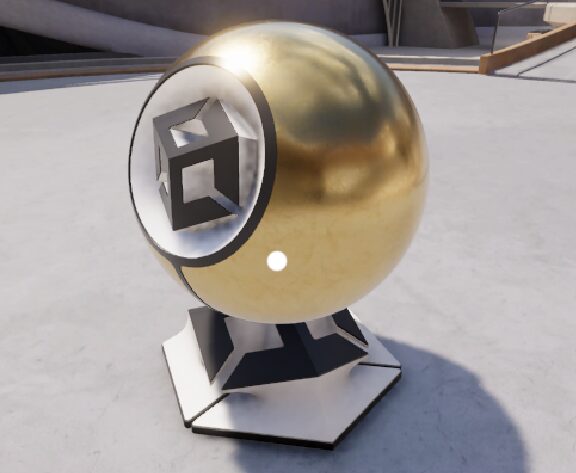
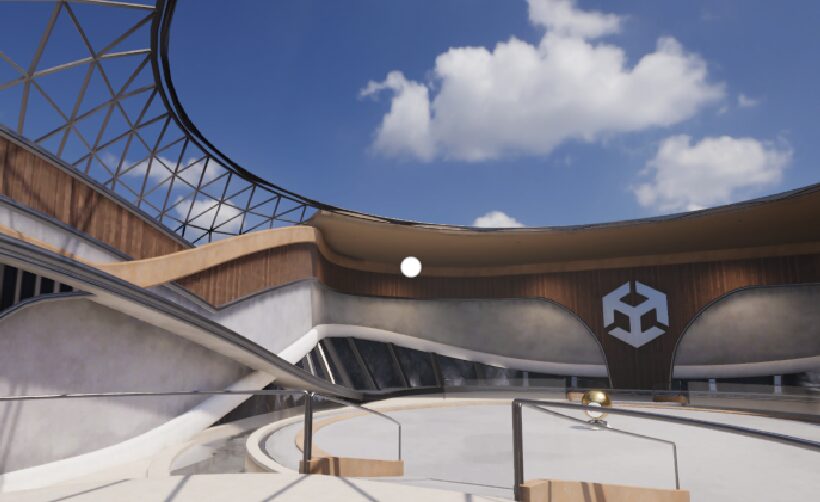
I was able to open a sample and check it.
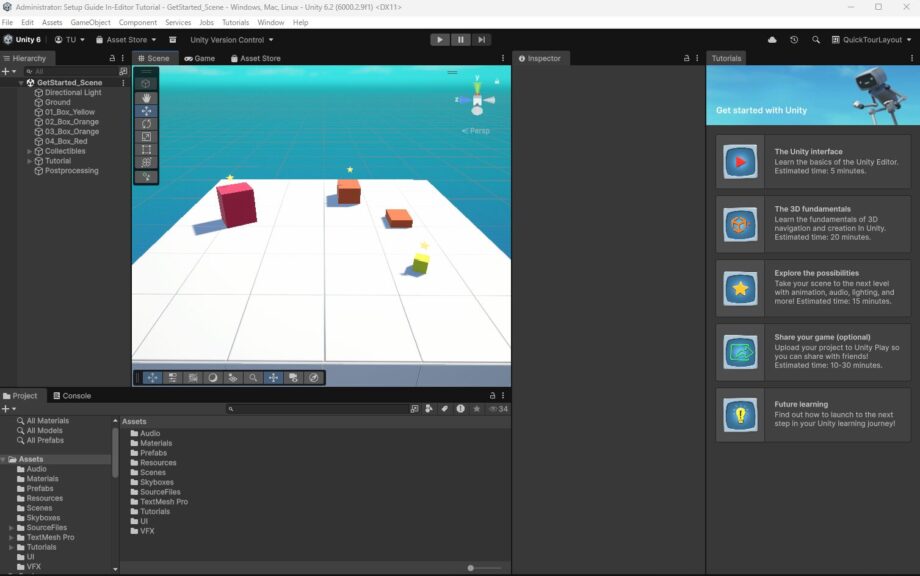
▼The editor screen looks like this.
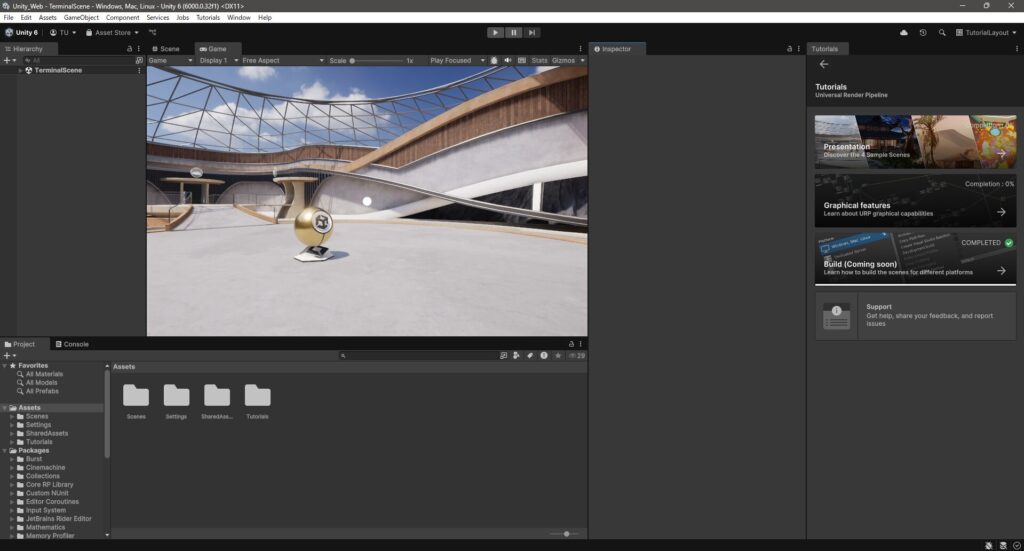
▼I had the impression that Unreal Engine was better at rendering, but it seemed like processing was being performed well in Unity too.
Everything was fine up to this point, but a problem occurred when I reinstalled and launched Unity Hub.
▼An error occurred while installing a different version of Unity.
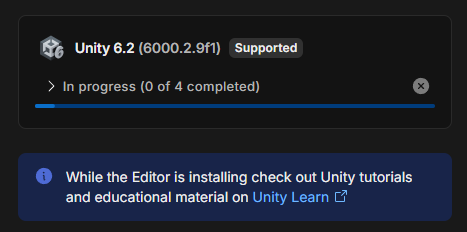
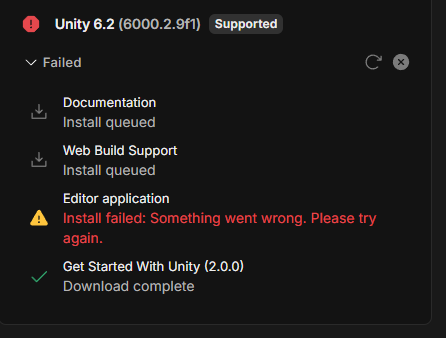
No matter how many times I tried, it displayed "Install failed: Something went wrong. Please try again."
▼A similar error was reported to the support center.
By launching Unity Hub with administrator privileges, I was able to proceed with the subsequent installation.
▼Sometimes the pop-up would not appear unless it was launched with administrator privileges.
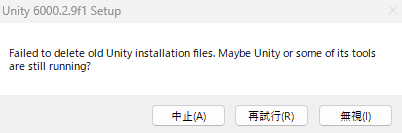
▼Now it was installed without any problems, and I could create a project.
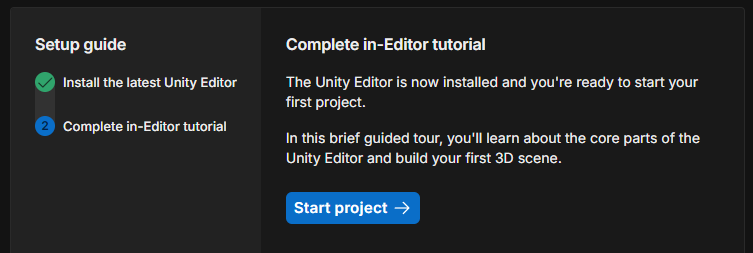
▼Sometimes it asked whether to proceed with administrator privileges.
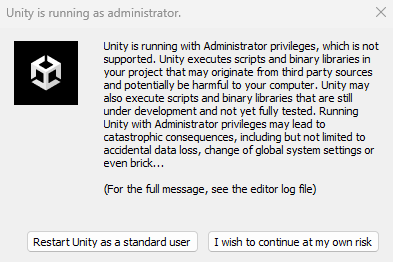
▼Since "Connection Lost" occurred when not proceeding with administrator privileges, I think it's generally fine to keep it that way.

This time, I created a tutorial project and launched it.
▼It launched successfully!
Checking the Tutorials
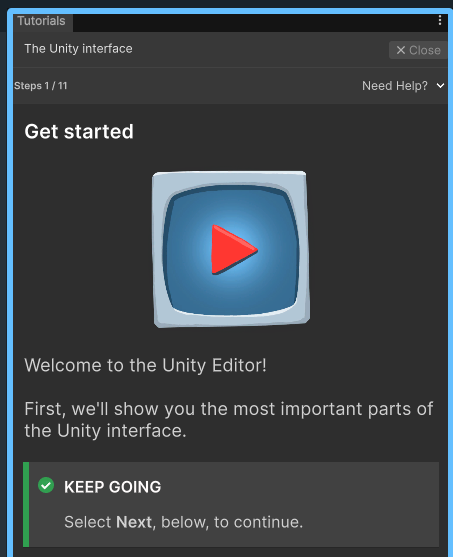
As soon as the project was launched, the tutorial steps were displayed in the sidebar. I checked them following these steps.
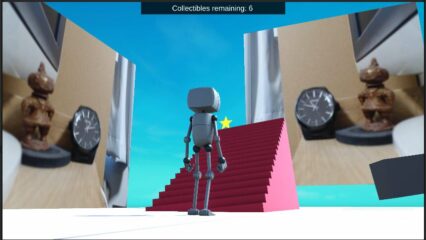
▼The screen looks like this.
I'll just list what I was able to do.
▼Assets are located in the Project window at the bottom, and changing Skyboxes changed the color of the sky.
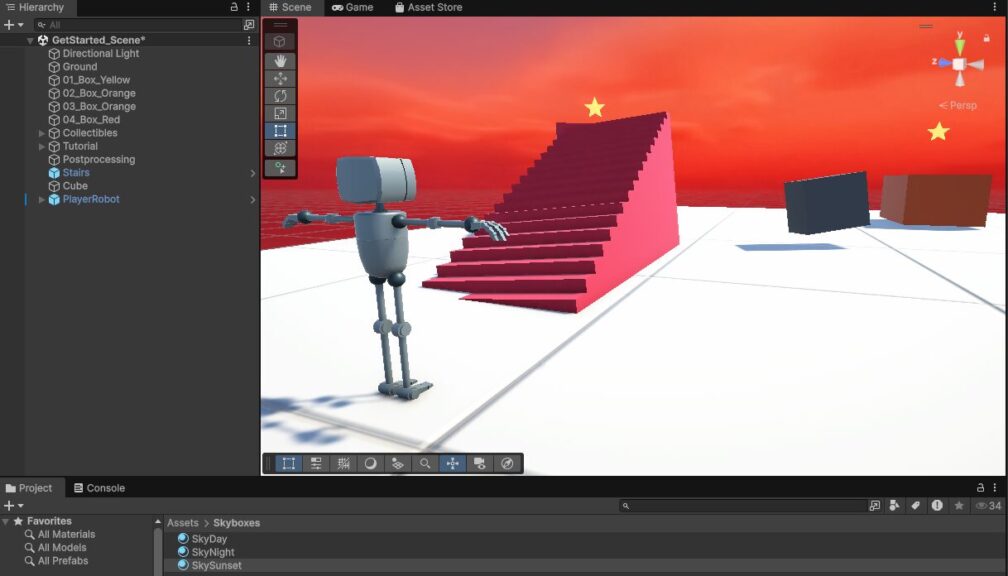
The operations for placing objects and such were basically the same as in Unreal Engine, so I could operate without any discomfort.
▼I placed a robot-like game character, and I could operate it once the game started.
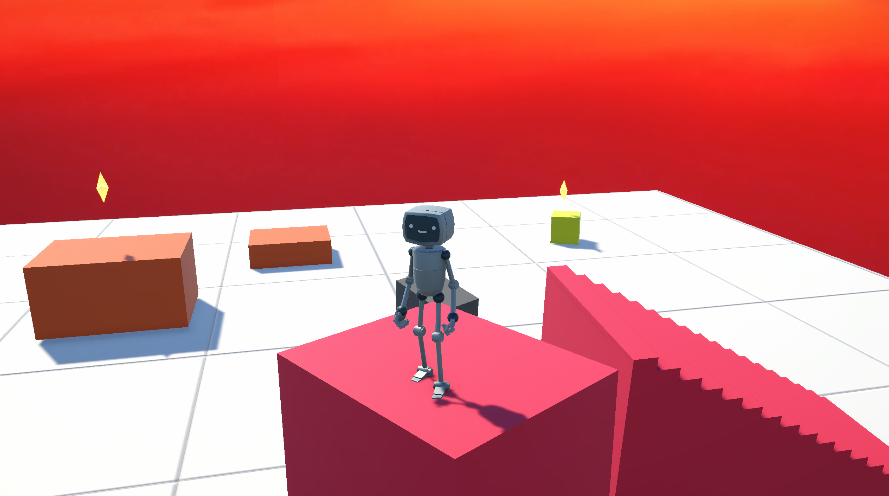
▼Basic objects such as those that move, those that can be picked up, and those that emit light were provided.
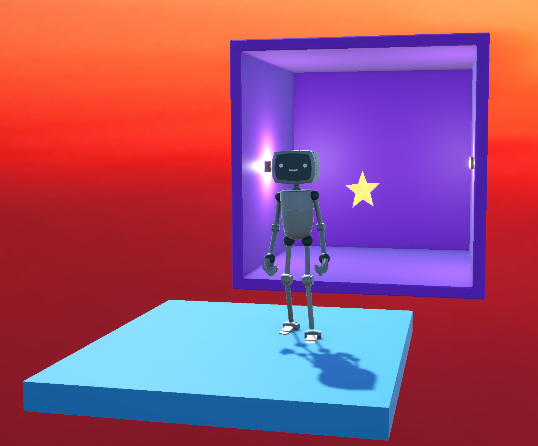
▼There were also objects like rain.
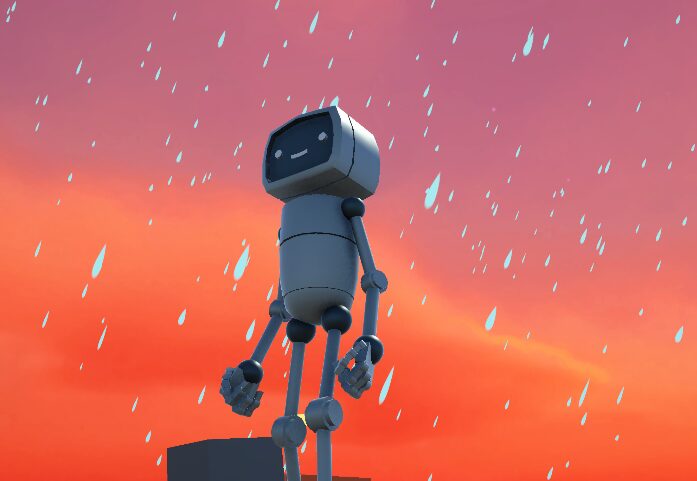
I was concerned about the slow walking speed, so I changed it.
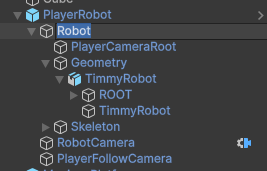
▼Select the player's robot and click on "Robot."
▼There was "Move Speed" in the Inspector.
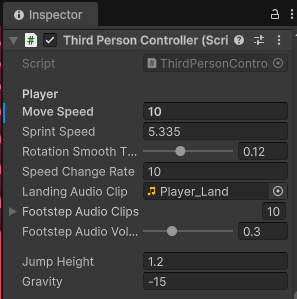
Now it walks faster.
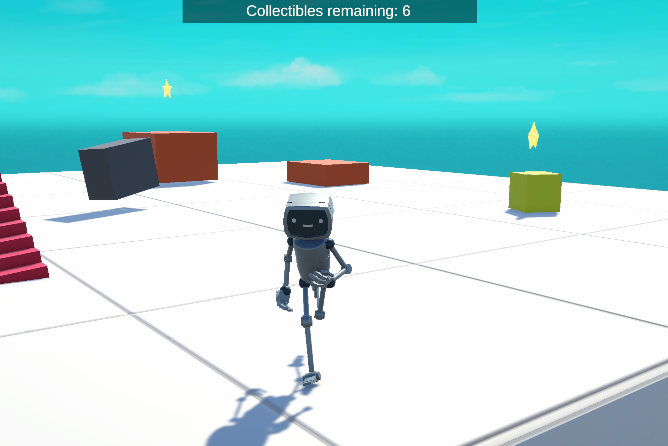
▼The motion also changed to a running animation to match the speed.
Unlike Unreal Engine's Blueprints, I thought Unity development was strictly code-based with C#, so I assumed parameter adjustments would also be through code. It seems instance parameter adjustments can also be changed via the GUI in the Inspector.
Sharing to Unity Play
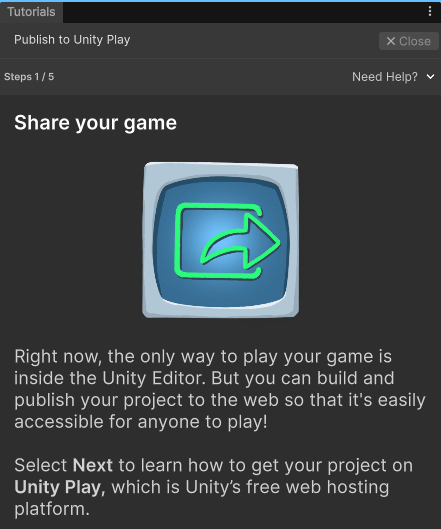
There was a "Share your game" section in the tutorial, so I tried it.
▼It seems to be shared on Unity Play.
I selected File → Build Profiles and changed the target platform.
▼I selected Web and clicked "Switch Platform."
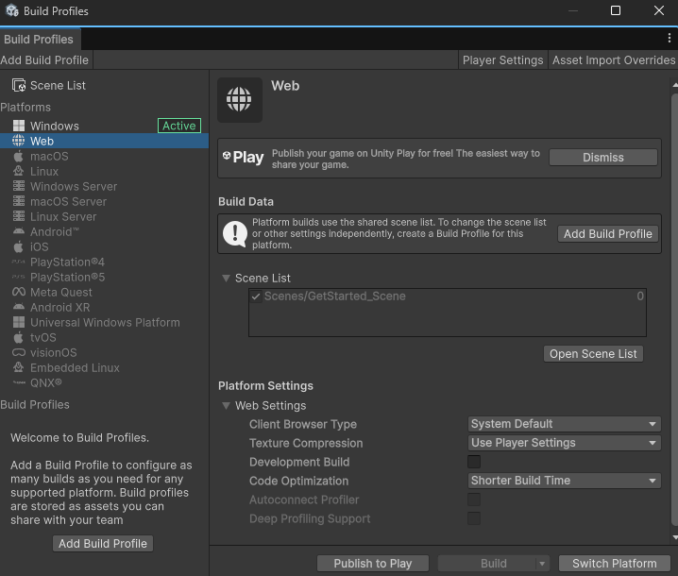
▼The process started.

▼I selected "Build."
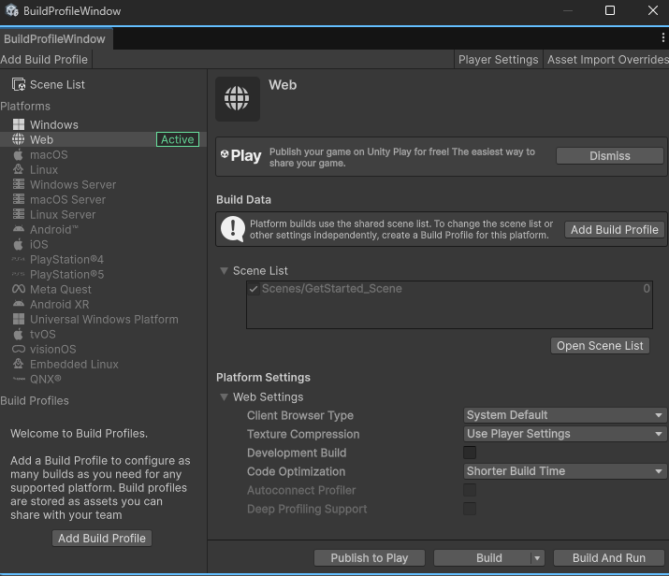
I created a folder to save the files after building.
▼Files were added.
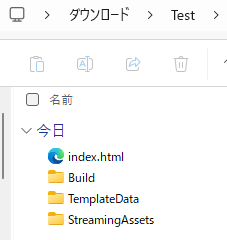
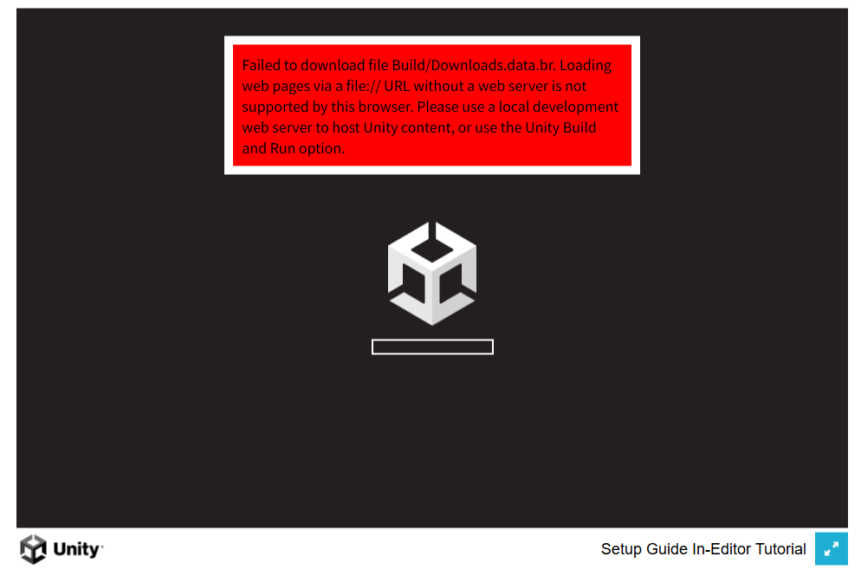
▼At this point, I couldn't access it even if I opened the html file.
After the build, I selected "Publish to Play."
▼I proceeded with selecting "Publish."
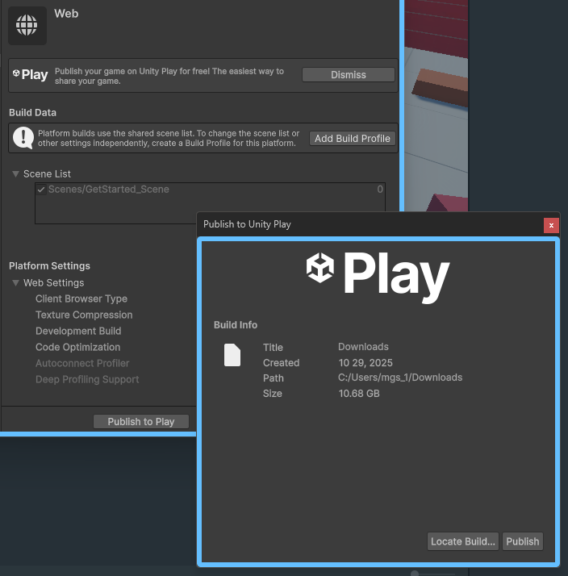
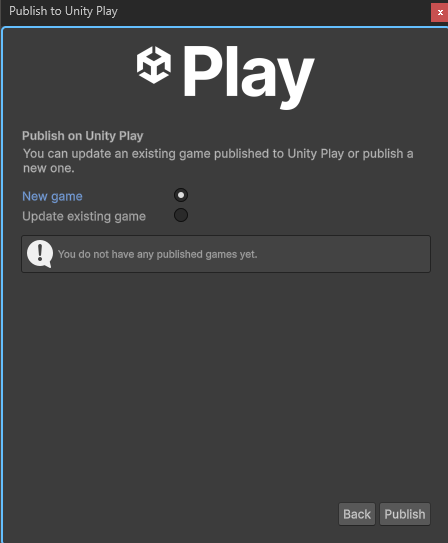
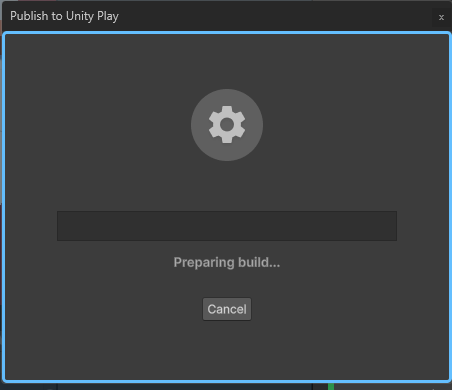
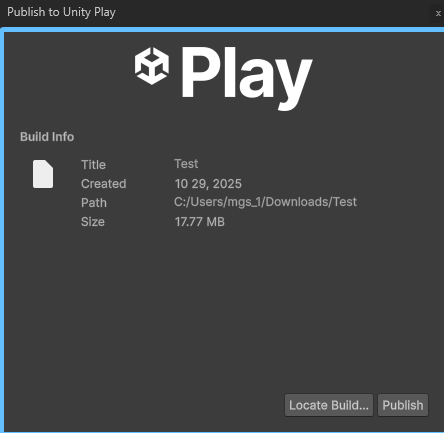
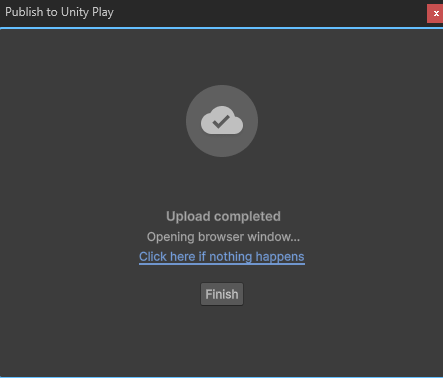
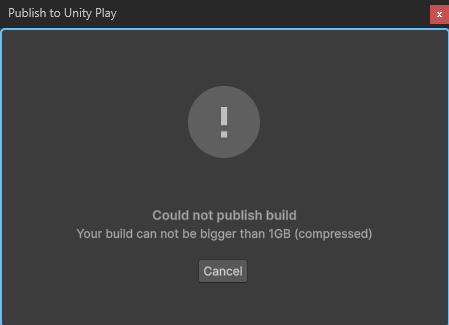
▼By the way, when I tried to save it in the download folder casually, an error occurred saying it was too large, possibly because of other existing files.
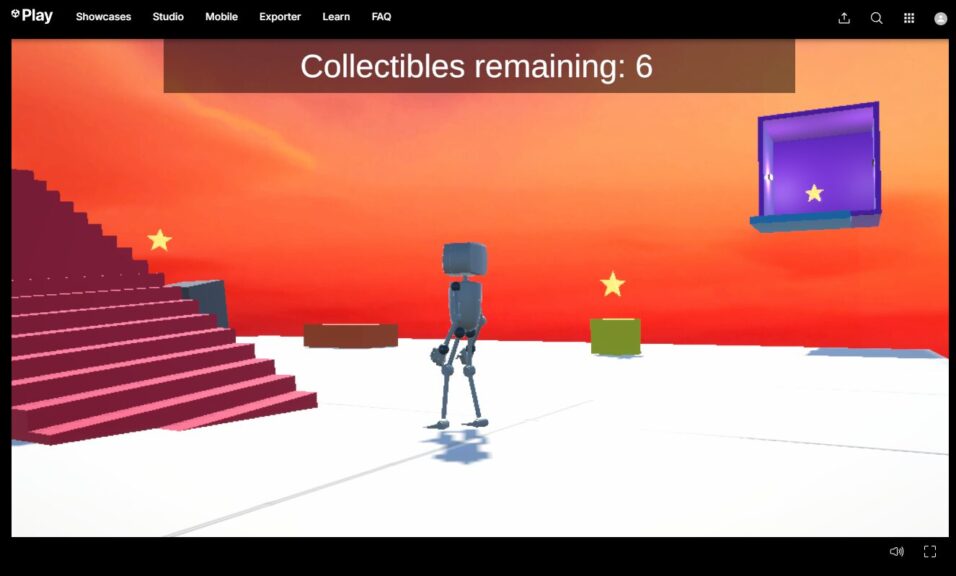
After this, an error appeared on the browser page that opened automatically, but I was able to play it directly from Unity Play.
▼The Unity Play page is here:
▼After logging in, I could check what I had published.
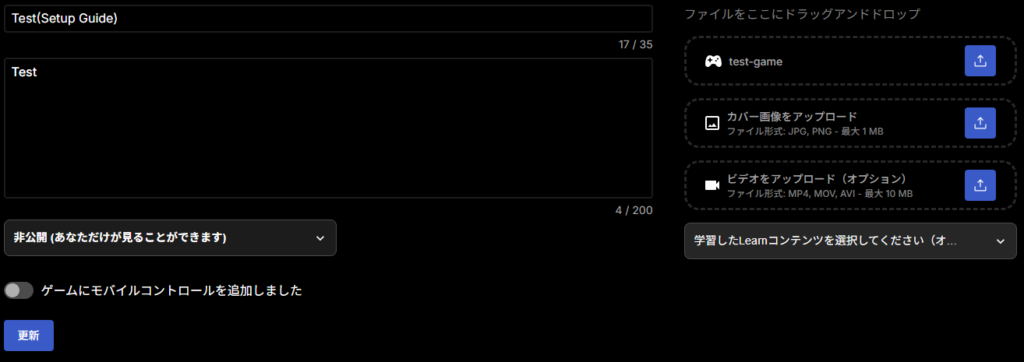
▼It seemed the visibility settings could be changed. I have set it to private for now.
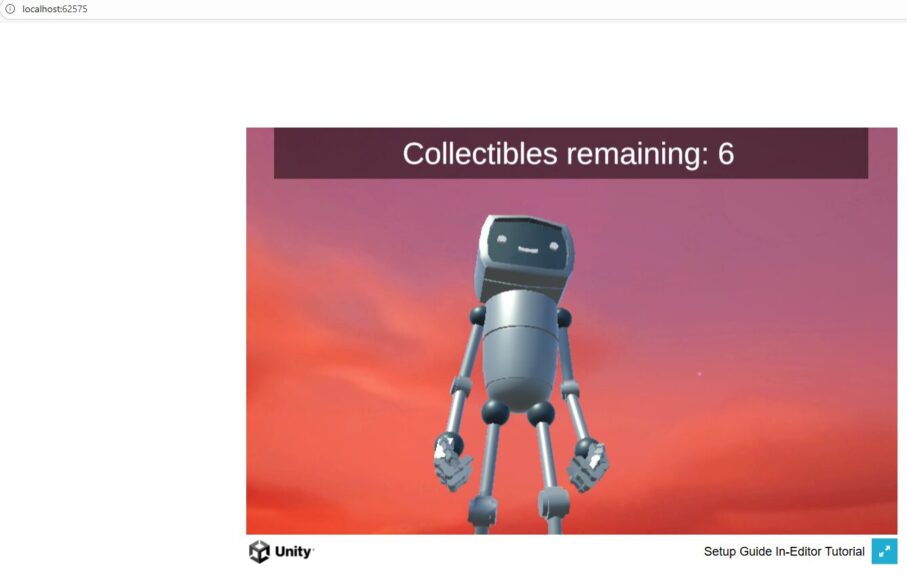
Back in Unity, it also launched when I selected "Build And Run" on the Build Profiles screen.
▼I could access it from the browser.
Finally
The general feel of operation and screen layout were similar to Unreal Engine, so it seems easy to develop with. I am curious to see what it's like once I dive into C#.
I could check it in the browser by accessing the port, but since it wasn't opened in a terminal, it was unclear how to terminate the process. A quit button might be necessary.
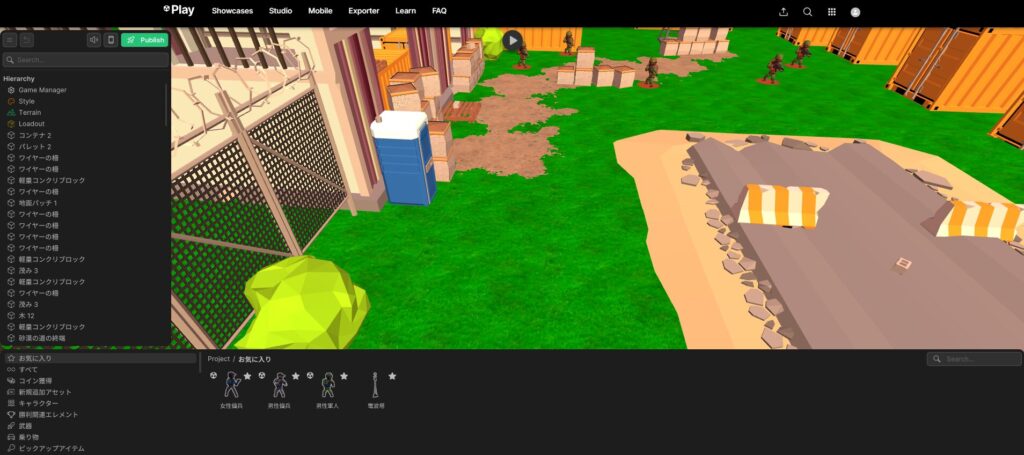
▼While looking at Unity Play, there was something called Struckd Studio that allows development on a browser.
https://play.unity.com/ja/studio
▼There were also templates. It seems good for educational purposes.